Images And Files
An asset is an image or other file stored with a graph. A document that uses one holds only a line of Markdown pointing at the file: an image shows as a picture, and any other file as a link. Clicking the link opens a PDF in a tab and downloads any other file.
In a local graph, each asset is an ordinary file in the assets folder inside the graph folder, and any other app can open it. In a synced graph, your device encrypts each file before it uploads it to the Sync Server, and only members of the graph can fetch it. See How Encryption Works for more information.
A graph stores identical files only once, however many documents point at them. Deleting a file's line by hand leaves the file in the graph, and the Delete action deletes the file only when nothing else uses it.
When pictures arrive, EtherPK re-saves them as smaller files but never resizes them. How large each one shows depends on a hint in its line.
Uploads
You can add files in three ways:
- Drop them on the editor where you want them.
- Copy a file or take a screenshot, then press Ctrl+V (Cmd+V on a Mac) to paste it at the cursor.
- Type
/and select Upload asset in the command menu, or tap Upload in the command bar on a phone. Both open the upload dialog, where you can drop files, choose them with Browse files, or select Paste from clipboard.
Pictures from web pages
When you paste a selection copied from a web page, it arrives as Markdown with its pictures. Each picture shows straight away, loaded from its web address. Meanwhile EtherPK stores a copy in the graph, optimises it like any other upload, and then points the line at the copy in the assets folder.
Many websites do not let other sites read their pictures, so some pictures stay as links to their web address. With no copy in the graph, they disappear from the note if the site removes them.
Image optimisation
When you drop, paste or upload a PNG, JPEG, WebP or BMP picture, EtherPK re-saves it as WebP at the same size in pixels. It keeps the WebP copy only if the copy is at least a tenth smaller, so a picture that is already well compressed is stored exactly as given. A photo stored as given keeps its camera details, but a WebP copy loses them, and the graph then has no record of where or when the photo was taken.
GIF and SVG files are stored as given, because an animated GIF would lose its animation and an SVG is a drawing, not pixels. In a browser that cannot write WebP, such as Safari, EtherPK re-saves only JPEG files, as JPEG.
EtherPK always optimises a picture you drop or paste straight onto the editor, because the editor has no way to ask you first. To keep the original, open the upload dialog and untick Optimise images, then drop or paste the picture into the dialog or choose it with Browse files. The dialog ticks the box again the next time you open it.
Importing a knowledge base copies its pictures as they are, and the Headless Client stores the files an agent uploads exactly as given. See Importing A Knowledge Base and The Headless Client for more information.
Markdown for images and files
Each upload adds a line pointing at the file in the assets folder: an image line for a picture, a link line for any other file. You can edit these lines like any other text. A file link shows its text and a small label with the file's extension, such as .pdf, and shows the whole line of Markdown when the caret is on it. Clicking the label does the same as clicking the link.
garden|800../assets/garden.a1b2c3d4.webp
seed-list../assets/seed-list.5e6f7a8b.pdf
EtherPK puts each uploaded picture on a line of its own, because a picture shows only when its image line has nothing else on it or is the only content of a bullet.
Display size
To set how large a picture shows, end the description in its square brackets with a vertical bar and a size hint. |300 limits the width to 300 pixels, and |640x480 limits both width and height. The hint is a maximum: EtherPK scales larger pictures down and never enlarges smaller ones. A picture with no hint shows at its natural size, no wider than the editor.
You can also resize a picture by pointing at it and dragging the handle in its bottom right corner, which is always visible on a phone or tablet. When you let go, EtherPK writes the new width into the hint. You cannot reach the handle from the keyboard. To resize a picture with the keys, move the cursor to its line and edit the hint.
Uploaded pictures get the hint |800 by default. To change the default:
- In the toolbar, select the cog to open Settings.
- Select Settings > General.
- In Default maximum image display size on upload, enter a width (
300) or a width and height (300x200). - Select Save.
Enter 0 to upload with no hint. The setting belongs to the graph, so every member of a synced graph uploads with the same default, though you can still change the hint on each picture.
File actions
When you point at a picture, its actions appear as icons in its top right corner. A file link always shows the icons after it. To open a menu with the same actions, right-click a picture or link, or long-press it on a phone.
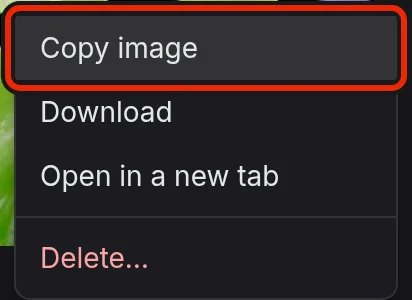
| Action | What it does |
|---|---|
| View larger | Shows a picture as large as the window allows, in a dialog over the page. Press Escape, select the close button or click outside the picture to close it. |
| Copy image | Copies a picture to the clipboard as a PNG, because browser clipboards accept only PNG pictures. |
| Download | Saves the file under its own name. |
| Open in a new tab | Opens a picture or a PDF in an EtherPK tab of its own. |
| Delete | Removes the picture or link after asking, and deletes the file only if it is used nowhere else. |
Clicking a file link opens a PDF in an EtherPK tab and downloads any other file. To edit the link text instead, hold Ctrl (Cmd on a Mac) while you click. See PDFs: Reading, Annotating and More for more information.
File deletion
Deleting a file cannot be undone, so when you select Delete, EtherPK first checks every document for other uses. The "Delete this file?" dialog then shows what it found:
- If this is the only place the file is used, Delete permanently removes the picture or link and deletes the file.
- If the file is used anywhere else, even a second time in this document, the file stays and the dialog lists the documents that use it.
- Either way, Remove from this document removes the picture or link and keeps the file.
Removing a picture or link that is alone on a line, or alone in a bullet, removes its whole line. A file link inside a sentence is removed on its own, and the rest of the sentence stays.
Until the graph has finished indexing, EtherPK cannot tell whether anything else uses the file, so it keeps the file. In a synced graph, another device might have added a use that yours has not received yet. So EtherPK deletes the file only while your device is online and caught up with the Sync Server. Either way, you can remove the picture or link now and delete the file later.
EtherPK cannot read a locked protected document, so the dialog warns that the file might go missing from it afterwards, but it still lets you delete the file.
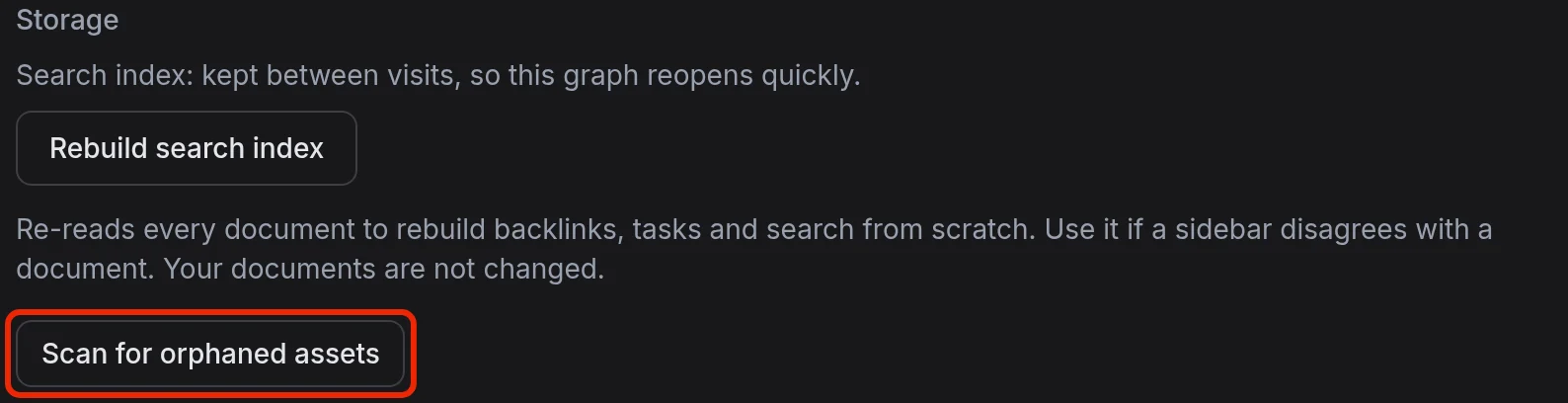
To find and delete files that no document uses, such as those left behind when you delete a line by hand:
-
In the toolbar, select the cog to open Settings.
-
Select Settings > Maintenance.
-
Select Scan for orphaned assets.
-
Select Delete N orphaned assets, then select the button again to confirm.
Storage and access
In a local graph, EtherPK names each file with a fingerprint of its contents, such as garden.a1b2c3d4.webp, so adding the same file again reuses the stored copy.
A synced graph stores its files encrypted, so there is no folder to open them from. To get readable copies in a folder on your device, keep a Local Mirror. See Keeping A Local Copy Of A Synced Graph for more information.
Files you add to a synced graph while offline upload once your device can reach the Sync Server. See Working Offline for more information.
Protection covers only a document's text, so every member of the graph can open a file attached to a protected document. See Protected Documents for more information.
Players removed from a synced graph can no longer fetch its files, but they keep any files they already downloaded. See Sharing A Graph for more information.