Tabs And Panes
Every document, image, file or view you open gets a tab with its title on it. A pane is a box with its own row of tabs. It shows one tab at a time, the one in front. Documents open in the main area, in the middle of the window. On a desktop or tablet, the main area can hold several panes, side by side or stacked.
The main area has a sidebar on each side, and each sidebar is a single pane. The left sidebar has a tab for the Graph Sidebar, titled with the graph's name, and one for Quick notes. The right sidebar has tabs for Backlinks and Tasks, and for the Graph View when the window is at least 1024 pixels wide.
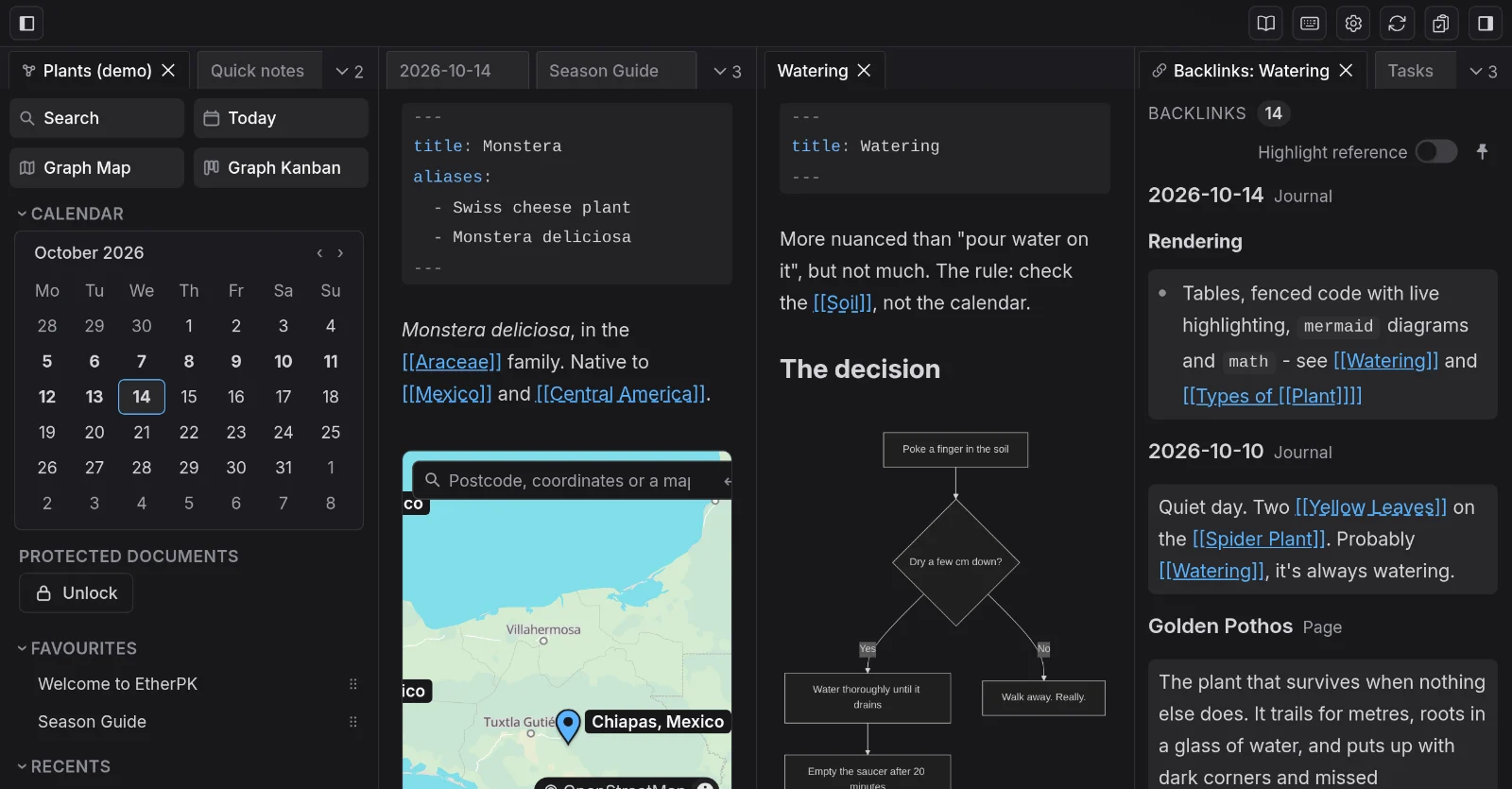
A document never has more than one tab. If you open it again, its tab comes to the front in whichever pane holds it.
On a phone, or in a window narrower than 1024 pixels, you see one document at a time. The top bar shows its name and lists your open tabs, and the sidebars become drawers. See EtherPK On A Phone for more information.
Your device keeps a separate arrangement of panes, tabs, pins and sidebars for each graph. That arrangement is not part of the graph and is never synced, so each device, and each member of a shared graph, has its own.
Open and close tabs
To close a tab, select the cross at its right end. On a desktop or tablet every tab has one, including pinned tabs and sidebar tabs. Each pane remembers the order in which its tabs came to the front, so when you close the tab in front, the previous one comes forward.
If you close the last tab in the main area, you see "No page open" until you open another document.
Move tabs and split the main area
On a desktop or tablet, you can drag a tab along its row to change its place. If you drag it into another pane, it joins the row there and comes to the front. To split the main area, drag a tab to an edge of the area. A new pane opens on that side with the tab in it.
Open a link beside the note
To read a linked page beside your note on a desktop or tablet:
- Right-click the link.
- Select Open in pane to the right.
You can also put the cursor in the link and press Ctrl+Alt+Enter (Cmd+Option+Enter on a Mac).
The page opens in the pane to the right of the note. If no pane is there, the note's pane splits in half and the page opens in the right half. The cursor stays in the note, so Backlinks keeps showing the note and anything you type still goes into it.
If the page is already open in another pane, its tab moves beside the note, since a document never has two tabs. The tab keeps its scroll position, cursor and undo history.
A link in a sidebar has no Open in pane to the right, because a sidebar has no pane to its right. See Pages And Wikilinks for more information.
Close several tabs
To close several tabs, right-click a tab, or long-press it on a phone, and select one of these rows:
- Close other tabs in this pane closes every other tab in the pane.
- Close other tabs in all panes closes every other tab in the main area. It appears only once the main area is split.
- Close tabs to the right and Close tabs to the left close the tabs on that side, in the same pane. On a phone, which lists tabs from top to bottom, they are Close tabs below and Close tabs above.
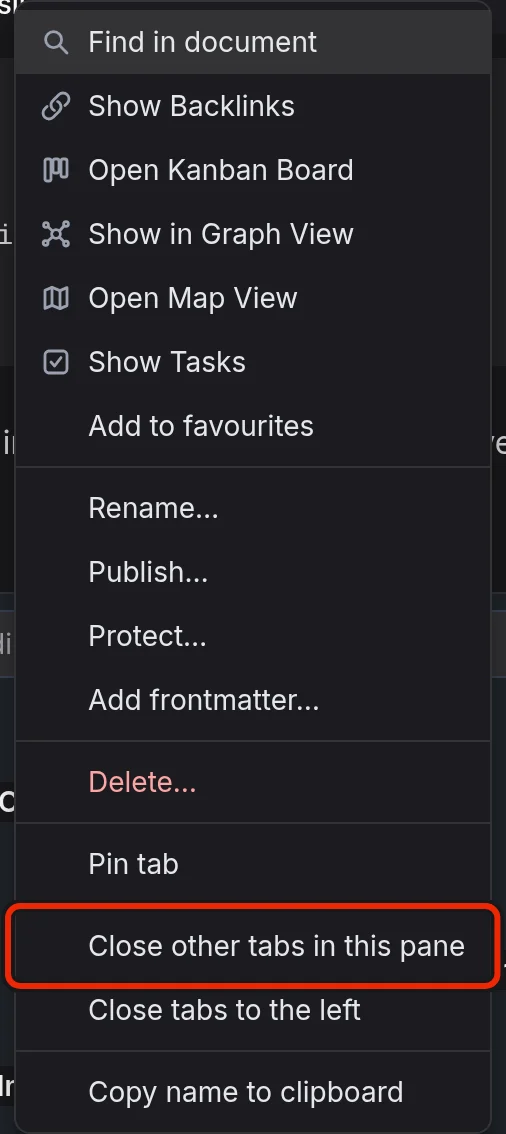
These rows skip pinned tabs, so pin the tabs you want to keep before you close the rest.
The same menu also has Copy name to clipboard and, in a graph kept in a folder on your computer, Copy full file path to clipboard. See Local Graphs for more information. For the rows that act on the document itself, see Keyboard Shortcuts.
Pin a tab
To pin a tab, right-click it and select Pin tab. The tab moves to the start of its row and gets a pin mark. To unpin it, select Unpin tab in the same menu.
Show and hide the sidebars
Every sidebar tab except Agent Chats has a key that brings the tab to the front and shows its sidebar. On a Mac, press Option instead of Alt.
| Key | Action |
|---|---|
| Alt+G | Show the Graph Sidebar. |
| Alt+N | Show Quick notes, ready to type. |
| Alt+B | Show Backlinks. |
| Alt+T | Show Tasks. |
| Alt+M | Show the Graph View. Works only in a window at least 1024 pixels wide. |
| Alt+L | Show or hide the left sidebar. |
| Alt+R | Show or hide the right sidebar. |
On a desktop or tablet, the toolbar above the panes has a button at each end that shows or hides the sidebar on that side. The sidebar tab keys never hide a sidebar, so use Alt+L, Alt+R or these buttons to hide one. If you close a sidebar tab by mistake, its key brings it back. A closed Agent Chats tab comes back the next time you open the graph.
To make a sidebar wider or narrower, drag the edge between it and the main area. The sidebar then keeps its width while you open, close or move panes, hide the other sidebar or resize the window. Only the main area changes size.
Go back and forward
Use Back and Forward in your browser to step through the documents you have brought to the front of the main area. Each document keeps its scroll position and cursor, so Back takes you to where you left off.
The address bar shows the document in front as /g/<graph>/d/<name>, so you can copy the address and open that document again later.
Reset the workspace
Reset workspace closes every tab and gives the graph the layout a new graph opens with. It has no key, so run it from one of these places:
- The Reset workspace button, near the right end of the toolbar.
- The Reset workspace row at the foot of The Graph Sidebar.
- The command menu: type
/resetin a document and press Enter.

Whichever you use, a dialog titled "Reset workspace?" asks you to confirm. After you select Reset, the main area shows today's journal entry, the sidebar tabs come back, and on a desktop or tablet both sidebars are shown.
You lose no text when the tabs close, because documents are saved as you type. The reset forgets only the arrangement, where you were reading in each tab, the Tasks filter and the pin you set with the pin button in the Backlinks panel heading. It keeps your notes, favourites, bookmarks, recents and the text in Quick notes, along with the editor font size, the Highlight reference switch and whether backlinks under documents are folded.
Choose light or dark
The theme control has three buttons: Light, Dark and System. In a window at least 1024 pixels wide it is in the header. In a narrower window, select Open navigation menu to find it. With System, the theme follows the light or dark setting on your device and changes whenever that setting does. Your browser keeps your choice for every graph you open in it, and a different browser keeps its own.
A Toolbar colour you give a graph stays the same in light and dark. See Managing Your Graphs for more information.