Find And Replace
Find and replace works only in the document in front. To find text in other documents, use Search. You cannot replace text across the graph, so to change a name that many documents use, rename its page instead.
The find box sits at the top right of the document. It has the find field, the match options, a count such as "3 of 12" or "No matches", buttons for the previous and next match, a list button and a close button. Every match is highlighted in the text. The current match is also selected in the editor, so the selection stays when you close the box.
Find searches the markdown as written rather than the formatted text, so link brackets, bold marks and the page name inside a wikilink match like any other text. Replace edits that same markdown, marks included.
A wikilink's text is the name of the page it links to, so a replace inside a link can rename that page in every document. When a replace would rename a page, the app asks you before it changes any text, because Ctrl+Z (Cmd+Z on a Mac) does not undo a rename.
Find text
To find text:
- Press Ctrl+F (Cmd+F on a Mac).
- Type the text to find.
- Press Enter for the next match, or Shift+Enter for the previous one.
Press Escape to close the box. It holds what you typed in memory only, so a reload clears it.
You can also open the box by typing / in the editor and selecting Find and replace. The box then opens with the replace field showing. Phones have no Ctrl+F, so on a phone use the / menu.
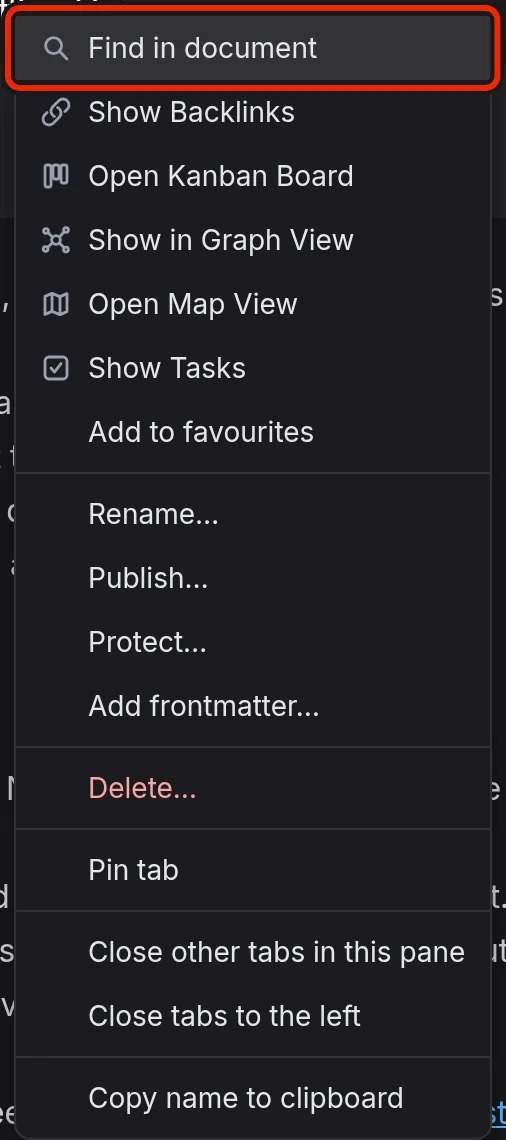
To find text in another tab, right-click the tab and select Find in document. The tab comes to the front with the find box open.
When older days are open below a journal entry, find searches the day the cursor is in. See Journal Entries for more information.
For the full list of find keys, see Keyboard Shortcuts.
Match options
The match options are the three buttons at the right end of the find field:
- With Aa on (Alt+C), upper and lower case must match exactly. With it off, find ignores case.
- With ab on (Alt+W), only whole words match.
- With .* on (Alt+R), find reads the text as a JavaScript regular expression.
On a Mac, use Option in place of Alt. The options you set are saved on this device.
List of matches
The list of matches is a strip at the bottom of the document, with a row for each line that has a match. Each row shows the line number, and selecting a row takes you to the first match on that line.
To open or close the list, select the list button in the find box. Your choice is saved on this device.
Replace text
To replace text:
-
Press Ctrl+H (Cmd+Option+F on a Mac), or select Show replace, the arrow at the left end of the find box.

-
In the find field, type the text to replace.
-
In the replace field, type the new text.
-
Select Replace to replace the current match and go to the next, or Replace all to replace every match.
In the replace field, Enter works like Replace, and Ctrl+Alt+Enter (Cmd+Option+Enter on a Mac) works like Replace all. Replace all is a single edit, so one Ctrl+Z undoes the whole replace.
Replace text in wikilinks
If a replace changes the page name in a wikilink and the old name would still be in use, the Replace and rename dialog opens first. A name counts as in use while it is a page's title or alias, or while any document links to it.
The dialog has a row for each name, and every row starts ticked. A ticked name is renamed in every document that links to it, and an unticked one changes only in this document's links. Select one of these buttons:
- Replace and rename to replace the matches and rename the ticked names.
- Replace outside wikilinks only to replace the matches outside links and rename nothing.
- Cancel to change nothing.
After you confirm, Ctrl+Z restores the text in this document but leaves the renames in place. To reverse a rename, rename the page back.
Limits
A replace never changes the title: and aliases: lines in the frontmatter. Matches on those lines still show up, and the list marks them Page name, kept. To change the title or an alias, rename the page or edit the alias. See Titles Aliases And Frontmatter for more information.
Replace also leaves the frontmatter's --- lines alone, and the list marks their rows Delimiter, kept.
While a protected document is locked, its text is encrypted, so find searches only the frontmatter, and replace stays unavailable until you unlock the document. See Protected Documents for more information.
Find skips any data that extensions store in a document. See Extensions for more information.