Bookmarks
A bookmark marks one line of a document, where a favourite marks the whole document. Bookmarked lines show a bookmark icon to their left in the editor, and the Bookmarks section of the Graph Sidebar lists them all under the names of their documents. Click one there to go back to its line.
A bookmark stores the text of its line and of the lines above and below it, along with the line number, which is only a hint. While the document is open, the bookmark follows its line through every edit. If the document changes while it is closed, on another device for example, the app finds the line again by its text the next time you open the document.
Each person has their own bookmarks. On a synced graph, yours sync to all your devices, and the app does not show them to the other members. On a local graph, they are saved in the graph folder, in etherpk/bookmarks.json.
Bookmark a line
- In the editor, right-click the line, outside any selected text.
- In the line menu, select Bookmark line.
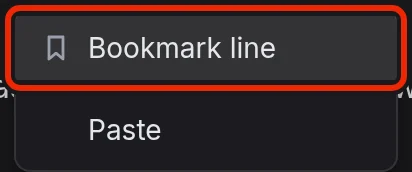
The menu you get when you right-click a link to a page or a misspelt word also ends with the bookmark rows. See Spell Check for more information.
To bookmark the line the cursor is on, press Ctrl+Alt+K (Control+Option+K on a Mac), or type / and choose Toggle bookmark in the command menu. On a phone, use the command menu. With a mouse, you can also click in the margin to the left of a line. See Keyboard Shortcuts for more information.
You cannot bookmark the lines below. If you try, a message tells you why:
- A line with no words, because a bookmark finds its line by the words on it.
- A line of a draft, because a draft is not a document until you type in it. A journal entry that shows the Journal Template is still a draft.
- A line of protected text, because a bookmark keeps the text of its line.
See Pages And Wikilinks and Journal Entries for more information.
Bookmarks in the Graph Sidebar
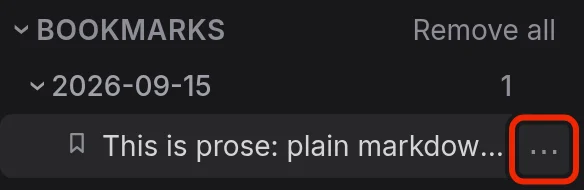
The Bookmarks section sits below Favourites. Each row shows the bookmark's label, or the text of its line when it has no label. Select a row to open the document at the bookmarked line. See The Graph Sidebar for more information.
Hovering over a row shows a ⋯ button at its right end. It opens the row menu, which has Edit label… and Remove bookmark.
Bookmark labels
- In the row menu, or the line menu of a bookmarked line, select Edit label….
- Type the label in the box that appears in place of the row.
- Press Enter to save it, or Escape to cancel.
Remove bookmarks
To remove a bookmark, select Remove bookmark in the line menu or the row menu. You can also press Ctrl+Alt+K, click in the margin or choose Toggle bookmark on a bookmarked line. To clear every bookmark in the graph, use Remove all beside the Bookmarks heading.
The app removes bookmarks at once without asking you to confirm, because the message that appears has Undo to put back what you removed.
Edits to a bookmarked line
While the document is open, a bookmark stays on its line when you add lines above it, indent it, tick its task, move it or type over its words.
Deleting the whole line in your own editor also deletes its bookmark, and undoing the deletion brings both back. If you cut the line and paste it somewhere else, the bookmark does not come back.
Changes from another device, an agent or another program never remove a bookmark. If the line is gone, or it has been rewritten beyond recognition and the lines around it have changed as well, the bookmark shows "Line not found" in the Graph Sidebar. It stays there until you remove it.
Protecting a document removes its bookmarks from every member's list, since a bookmark keeps the text of its line.
Privacy and storage
Bookmarks are encrypted with the Graph Key. Every member of a synced graph holds that key, so your bookmarks are not secret from the other members. To keep text private, use Protected Documents. A Player who leaves the graph or is removed from it loses their bookmarks the next time the owner opens the graph. See How Encryption Works, Synced Graphs and Sharing A Graph for more information.
A Local Mirror or export of a synced graph holds only your own bookmarks, in etherpk/bookmarks.json. Importing an EtherPK folder or export adds its bookmarks to your list. The importer skips bookmarks from other tools. See Graph Folder Layout, Keeping A Local Copy Of A Synced Graph and Importing A Knowledge Base for more information.