Protected Documents
A protected document is a page whose text EtherPK encrypts on your device. The text stays encrypted in a local graph folder, in the browser's copy of a synced graph, on the Sync Server, in a Local Mirror and in an export. The frontmatter is not encrypted, so tabs, links and search by name can still use the page's title and aliases.
You have your own protection key in each graph, a random key that encrypts every page you protect there. The key is only ever stored locked, under your protection passphrase and, if you bind one, under a passkey in one browser on one device. Nothing else can unlock it, so neither EtherPK nor your Recovery Code can recover the passphrase if you forget it. Your only way back in is a passkey you bound on a device before you forgot, which still unlocks the graph on that device.
Protection is a second layer beside sync encryption. Sync encryption keeps a synced graph unreadable to the Sync Server, but each device has a readable copy, and every Player you share the graph with holds its key. A device passcode covers only the Encryption Keys, so protection is what keeps a page unreadable to someone using your unlocked device. The page also stays unreadable in a copy of the graph folder or browser profile, and to the other Players. In a local graph, protected pages are the only encrypted text on disk. See How Encryption Works for more information.
After you unlock a graph with the passphrase or a bound passkey, you can read and edit its protected documents like any other page. The app hides their contents as soon as you switch to another window or browser tab. It keeps the key in memory while they are hidden, so if you come back within a grace period, the text reappears without the passphrase. The graph locks when the grace period ends, after a set time with no activity, when you select Lock now, or when you close or reload the browser tab. Locking discards the key, so after that you need the passphrase or a passkey again.
Before you begin
- A page, other than a journal entry.
- A passphrase you will remember.
- A second device or browser to bind a passkey on, if you have one.
Protect a document
Your protection passphrase covers the whole graph. A local graph folder, a Local Mirror and an export each carry the key locked under it, so anyone with a copy can try passphrases offline as fast as their computer allows. Length is what slows them down, so a long sentence makes a better passphrase than a short, complicated word.
To protect a page:
-
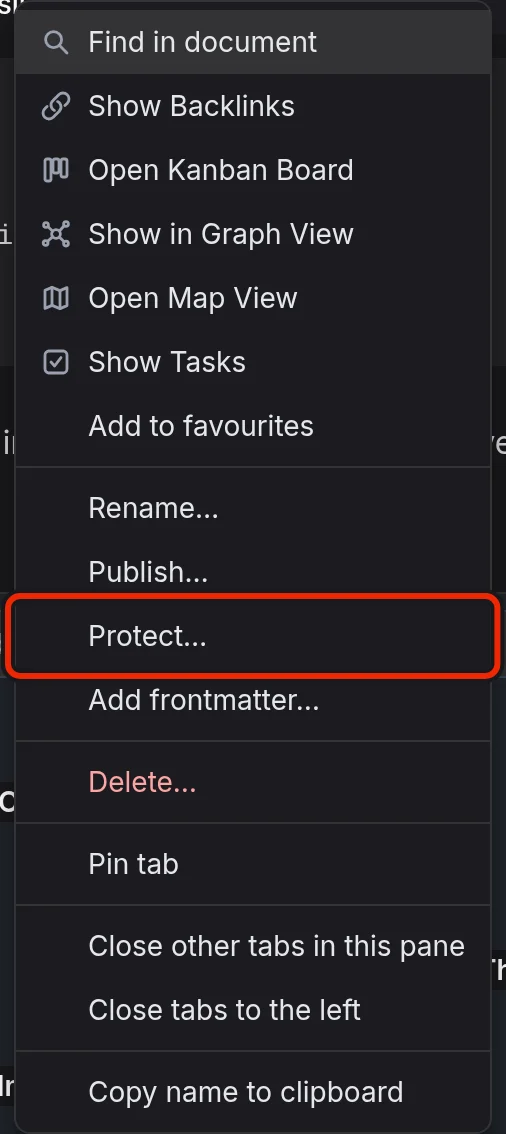
Right-click the page tab and select Protect…. On a phone, long-press the current document in the bar at the top of the screen.
-
If the graph has no passphrase yet, the Set a protection passphrase dialog opens. Enter a passphrase in Passphrase and again in Confirm passphrase.
-
Select the checkbox that says the contents are lost if you forget the passphrase.
-
Select Set passphrase.
The app protects the page at once. You can also run Protect this document from the command menu.
A page you have opened from Search or a link but not typed into yet does not exist until the first keystroke. Protect… on it asks whether to create it. Select Create and protect to create the page empty and encrypt it. Anything you type into it after that is protected. On a graph with no passphrase, EtherPK asks for the passphrase first, and creates nothing if you cancel.
Protection covers a whole page, so to hide one line of a page you share, put that line on a protected page of its own and link to it. You also cannot protect a journal entry, so keep sensitive text on a page you link to from the day. See Journal Entries for more information.
Bind a passkey
A passkey bound to a device lets you unlock the graph on that device with your fingerprint, face or device PIN instead of the passphrase. It keeps working even after you forget the passphrase, so bind one on each device you use.
To bind a passkey:
-
Unlock the graph.
-
In Settings, select the Protected Documents tab.
-
Under This device, select Bind a passkey to this device.

Binding needs the key itself, so the button is disabled while the graph is locked. See Graph Settings for more information on opening Settings.
Each binding belongs to one graph in one browser on one device, and the app never syncs or exports it. These passkeys are separate from the ones you use to sign in to Your EtherPK Account.
Unlock and lock
Each protected document has a padlock on its tab, closed while the document is locked and open while you can read it. While the graph is locked, you see a Protected card with an Unlock button in place of the text.
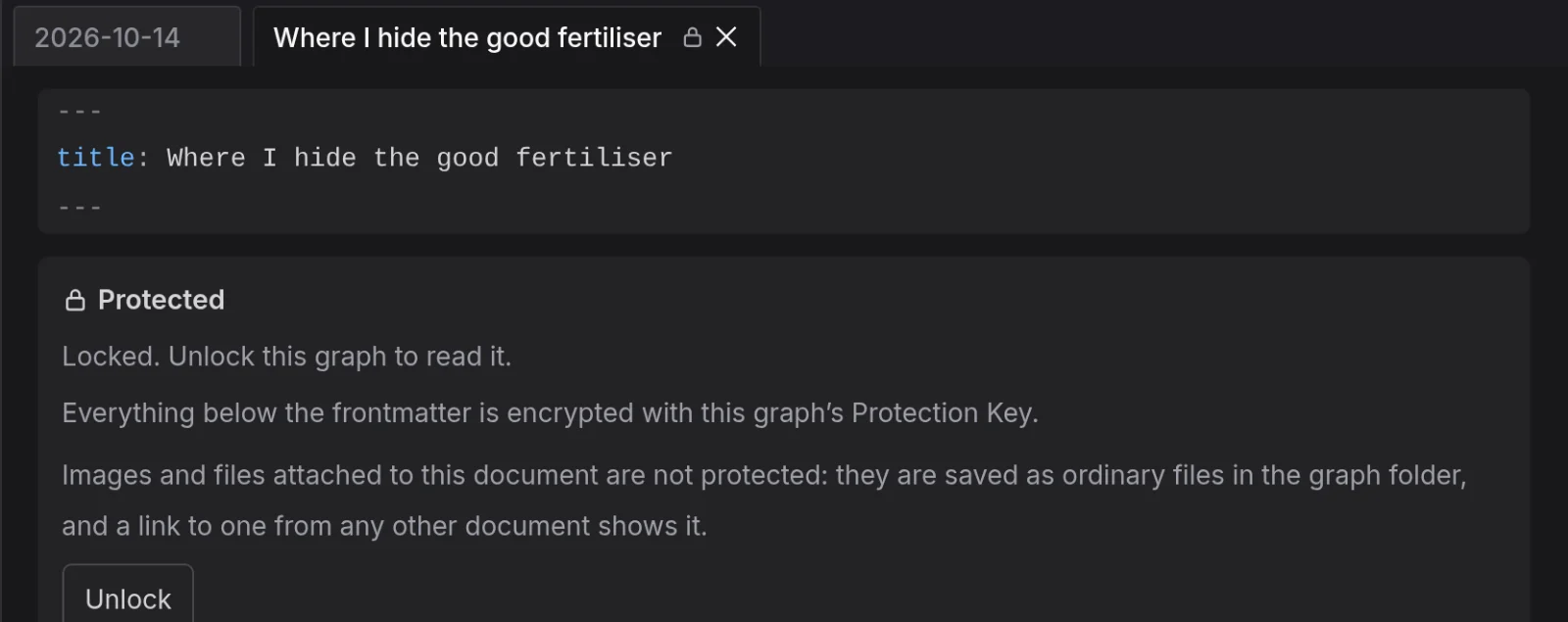
You have one protection key per graph, so unlocking any protected document unlocks all of them in that graph on this device, and locking locks them all.
Any of these opens the Enter passphrase dialog:
- Unlock under Protected documents in the Graph Sidebar
- Unlock on the locked card
- Unlock… in the tab menu
- Unlock protected documents in the command menu
If the device has a bound passkey, the dialog asks for it first. If not, or if you decline the passkey, type your passphrase and select Enter passphrase.
To lock, select Lock now under Protected documents in the Graph Sidebar, or the padlock button at the bottom right of any document.
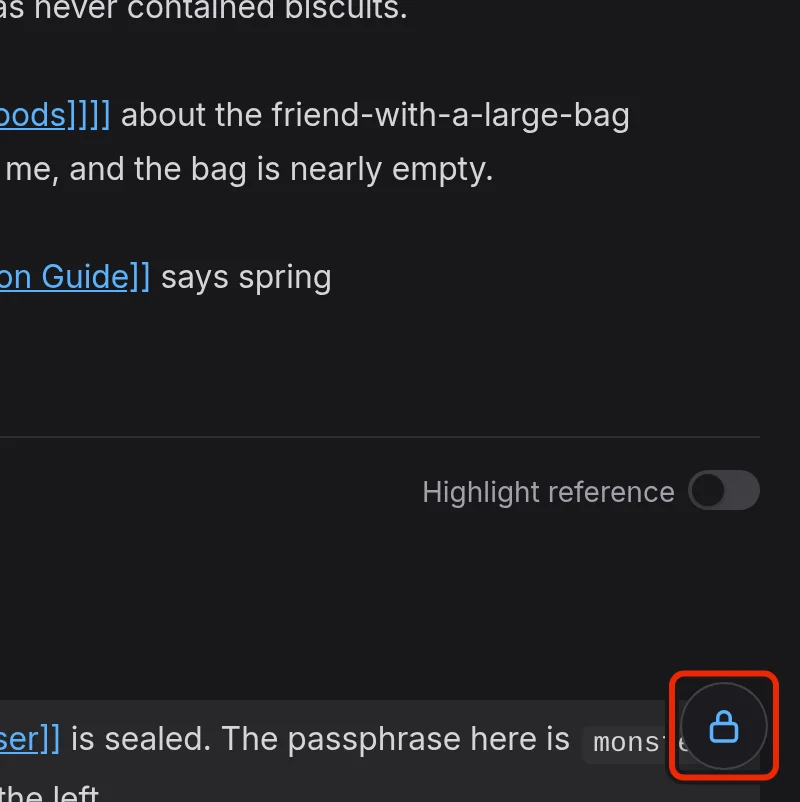
By default, locking this way also closes every protected tab, including pinned ones, because a row of padlocked tabs would still show what you had open. Tabs for other pages stay open.
Lock timings
Two settings on the Protected Documents tab in Settings control when the app discards the key:
- Lock after I switch away sets the grace period that starts when the contents leave the screen. It defaults to After 1 minute. Choose Immediately to lock as soon as you switch away.
- Lock after this long with no activity defaults to 5 minutes. Choose Never to switch it off.
The timings apply to this device only, because the right timeout depends on where the device is. Set them on each device you use.
Timers never close tabs, so a timeout never takes them away while you work. Before every lock, the app saves your pending edits, so locking never loses work.
Edit a protected document
Bullets, wikilinks, tasks and the command menu all work in an unlocked protected document. The frontmatter stays readable and editable whether the graph is locked or not. It is not encrypted, so keep nothing secret in it. If you change the title there, the app asks you to confirm the rename. See Titles Aliases And Frontmatter for more information.
Change the passphrase
If you know the current passphrase, you can change it without unlocking the graph.
- In Settings, select the Protected Documents tab.
- Under Passphrase, select Change passphrase….
- Enter the current passphrase, then the new one twice.
- Select Change passphrase.
The new passphrase locks the same protection key, so nothing is re-encrypted and your protected documents and bound passkeys keep working. A folder backup or an export made before the change still opens with the old passphrase, though.
Remove protection
Unlock the graph, then right-click the page tab and select Remove protection…. The menu offers this item only while the graph is unlocked, because removing protection decrypts the text. The app writes the readable text back into the page and its file at once and does not ask you to confirm.
What protection leaves out
The search index on your device is not encrypted, so protected text never goes into it, even while the graph is unlocked. For a protected document:
- You can find the page by name in Search, but never by its text.
- Its links do not count in Backlinks, and its tasks do not appear in The Tasks View or on Kanban Boards.
- Nobody can edit it together with you.
- It has no crash recovery. The app never writes protected text to disk in readable form, so a browser crash can lose up to a minute of typing.
- It is never published, whatever its frontmatter says. See Publishing Your Notes As A Website for more information.
- The Headless Client and Agent Chat never show it to an agent, not even its name, because anything an agent reads can be sent to its model provider. See Using AI Agents With Your Notes for more information.
- Spell Check never checks it, and Maps in it show as text.
- Protecting it removes its Bookmarks on every device.
- It cannot be one of your Templates.
- Attached Images And Files are not protected, because the graph keeps them outside the encrypted text and any other page can show them with a link.
- While the graph is unlocked, an installed extension can read and change it, because Extensions run without a sandbox.
Protected documents in a shared graph
In a shared graph, each Player has their own protection key and passphrase, so you cannot read each other's protected documents. Other Players can still see that yours exist and what they are called. On a document that another Player protected, you see a Protected by another member card instead of a passphrase prompt. See Sharing A Graph for more information.
Protected files and the key record
In a local graph folder, the file for a protected document holds its frontmatter and then one code block tagged etherpk-cipher. Never edit, re-wrap or reformat that block. It is authenticated, so changing a single character makes the whole document unreadable for good.
In a local graph, the key record etherpk/protection.json is the folder's only copy of your locked protection key, so back it up with the folder and never edit, move or delete it. Without it, every protected document shows the Protected by another member card on every device, and a bound passkey does not help. If you then protect a page, you set up a new passphrase and a new key, and neither can open the old documents. See Graph Folder Layout for more information.
In a synced graph, the key record is stored with your Encryption Keys, and a Local Mirror or an export carries a copy of it. See Keeping A Local Copy Of A Synced Graph for more information. If the key record is damaged, see Troubleshooting.