Local Graphs
A local graph is a folder on your device that EtherPK opens as a graph. Each note is a Markdown file in the folder, with journal entries in journals (one file per day) and named pages in pages. Images and other files go in assets, and graph settings go in etherpk.
You do not need an account or a server for a local graph. The files are the only copy of your notes, so use your own tools, such as Git or Syncthing, to back up the folder and copy it to other devices. EtherPK encrypts only protected documents, so anyone who can open the folder can read the rest of your notes.
EtherPK reads and writes the folder through your browser, which remembers the folder for each graph and asks you for permission to edit it. The search index of your notes is kept in the browser as well, never in the folder. Clearing browser data loses no notes, and EtherPK rebuilds the index from the files.
Other programs, such as a text editor, Git, Syncthing or a coding agent, can change the files while the graph is open. EtherPK checks the folder for changes every few seconds and whenever you switch to its window.
A local graph cannot become a synced graph. To put its notes in one, import the folder into a new synced graph with Import on the Graphs page. The import leaves the folder unchanged. See Importing A Knowledge Base for more information.
Before you begin
You need Chrome or Edge on a computer, or Chrome on Android. If the Graphs page has no Open folder (Local Graph) button, your browser cannot give a website access to a folder. See Choosing Where To Store Your Notes for more information.
Open a folder as a graph
- On the Graphs page, select Open folder (Local Graph).
- In the folder picker, choose the folder.
- When the browser asks, allow EtherPK to view and edit the files.
EtherPK creates whichever of the four folders are missing and opens the graph under the folder's name. Renaming the graph in EtherPK (Managing Your Graphs) does not rename the folder on disk.
Only the Markdown files directly inside journals and pages are read as documents. To bring in notes from another app, use Import instead.
Folder access
When you open the graph later, the browser might ask for permission again. In a browser tab on a computer, it asks once per browser session. If you install EtherPK as an app on a computer, the permission carries over between visits, so the question stops appearing. On Android, Chrome asks every time you open the graph, even in the installed app. See Installing EtherPK As An App for more information.
Open on the Graphs page asks for permission before it opens the graph. If you refuse, the graph stays closed and its row says that permission was denied.
EtherPK asks for permission itself when it starts up and when you open a graph from its address. If you refuse or dismiss the question while the graph is opening, you see the message "EtherPK needs permission to read and write this graph's folder." Select Grant access to be asked again. If you have not clicked anything yet, the browser might not ask at all, and the graph stays closed. In that case, open it from the Graphs page.
Automatic saving
EtherPK saves each edit to its file shortly after you stop typing, so there is no save command and Ctrl+S (Cmd+S on a Mac) does nothing.
If a save fails, a notice tells you why and what to do. Until a save succeeds, your edits are only in the open tab, so select Retry saving before you close or reload the tab.
Changes made by other programs
When another program changes a file, EtherPK reloads the document, unless you have unsaved edits in it. It never merges two versions of a file, so in that case it shows the External change dialog. Select Keep mine to write your version over the file, or Take disk to replace your edits with the version on disk.
Markdown files that another program adds to journals or pages appear as new documents, and files removed from those folders drop out of the graph. If another program changes the title in a file, EtherPK treats the change as a rename (Titles Aliases And Frontmatter). For EtherPK to read a file, the file must follow the rules on Graph Folder Layout.
Copy the path of a file
A browser tells a website only the name of the folder you picked, so the first time you copy a path on a device, EtherPK asks where the folder is. Copy agent instruction asks the same question, and you can skip it there (Tasks).
- Right-click the document tab.
- Select Copy full file path to clipboard, below Copy name to clipboard.
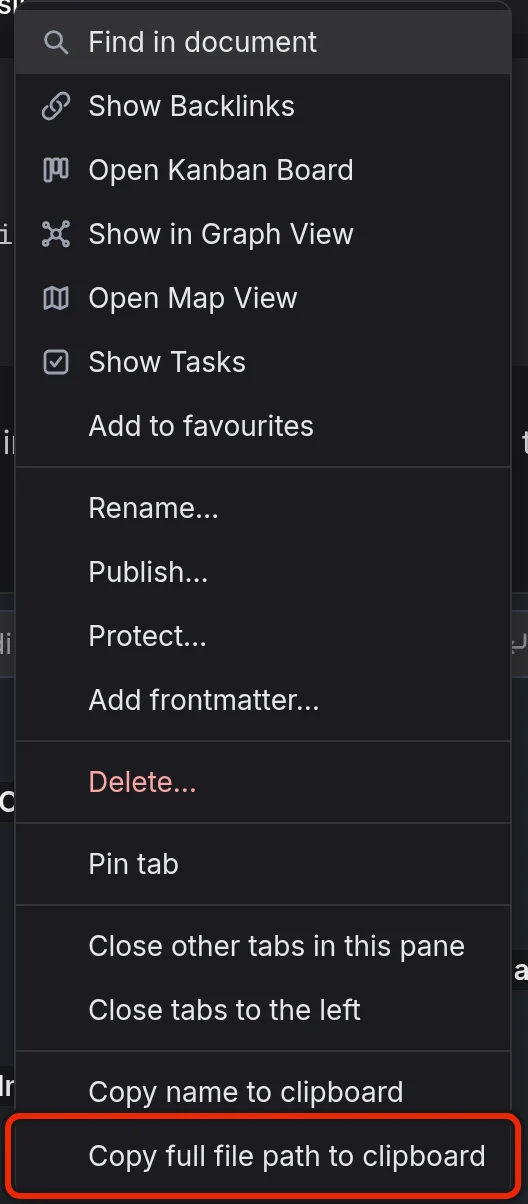
- If EtherPK asks for the folder path, enter it and select Remember and copy.
Instructions for coding agents
EtherPK writes AGENTS.md and CLAUDE.md at the top of the folder to describe the folder to coding agents. Each time the graph opens, EtherPK rewrites the section of each file between the BEGIN ETHERPK and END ETHERPK lines, so anything you type inside it is lost. Put your own instructions above or below that section, where EtherPK leaves them alone. See Using AI Agents With Your Notes for more information.
Reconnect a graph to its folder
If a graph's folder has been moved, renamed or deleted, the graph does not open and a message says that its folder could not be found on disk. To reconnect the graph:
- On the Graphs page, find the graph and select the cross button in its row.
- In the Forget graph dialog, select Forget. The files stay on disk.
- Select Open folder (Local Graph) and pick the folder where it is now.
Other browsers and profiles do not list the graph, and neither does this browser after you clear its data. To use the graph there, add the folder with Open folder (Local Graph). See Where Your Data Is Stored for more information.