PDFs: Reading, Annotating and More
EtherPK opens a PDF in its own tab, where you can read it, annotate it, ask a model about a passage, fill it in and sign it. None of this changes the PDF in your graph. Your annotations, form values and PDF Bookmarks are saved beside it automatically, with no save step, and are still there after a reload.
Save a copy writes a new PDF that includes your annotations, form values and any signatures you have placed. Other PDF apps show annotations only in a saved copy, so you need one to send them to someone or, on a local graph, to see them in another PDF app.
Annotations, form values and PDF Bookmarks belong to one person. On a synced graph, your annotations and PDF Bookmarks follow you to your other devices, and EtherPK does not show them to the other members. If you annotate a PDF separately on two devices, you keep both sets. See Synced Graphs for more information.
On a local graph, the annotations and form values for each PDF sit in one file in the folder, etherpk/pdf-<hash>.json. Annotations reach another device only if you sync the folder with your own tool, but if the file conflicts in that tool, you lose one side. If the file is damaged, EtherPK does not write over it, and a message above the pages gives the reason. Changes to that PDF are not saved until you fix or remove the file and open the PDF again. See Local Graphs for more information.
Your reading place is the page and position you have reached in a PDF, and on a synced graph it follows you between devices. On a local graph it stays on the device and out of the folder, because writing it there as you read would show as a change in Git or cause conflicts in another sync tool.
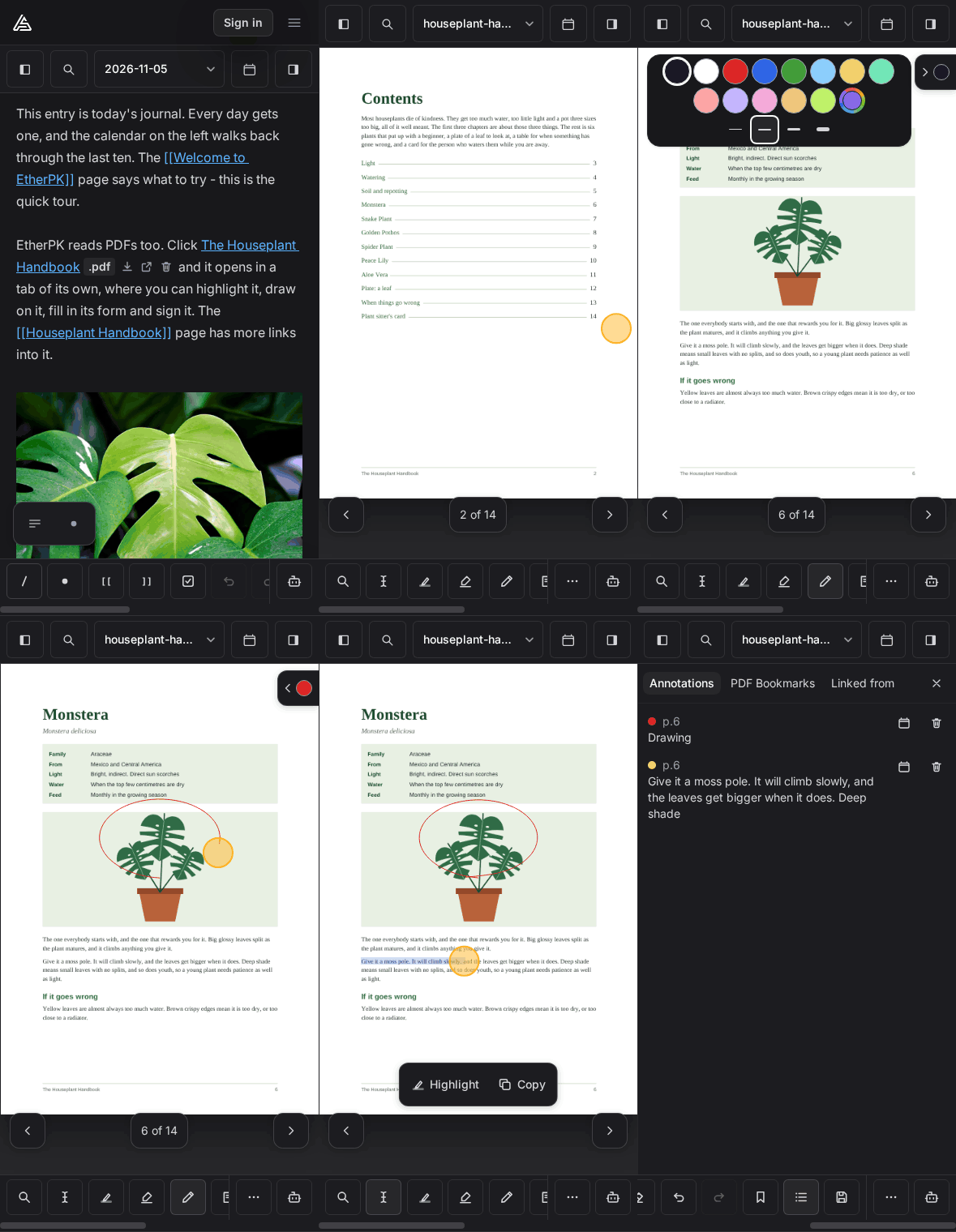
To try most of what this page describes, open the demo graph and select The Houseplant Handbook near the top of today's journal, which opens a 14-page PDF. The Houseplant Handbook page has more links into it. Page 2 of the PDF is a contents list whose rows link to their pages, and page 12 has no text, only a picture of a leaf. Page 14, Plant sitter's card, is a form to fill in and sign, with text fields, a list, ticks, a notes box and lines for Signed and Date.
The PDFs in the demo graph have no password or digital signature, so you need a PDF of your own to try the password prompt and those parts of Save a copy. The demo graph is a local graph kept in your browser, so you cannot try the parts about synced graphs there, such as Keep on this device. See Images And Files for more information on adding a PDF.
Read a PDF
To open a PDF, click a link to it in a document. It opens in a tab inside EtherPK, not a browser tab. You can also use the Open in a new tab action on the link. Inside the PDF, a link to a page goes to that page, and a web link opens a browser tab.
To go to a page, type its number in the page box in the toolbar, then press Enter or leave the box. The box has no visible label, and the number of pages is beside it, with Previous page and Next page on either side. More, the last button in the toolbar, opens a menu of reading controls and file actions. On a phone or a small tablet, the page box is at the top of the More menu.
To zoom, select Zoom out or Zoom in in the toolbar, with the percentage between them. Fit the width fits the page to the tab. With the tab in front, you can also press Ctrl+= or Ctrl++ to zoom in and Ctrl+- to zoom out (Cmd on a Mac). Or hold Ctrl (Cmd) and turn the mouse wheel, with the pointer anywhere in the tab. EtherPK remembers the zoom for each PDF on this device. At phone width (a window under 640 px wide), the zoom and page buttons are not in the toolbar.
To find words, select Find in this PDF, the first button in the toolbar, or press Ctrl+F (Cmd+F on a Mac).
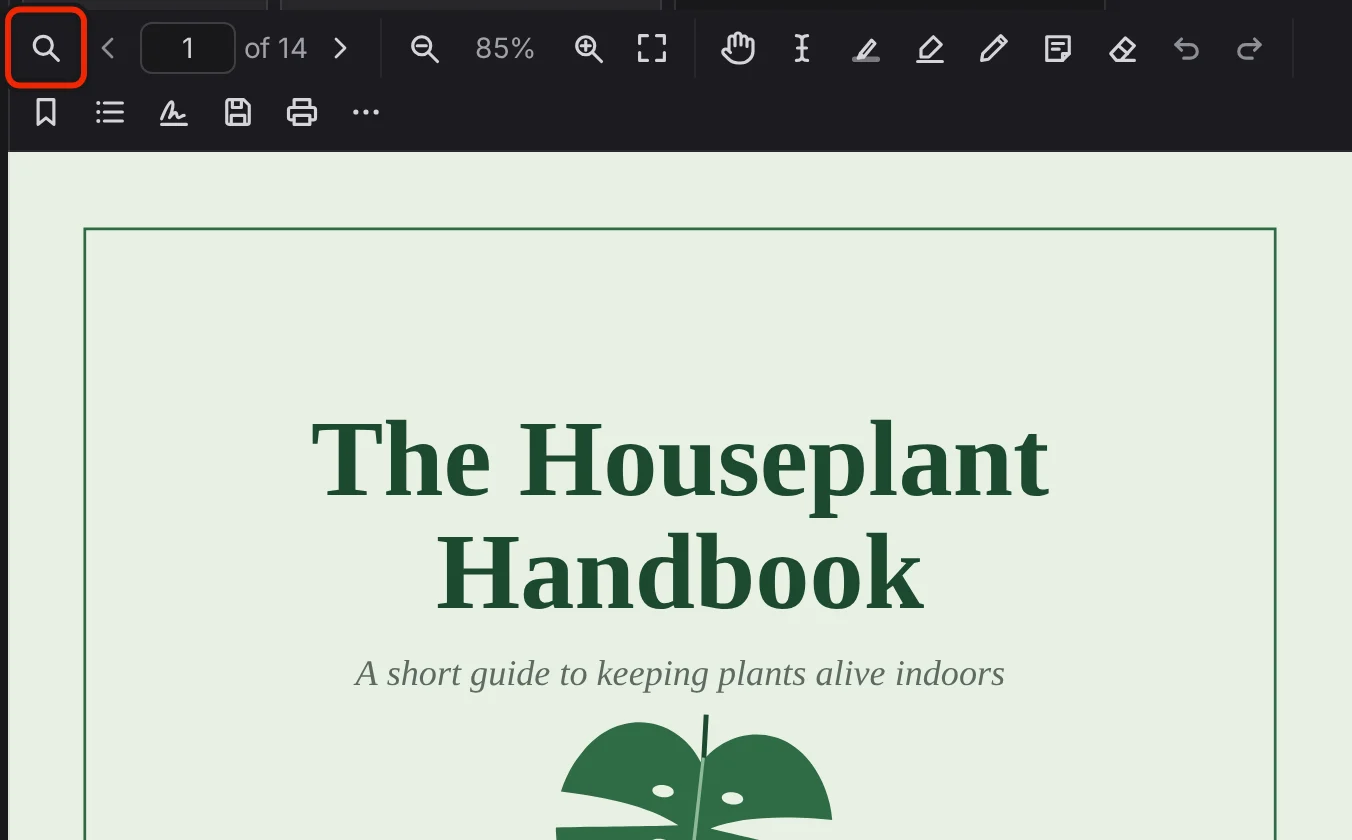
As you type, the find bar counts and marks the matches, ignoring case. Press Enter for the next match, Shift+Enter for the previous one and Escape to close the bar. The bar searches only this PDF, and Search does not include the words in PDFs.
EtherPK does not recognise text in pictures. If the pages hold only pictures, as in a scan, the find bar says "This PDF has no text to search. It may be a scan."
A PDF with a password asks for it before showing any pages, every time you open the PDF, and EtherPK never stores it. Type the password under Password and select Open. If it is wrong, the prompt stays open with the message "That password is not right. Try again."
To get a copy without the password, tick Save a copy without the password. This PDF stays locked. before you select Open. Once the PDF is open, the Save an additional copy dialog appears with Remove the password chosen.
Pick up where you stopped
A PDF you have read before opens again at the page and position where you stopped. To mark a page to come back to, go to it and select Add a PDF Bookmark, in the toolbar to the right of Redo.
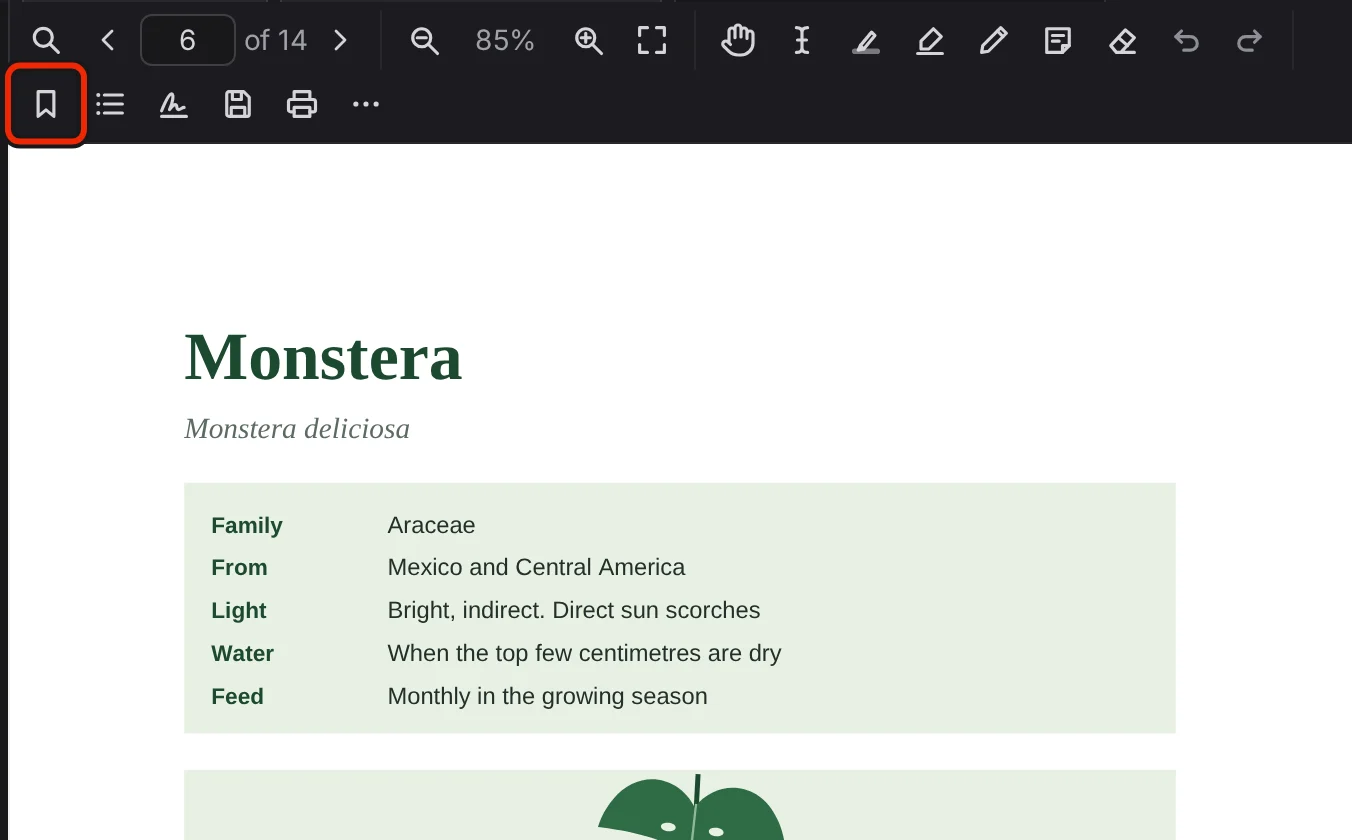
A ribbon appears in the corner of the page. While that page is in view, the same button reads Remove the PDF Bookmark on this page.
To list the PDF Bookmarks in one PDF, select Annotations and PDF Bookmarks in the toolbar, then the PDF Bookmarks tab. Select a row to go to its page. Remove on a row takes the PDF Bookmark off, with no confirmation and no undo.
The Graph Sidebar also lists the PDF Bookmarks from every PDF in the graph, grouped by PDF, in its PDF Bookmarks section. Select a row there to open the PDF at that page. Remove works the same way.
To keep a PDF in the Graph Sidebar, select Add to Favourites in the More menu. A row with a PDF icon appears under Favourites, and Remove from Favourites in the same menu takes it off. On a synced graph, your Favourites follow you between devices, and EtherPK does not show them to other members.
Opening a PDF also adds it to Recents, with the same icon. Recents stay on the device and are never synced. See The Graph Sidebar for more information.
Annotate
The toolbar has six tools, and a seventh, Hand, in a window 1024 px wide or more on a device with a mouse. Only one tool can be on at a time. To turn a tool off, select its button again or press Escape.
| Tool | What it does |
|---|---|
| Hand | Moves a zoomed page when you drag it with a mouse. A click still opens a link. |
| Select text | Selects text when you drag a finger or stylus across it. The selection stays after you lift, and nothing is highlighted. |
| Highlight text | Turns the text you select into a highlight when you release. |
| Freehand highlighter | Draws a highlight by hand, on any page. |
| Pen | Draws with a mouse or stylus, and steadies the line. |
| Typed note | Opens a note field where you click. |
| Eraser | Removes a whole stroke or highlight when you drag across it, and a note when you click it. |
You can select text with a mouse without turning on Select text, as long as Hand, Pen, Freehand highlighter, Eraser and Typed note are off. With Highlight text off, selecting text brings up a bar over the page with two buttons. Highlight turns the selection into a highlight. Copy puts the words on the clipboard, without their line breaks, and the text stays selected.
To keep a note, press Ctrl+Enter (Cmd+Enter on a Mac) or click elsewhere, and to drop it, press Escape. You can click a note to edit it while Pen, Freehand highlighter and Eraser are off, and emptying a note removes it.
With Highlight text, Freehand highlighter, Pen or Typed note on, a row of colours appears over the page: black, white, red, blue, green and eight pastels. Custom colour, at the end, opens a colour picker. With Pen or Freehand highlighter on, the row also has Fine line, Medium line, Thick line and Very thick line.
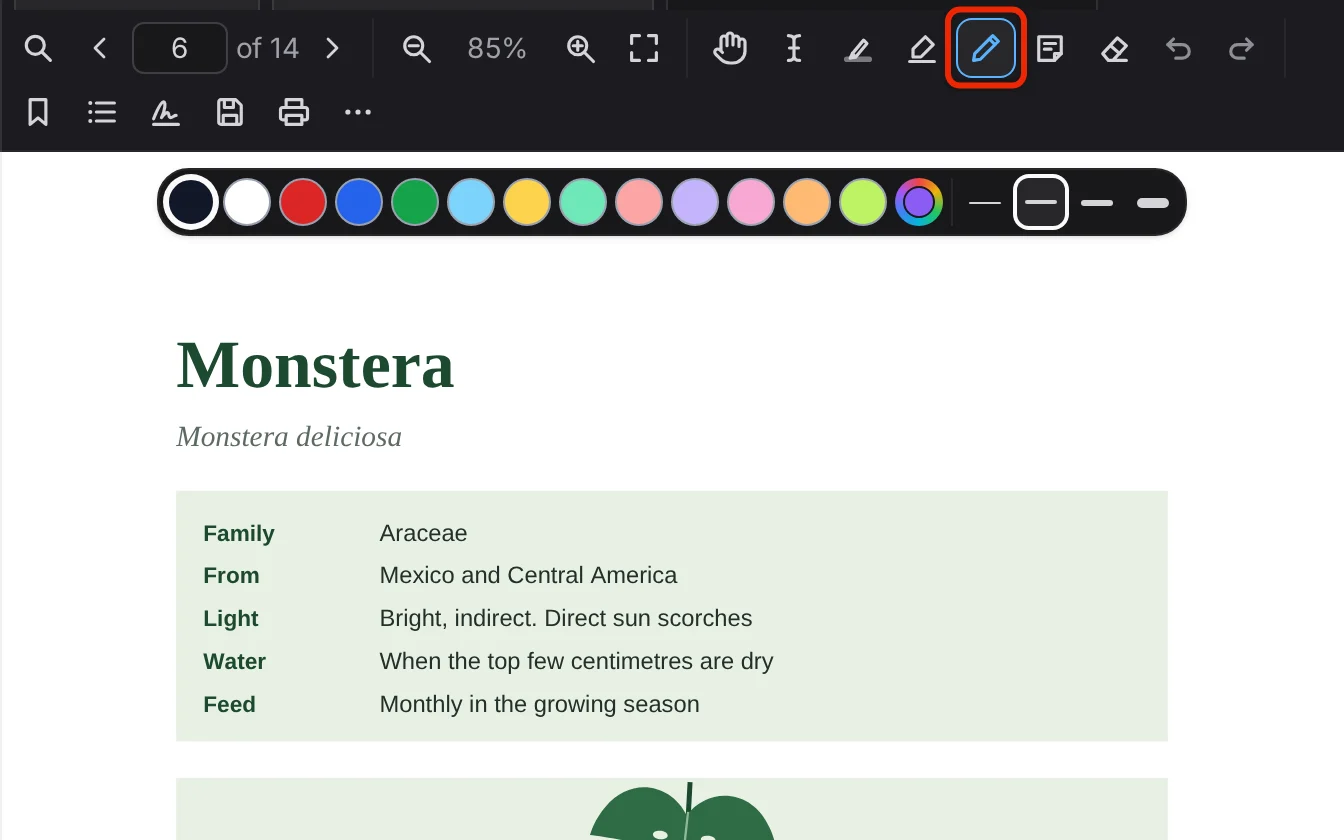
EtherPK remembers your colours and thicknesses on the device. At phone width, the row is behind a small Colour and thickness button at the right edge of the page.
On a page with no text, such as page 12 of the handbook, you cannot turn on Select text or Highlight text, because the page has nothing to select, and their tooltips say so. Freehand highlighter is the only way to highlight such a page.
To undo or redo a change, select Undo or Redo in the toolbar, or press Ctrl+Z or Ctrl+Shift+Z (Cmd on a Mac). Undo covers annotations you have added, erased or deleted and notes you have edited, for as long as the tab is open. It does not cover PDF Bookmarks or signatures. If the page with the change is out of view, undo and redo take you to it. While any part of that page is on screen, the view stays where it is, even if the change itself is scrolled out of sight.
To list your annotations, select Annotations and PDF Bookmarks in the toolbar, to the right of Add a PDF Bookmark. The panel opens on its Annotations tab, beside the pages, or over them at phone width. To close it, select Close panel at the top.
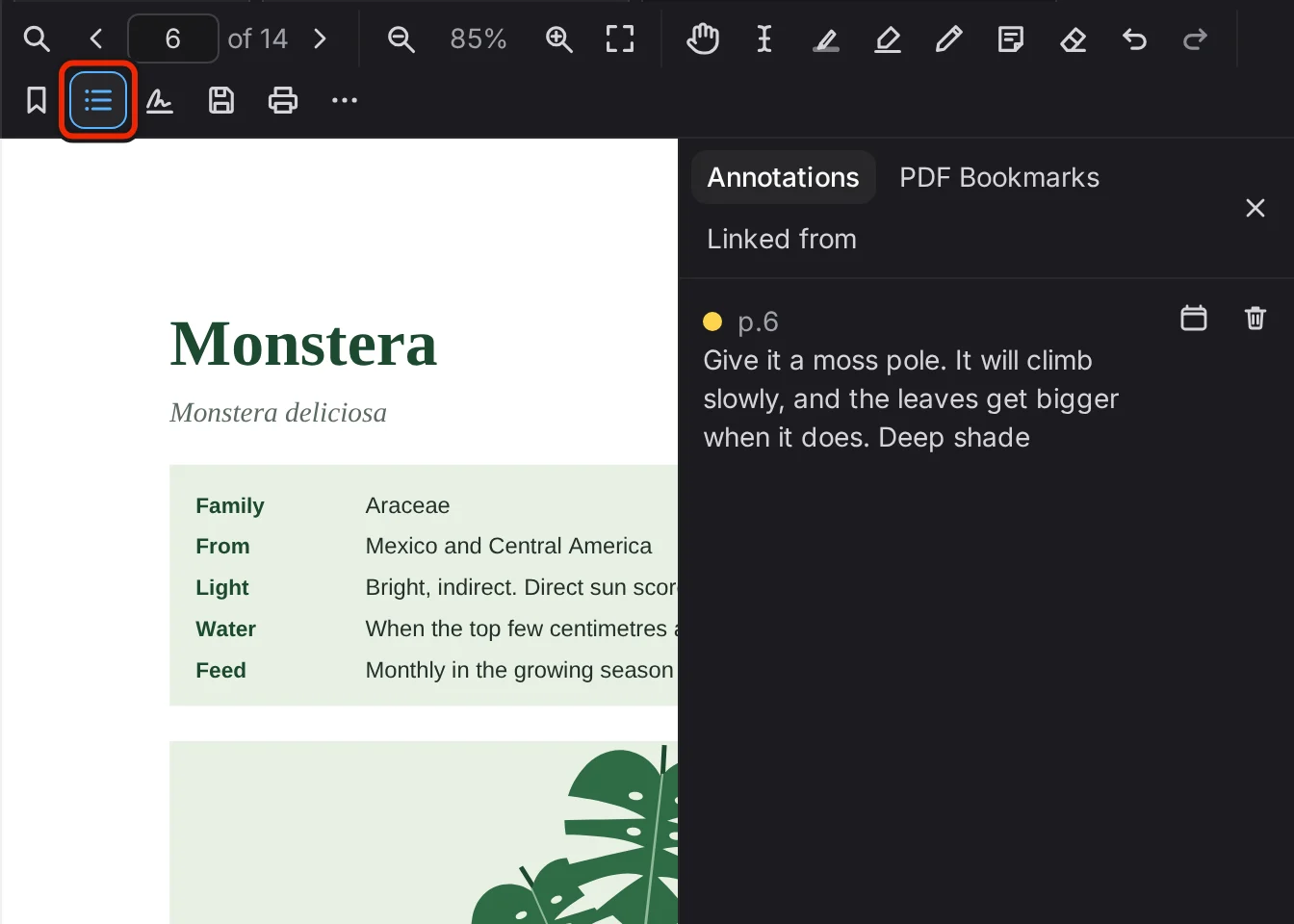
Each row shows the page, with the highlighted words, the note text, or Drawing or Freehand highlight. Select a row to go to the page. Delete on a row removes the annotation with no confirmation, and Undo brings it back.
To copy an annotation to your journal, select Copy to journal on its row. The words and a link to the page go into today's journal entry, which is created if you have none. A drawing copies as a link alone.
Give it a moss pole. It will climb slowly, and the leaves get bigger when it does. Deep shade houseplant-handbook p.6../assets/houseplant-handbook.a1b2c3d4.pdf#page=6
Copy an annotation to the journal when other people or Search need to find it, because other members are not shown your annotations and Search leaves out highlighted words until they are copied. Any member of a shared synced graph can read the journal line.
A link in any document can open a PDF at one page. Add #page= and the page number after the file name:
see the plant sitter's card../assets/houseplant-handbook.a1b2c3d4.pdf#page=14
The PDF opens at that page whatever your reading place is. If its tab is already open, the tab goes to that page.
Ask an agent
To ask a model about a passage, select the passage, then select Agent Chat. On a touch screen, turn on Select text first and drag a finger across the passage. In a window 1024 px wide or more, the button is over the page, at the bottom right of the tab, and in a narrower window it is on the Command Bar. You can also press Alt+A while the tab is in front, but on a Mac Option+A opens no chat, so use the button there.
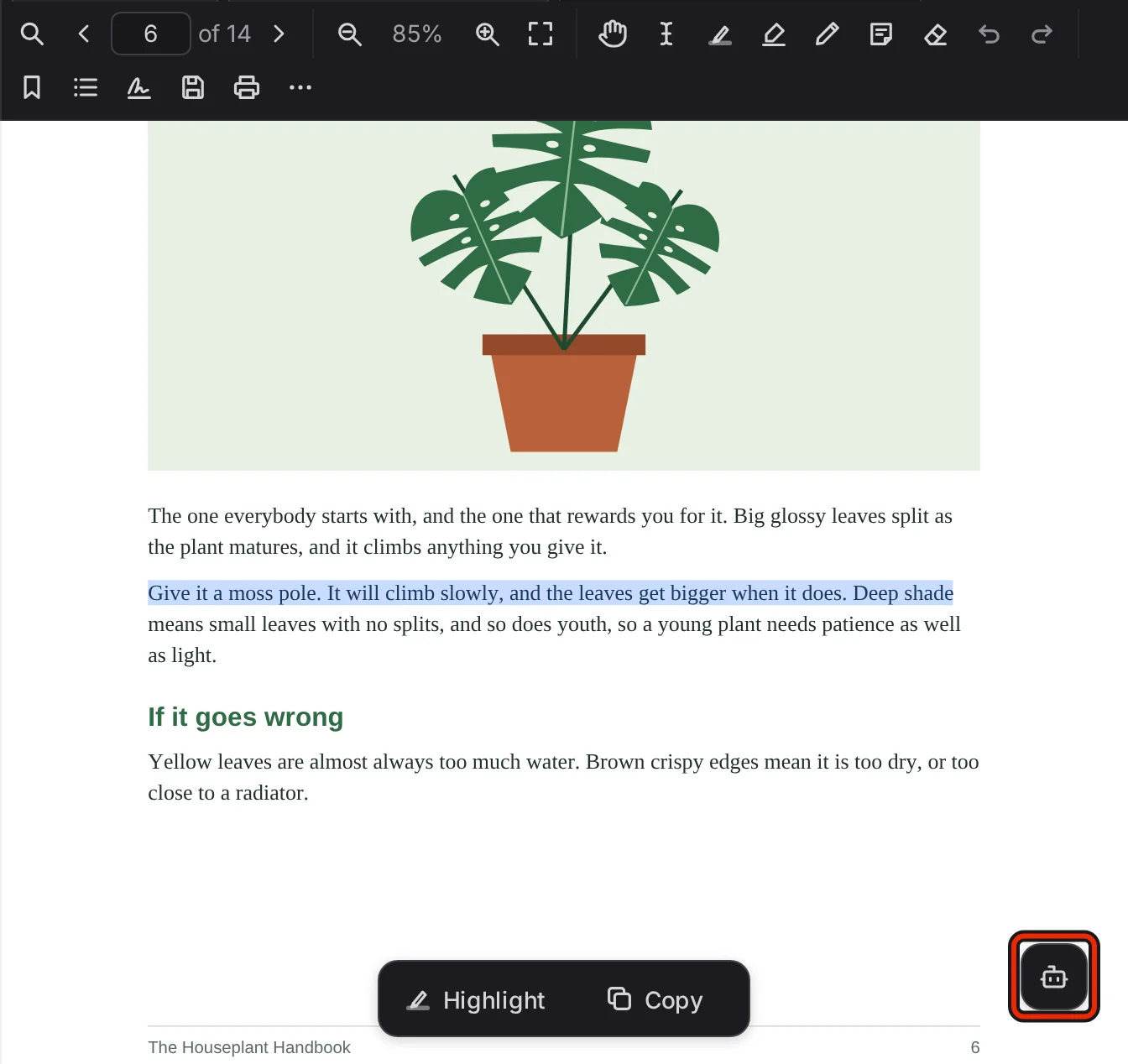
The chat opens with the selected text as your first message, the caret after it and room for your question. Press Enter to send it, or Shift+Enter for a new line. If nothing is selected, you get an empty field and the hint "Select text in the PDF to send to your agent", and you can still send a question of your own.
EtherPK sends only the text in the chat, because a PDF can be very large. The rest of the PDF and its file name are not sent. Earlier turns of the chat and your chat instruction, if you have set one, go with the text to the model provider on your own connection.
You can ask a follow-up question in the same chat. Escape closes the chat and stops any answer still arriving.
The chat is not kept and appears in no list, so use Copy to keep the latest answer. It is copied as bullets, and the button then says Copied. Closing a chat ends it and puts your selection back. Pressing the button again starts a new chat with none of the earlier turns, and its field holds whatever is selected at that moment.
If you have no model connection yet, the chat says "To chat, add a model connection: your own key for Anthropic, OpenAI, Gemini or OpenRouter, or a model running on this device." It also has an Add a model connection button. See Agent Chat for more information.
Fill in and sign
To fill in a form, type in its fields on the page. The values are saved automatically and are still there after a reload, and Save a copy writes them into the copy.
Add your signature is in the toolbar, to the right of Annotations and PDF Bookmarks.
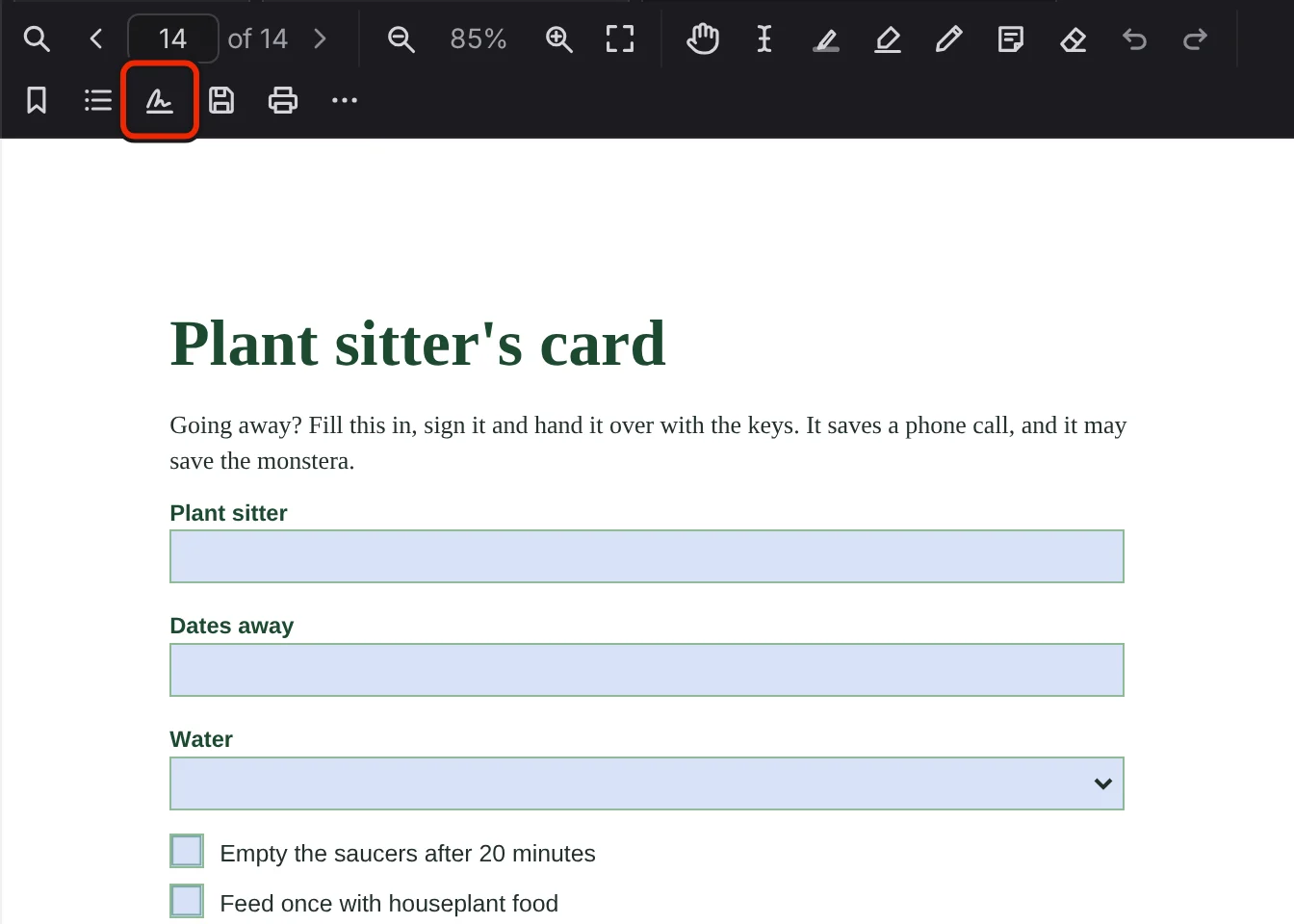
To place a signature:
- Select Add your signature.
- In the dialog, choose Draw, Type or Picture, and make your signature.
- Select Place on the page. The signature appears in the middle of the page in view.
- Drag the signature into place, and resize it with its corner handle. To remove it, select the cross, Remove this signature.
Draw gives you a pad, and Clear starts it again. With Type, you fill in Your name, and with Picture, you pick a PNG, JPEG or WebP file using Choose a picture.
A placed signature is a picture on the page, with no certificate behind it, and it does not prove who signed.
The signature stays out of your graph because the other members of a synced graph hold its key, and local graph files are plain and can be tracked in Git. It stays in memory while the window is open, and only a saved copy writes it to a file, so EtherPK asks when you close the tab. The tab stays open, with the message "Your signature is not saved anywhere. Save a copy, or discard it." above the pages. Choose Save a copy or Discard, then close the tab again. Once the signature is in a saved copy and you have placed none since, the tab closes without asking, and the signature goes with it.
The signature stays where you put it when the layout changes, such as when a tablet turns. On a phone, it also stays while another document is on screen. If you close the PDF from the list of open documents while it is not on screen, EtherPK does not ask, and the signature comes back when you open the PDF again.
If you leave the page, the browser warns you first. After a reload or a crash the signature is gone, and you have to place it again.
A signature drawn with Pen is saved like any drawing, because EtherPK cannot tell what a stroke says.
EtherPK does not store a placed signature, but it remembers the last signature you made in the dialog, replacing any earlier one. The dialog offers it at the top next time, even after a reload, with Use this and Forget it. The remembered signature is kept in your own settings, not in the graph, and other members are not shown it. If your account syncs a graph, the signature follows your account, and an agent token cannot read it. On a local graph with no account, it stays on the device.
Save a copy
Save a copy is in the toolbar, to the right of Add your signature.
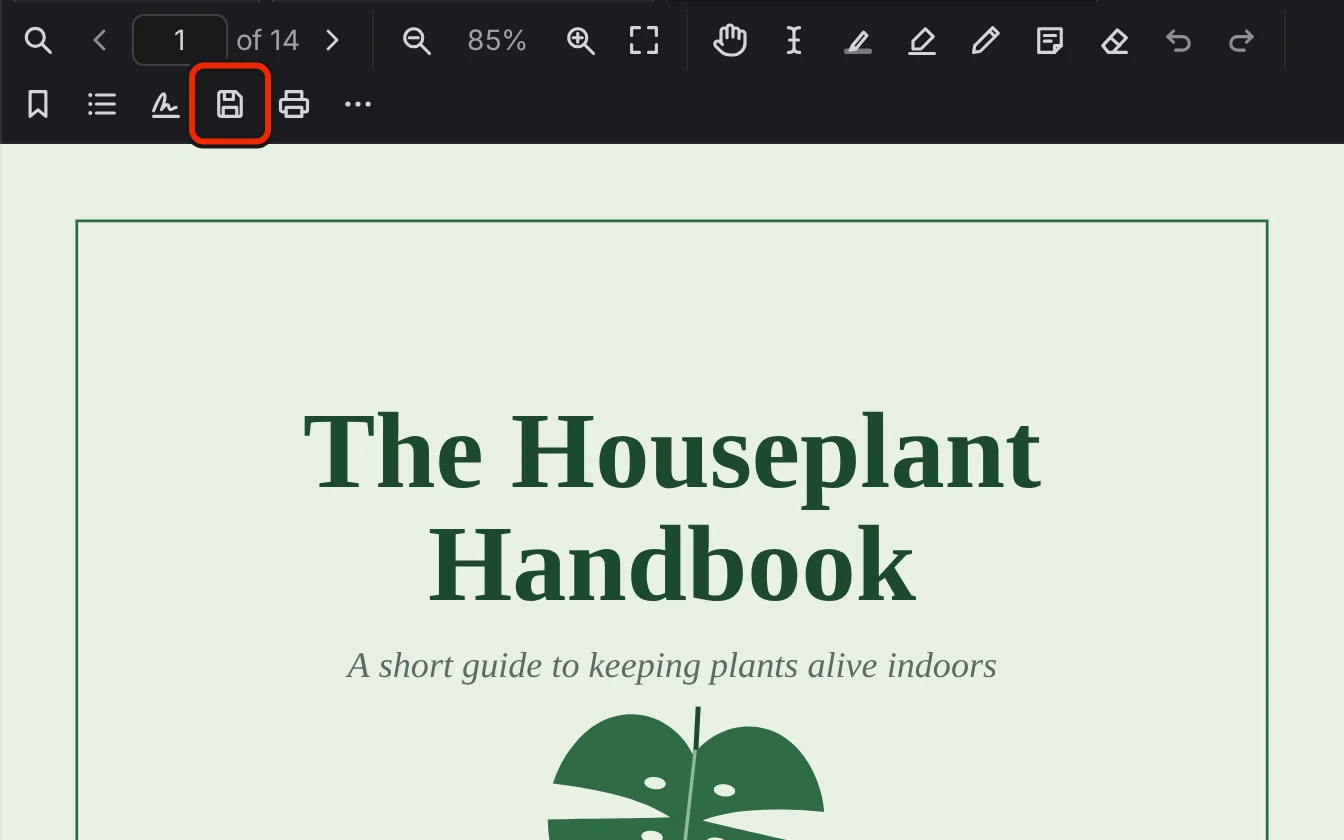
To save a copy:
- Select Save a copy. The Save an additional copy dialog opens.
- Under Name, keep the suggested name or type another.
- Optional. Tick Flatten annotations into the page.
- Under Password on the copy, choose a password option.
- Under Where it goes, tick A file on this device or Add to the graph, with a link to it.
- If you are adding it to the graph, choose a row under Put the link.
- Select Save. The dialog stays open while the copy is made, and closes when it is saved.
The PDF stays open in its tab. After you save to the graph, you get a message with an Open button for the document holding the link.
The suggested name says what changed, as in houseplant-handbook (signed).pdf.
An ordinary copy holds your annotations as PDF annotations, which the recipient can move or delete in a PDF editor, so the dialog offers Flatten annotations into the page, off by default. Flattening draws your annotations and signatures into the page content and turns form fields into fixed text. The recipient cannot move or remove them, but flattening does not redact, and text underneath stays in the file.
For a PDF with no password, the dialog starts on No password and you can choose Add a password. For a PDF with a password, it starts on Keep the password and you can choose Remove the password or Change the password. If you remove the password, the copy opens without one and the original stays locked. On a local graph, the dialog notes "Added to the graph, the copy sits unlocked in your folder."
To add or change a password, fill in New password and Type it again. EtherPK does not keep the password, and nobody can open the copy without it.
A file on this device starts ticked and Add to the graph, with a link to it does not, and you can tick both. If your browser has a save picker, you save the file with it, and otherwise the file downloads.
Under Put the link, choose Today's journal or an After existing reference row, one for each document that links to the PDF and named after it. The dialog starts on the last reference you clicked to open the PDF on this device, even if you opened it another way this time. If you have not clicked one here, it starts on the first document that links to the PDF, or on today's journal if no document does. Under a bullet, the new link becomes the first child, and in prose it goes on a new line after the reference.
first the handbook../assets/houseplant-handbook.a1b2c3d4.pdf
houseplant-handbook (signed)../assets/houseplant-handbook-signed.e5f6a7b8.pdf
second
A copy in the graph is a new PDF with your marks in the file. Its Annotations and PDF Bookmarks tabs and its reading place are empty, because EtherPK stores those by the PDF's contents, and a copy has different contents. Adding a copy to the graph writes a link to it, so its Linked from tab lists the document that holds the link.
If the PDF holds a digital signature, the dialog warns that the signature will show as invalid if you flatten the copy or change or remove the password, because each of these rewrites the file.
To get the file with no annotations instead, select Download the original in the More menu.
To print a PDF:
- In the toolbar, select Print, or press Ctrl+P (Cmd+P on a Mac).
- Optional. Above the pages, turn off Include annotations to print clean pages.
- Select Print in the options. The browser print dialog opens when the pages are ready.
Include annotations is on by default, and form values and placed signatures print either way. To close the options without printing, select Cancel.
Read on a phone or tablet
To zoom the PDF, pinch with two fingers, even with a tool on, and the rest of the app stays as it is. With Pen on, two fingers move the page and draw nothing. With no tool on, double tap to zoom closer and double tap again to fit the width.
On a phone or a small tablet, the buttons from the toolbar are on the command bar at the bottom of the screen, in place of the editing buttons, so the pages have the room. The row scrolls sideways, and More and Agent Chat stay at its right end. The app header is hidden while a PDF is in front and comes back when you open something else. The top bar stays, and it reaches the rest of your graph. Find in this PDF and messages such as the Delete confirmation still open at the top of the tab.
With the page box in the More menu, the page and the number of pages show over the page instead, for 5 seconds. They show when you open the PDF, when the page changes and when you tap the page with no tool on.
At phone width, Add your signature and Print move to the More menu, and Save a copy is in both places.
To close the More menu, select Close this menu, tap or click outside it, or press Escape.
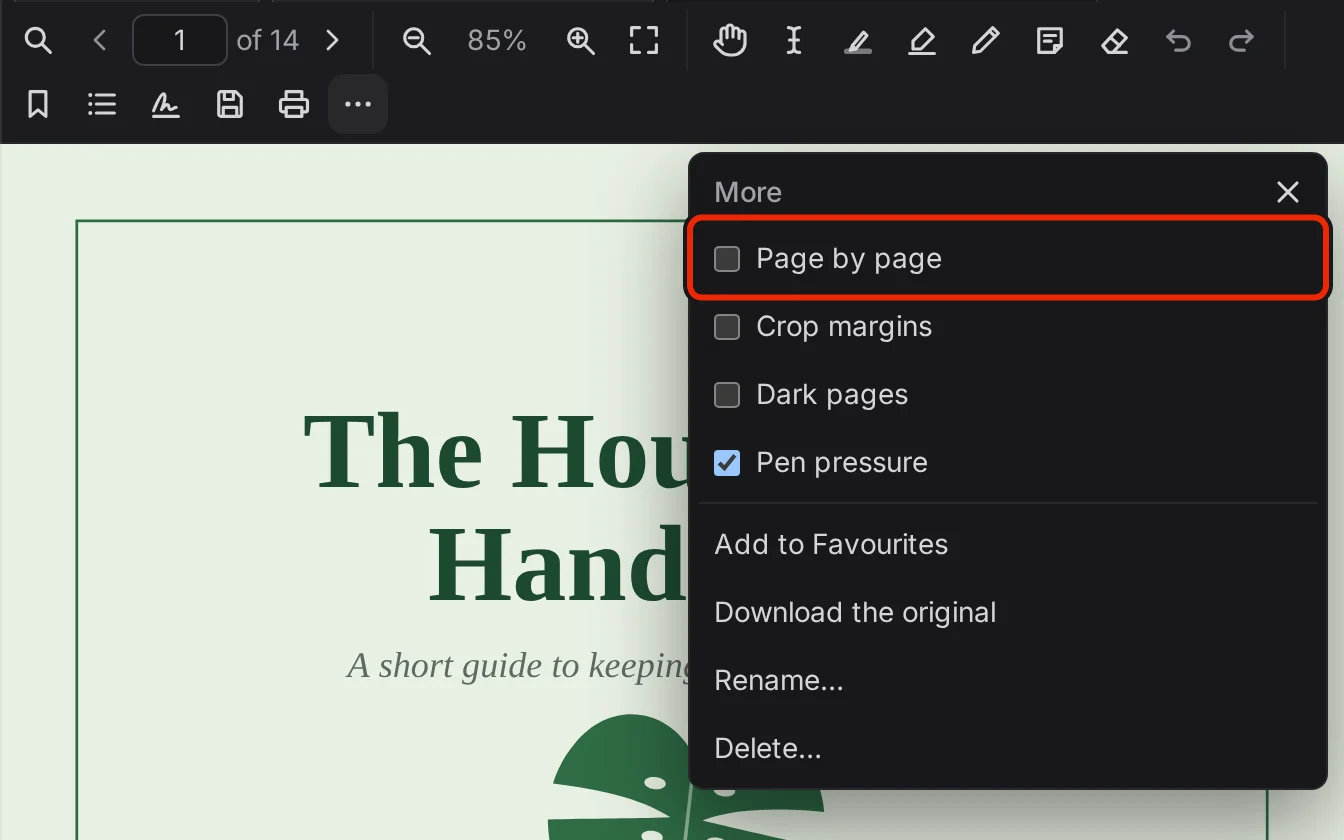
Full screen, in the More menu at phone width, gives the PDF the whole window and hides the top bar, the command bar, the floating page buttons and the row of colours. To leave, select Leave full screen, the button with the page and the count at the bottom right of the window, or tap the page with no tool on and no text selected. When Page by page is on, a tap on the left or right side of the screen turns the page instead.
The More menu has four reading settings on any device. On a touch device, it also has Keep the screen on and Draw with finger.
| Setting | Starts | What it does |
|---|---|---|
| Page by page | Off | Shows a single page. |
| Crop margins | Off | Hides blank margins and fits the content to the width. It has no effect on annotations, printing or saved copies. |
| Dark pages | Off | Gives the pages dark colours, separate from the app theme. The dark colours never reach a saved file. |
| Pen pressure | On | Makes Pen and the signature pad draw thinner on a light press and thicker on a hard one. It works with a stylus alone, and a mouse or finger reports no pressure. |
| Keep the screen on | On | Stops the screen locking while a PDF is in view, for every PDF on the device. After 10 minutes with no touch the screen can lock as usual, and the next touch keeps it on again. If the browser refuses, as it can on low battery, the screen locks as usual. |
| Draw with finger | On a phone, on either way up. On a tablet, off | Makes a finger draw in place of scrolling. |
With Page by page on, use the floating Previous page and Next page buttons at the bottom of the view to turn the page. You can also swipe, tap at any height in the outer fifth of the left or right side of the screen with a finger or stylus, or press Page Down or Page Up. The sides stay in the same place however far you zoom or move the page, and the side you tap flashes as the page turns. A new page starts at its top, centred across the view.
A swipe moves a page you have zoomed past the screen width instead of turning it, and neither a swipe nor a side tap turns the page while a tool is on. A side tap on a link, a form field, a note or a signature does what that item does, and a side tap with text selected only clears the selection. Quick side taps turn the page each time, so double tap to zoom in the middle of the page.
EtherPK remembers Draw with finger on the device once you change it. With it off, a finger scrolls and does not draw or highlight. A stylus still draws with Pen or Freehand highlighter on and erases with Eraser on, and the signature pad takes a finger either way.
On a synced graph, tick Keep on this device to keep the PDF for offline reading, whatever its size and on any device. A large PDF you have not kept can be left off the device. On a local graph the file is already in the folder, and the row is absent.
Rename or delete a PDF
To rename a PDF, select Rename… in the More menu. A Name field opens above the pages, and .pdf is added to what you type. Select Rename to apply it, or select Cancel or press Escape to stop.
Your annotations stay after a rename, because they are stored by the PDF's contents and a rename leaves the contents alone.
On a local graph, the file is renamed and every link to it takes the new name, keeping any #page=. Link text changes only if it was the old name, and any text you wrote yourself stays. EtherPK refuses the rename while your Protected Documents are locked, because a link inside a locked one would break.
On a synced graph, links keep working because they find the PDF by its ID. Link text in documents your device can read changes the same way, and a link in a locked Protected Document keeps the old wording.
The Linked from tab in the panel lists the documents that link to the PDF. Select a row to open that document.
To delete a PDF, select Delete… in the More menu. A question above the pages names the PDF and asks whether to delete it permanently, with the number of your annotations if you have any, and says "This cannot be undone." Select Delete or Cancel.
Deleting a PDF also removes its annotations, PDF Bookmarks, tab, Favourite and Recents row. On a synced graph, other current members lose their annotations on it.
You cannot delete a PDF while a document links to it, because the link would be left broken. The message names the documents to remove the links from. EtherPK also refuses while the graph is being read, while your Protected Documents are locked and, on a synced graph, while you are offline and until this device has caught up with the graph.