EtherPK On A Phone
Which layout you get depends on the width of the window, whatever the device. A window narrower than 1024 pixels gets the phone layout, even a narrow browser window on a desktop. A window at least that wide gets the desktop layout, on a tablet as well as on a desktop. Resize or rotate a window across that width and the layout switches at once, with your open documents still open.
Both layouts show the same graphs, documents and editor. Only the controls around the editor are in different places. With a hardware keyboard, the Keyboard Shortcuts work in the phone layout too.
The phone layout shows one document at a time and has no side-by-side panes. The documents from every desktop pane share one list, and you reach them from the top bar above the document. Kanban Boards show one lane at a time, and The Graph View needs a wider window.
The desktop sidebars become drawers that open over the document from the left and the right. The command bar along the bottom of the screen has buttons for the editor actions that a touch keyboard has no key for.
On a touch screen, a tap does what a click does on a desktop, and a long press does what a right-click does. Controls that a desktop shows on hover are always visible instead, or sit in a menu.
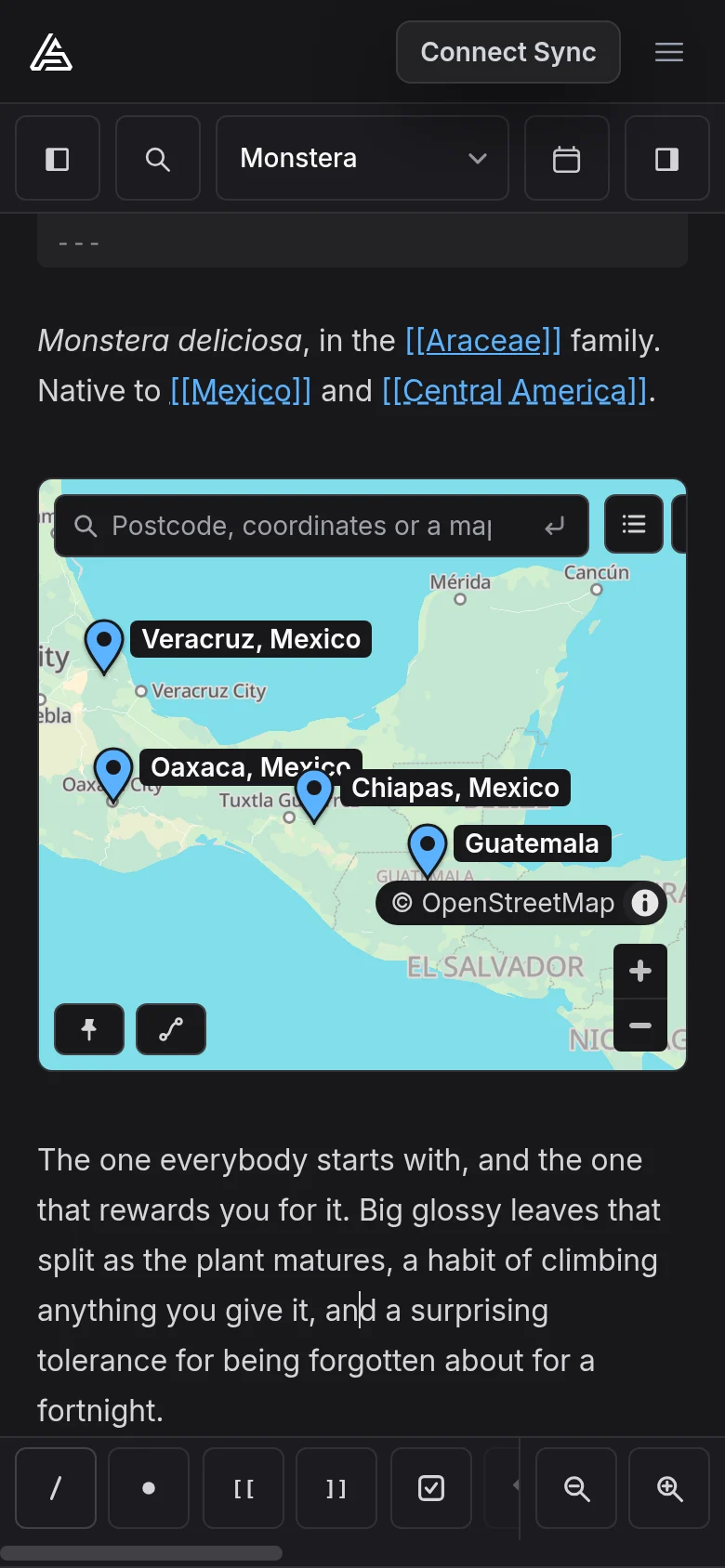
Top bar
From left to right, the top bar has:
| Control | What it does |
|---|---|
| Toggle document tree | Open or close the left drawer. |
| Search | Open Search. |
| Document name | Open the list of open documents. |
| Open today's journal | Open today's journal entry (see Journal Entries). |
| Toggle backlinks | Open or close the right drawer. |
Above the top bar is the app header, which is hidden while a PDF is in front (see PDFs: Reading, Annotating and More), with a menu button (Open navigation menu) on the right. The menu has Sync+, Graphs with your graphs listed under it, Docs and the theme control, plus Install app while the browser can install EtherPK and you have not installed it yet.
Open documents
Tap the document name to list every open document, in tab order with pinned documents first. Tapping a row brings its document on screen and closes the list. Tapping the cross at the end of a row (Close) closes that document and leaves the list open. To close the list itself, press Escape or tap outside it.
Long-press the document name or a row to open the tab menu, with items such as Rename… and Add to favourites. See Tabs And Panes for more information.
Drawers
A drawer opens below the top bar and covers the document, so it closes when you open a document from inside it. Only one drawer is open at a time: opening one closes the other. To close a drawer, tap outside it or tap its button again.
The left drawer has tabs for The Graph Sidebar and Quick Notes. It is already open, over today's journal entry, the first time you open a graph on a device, and again after Reset workspace. The phone layout has no toolbar, so you open Graph Settings from Settings, a row at the bottom of the Graph Sidebar.
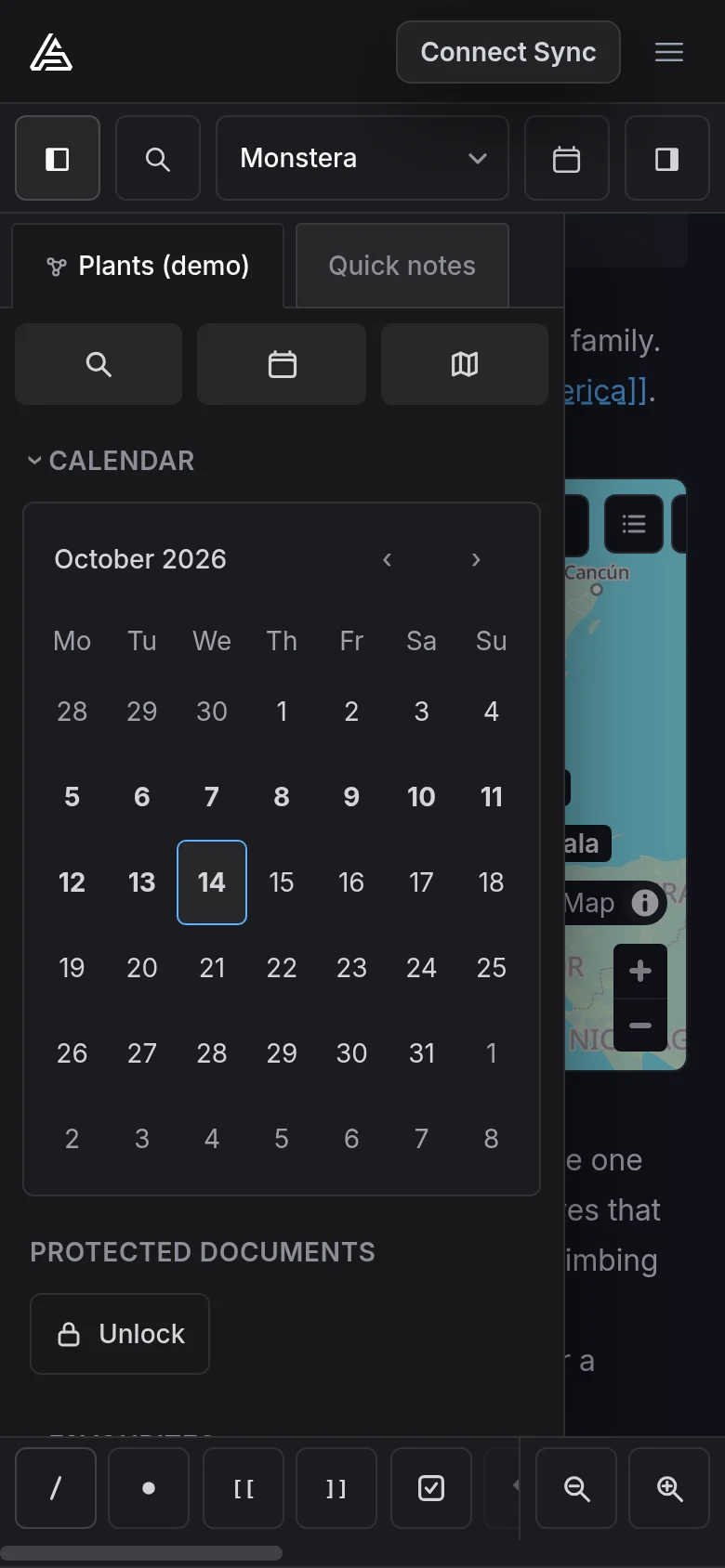
The right drawer has tabs for Backlinks and The Tasks View, plus an Agent Chats tab while Agent Chat is switched on.
Command bar
The command bar's buttons act on the document on screen. While the on-screen keyboard is up, the bar moves above it so the buttons stay in reach as you type, and tapping one leaves the keyboard open. When the buttons do not all fit, the row scrolls sideways.
While a drawer is open, every button on the bar is greyed out, until you close the drawer. With a PDF in front, the bar holds the PDF's own tools instead. See PDFs: Reading, Annotating and More for more information.
From left to right, the editing buttons are:
| Button | What it does |
|---|---|
| Fix spelling | Open the spelling menu for the underlined word. |
| Commands | Type / and open the command menu. |
| Add row, Add column, Remove row, Remove column | Change the table at the cursor. |
| Bullet | Turn the line into a bullet, or turn a bullet at the left margin back into prose. |
Insert [[, Insert ]] |
Type [[ and open page name suggestions, or type ]] and close them. |
| Toggle task | Cycle a bullet through open task, done task and bullet. |
| Undo, Redo | Undo or redo the last edit. |
| Upload | Pick a file and add it at the cursor. |
| Insert table | Pick a size and insert a table. |
| Outdent, Indent | Move the block and its children one level out or in. |
| Move up, Move down | Move the block and its children past its neighbour. |
| Fold | Fold or unfold the block's children. |
| Decrease font size, Increase font size | Make the text in every document smaller or larger. |
| Agent Chat | Open Agent Chat at the cursor while you type, or at the end of the document. |
While Agent Chat is switched on, its button stays pinned at the right end, outside the scrolling row.
Fix spelling appears only while the cursor is in a word that Spell Check has underlined, and the buttons for Tables only while the cursor is in a table. Every other button is always in the row, greyed out where it would do nothing at the cursor.
To turn words into a link, select them on one line and tap Insert [[ or Insert ]].
read about Physics today
read about [Physics] today
See Formatting Text for more information.
Touch gestures
Touch has no modifier key, so tapping a link opens it: a page link takes you to its page, a website link opens in a new tab, and a file link downloads the file. To edit the link text, put the cursor beside the link, then move it inside.
Long-press a link, image or file to open its menu. The same works on your favourites, recent documents and bookmarks in the Graph Sidebar, and on the rows in All documents and the Tasks view.
Tap a checkbox to tick or untick one of your Tasks, nested ones included.
Opening a document brings up the cursor and the on-screen keyboard only when the document is empty, since the keyboard would cover a document you opened to read. Tap the text to start typing.
Browsers, installing and storage
Local graphs need a browser that can open a folder, and on a phone only Chrome on Android can. See Choosing Where To Store Your Notes for more information.
A phone browser can clear EtherPK's storage to free up space, and you can then lose edits to a synced graph that had not yet reached the Sync Server. Installing EtherPK As An App on the home screen usually gets the browser to keep the storage. See Where Your Data Is Stored for more information.
If you use a Device Passcode, the Encryption Keys on a lost phone stay encrypted. EtherPK hides the text in Protected Documents as soon as you switch to another app.