The Tasks View
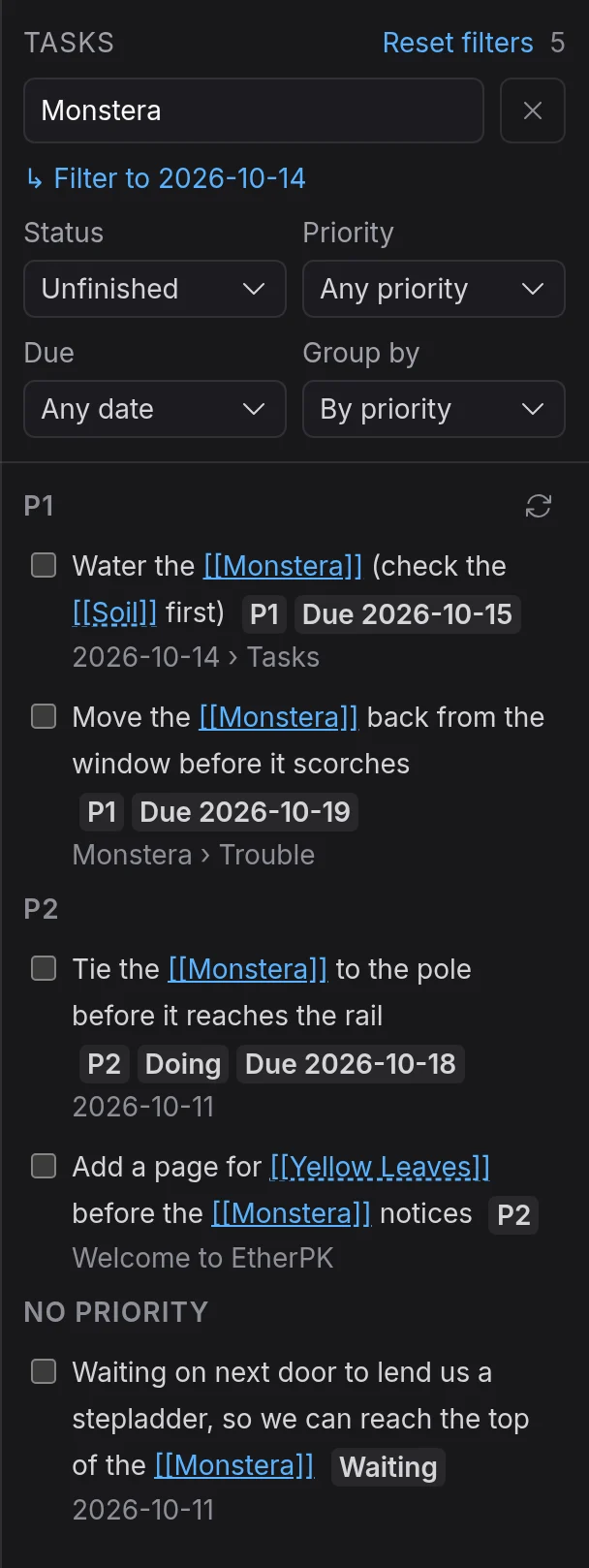
The Tasks view lists every task in your graph, in journal entries and pages alike. It has no tasks of its own: each row is a task line in one of your documents, read from the search index on this device. See Tasks for more information on writing tasks.
The view is a tab beside Backlinks in the right sidebar, or in the right drawer on a phone. See Tabs And Panes for more information on the right sidebar, and EtherPK On A Phone for the right drawer.
You can narrow the list to one name and to the statuses, priorities and due dates you want, and group it by priority, document or due date. By default it shows every unfinished task, whatever its priority or due date, grouped by priority.
Opening and closing documents in the editor does not change the filter, so after you open a task from a row, the list is still as you left it. The app remembers the filter for each graph on this device. It is still there after a reload, and your other devices never see it.
Ticking a task in the list changes its document just as ticking it in the editor would, nested tasks included. Click the task text to open the document at the task.
The list never shows tasks in a protected document, even while the document is unlocked, because the search index on this device is not encrypted and protected content never goes into it. The list also leaves out tasks in a template, because a template is a pattern copied into other documents. See Protected Documents and Templates for more information.
Open the Tasks view
Press Alt+T, or select Tasks, the clipboard icon in the toolbar just left of the right sidebar button. Alt+T does not work on a Mac, where Option+T types a character.

On a phone, open the right drawer with the button at the right end of the top bar, then select the Tasks tab.
Show the tasks for one name
- In the Any name… box, type part of a name.
- Choose the name from the suggestions, or move to it with the arrow keys and press Enter.
The list then shows the tasks that match that name. Typing in the box does not filter the list until you choose a suggestion, but emptying the box removes the name filter.
To filter to the document in front in the editor, select the link under the name box, such as ↳ Filter to Garden.
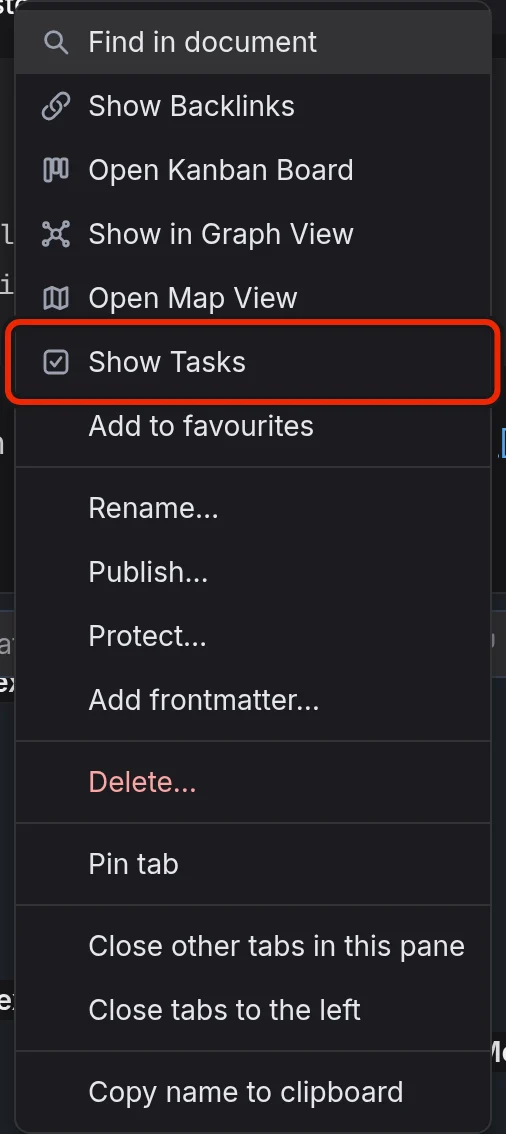
You can also right-click a document tab, or a wikilink in the editor, and select Show Tasks. The Tasks view comes to the front, filtered to that document or to the linked name, and the link is not followed.
A task matches a name when the name is linked on the task line itself, on any bullet above it in the outline, or in a heading above it. Links in a heading apply to every task in that section, while links on a bullet apply only to the tasks under that bullet. A task also matches the document it is in and each scope in that document's name, so the tasks on [[Garden]] Shed show for Garden. See Scoped Concepts for more information on scopes.
In the journal entry below, every task matches Garden, and the one that links Kitchen matches Kitchen as well.
Work on [Garden]
[Garden] planning
[ ] #P1 water the beans
Notes
[ ] #W ask about the [Kitchen] tap
[ ] Buy milk
A page and its aliases count as one name, so choosing any of them shows the same tasks. See Titles Aliases And Frontmatter for more information on aliases.
A Kanban board for a name matches tasks the same way, but leaves Archived tasks off the board. See Kanban Boards for more information.
Filter by status, priority and due date
Under the name box are four drop-down controls: Status, Priority, Due and Group by.
In Status, tick the statuses you want to see: Open, Doing, Waiting, Test, Done, Cancelled or Archived. The default, Unfinished, ticks the first four. Priority lists P1, P2, P3 and No priority, all ticked by default. The list updates as soon as you tick or untick a box, and the Done button closes the drop-down.
In Due, choose Any date (the default), Overdue, Due today or Next 7 days. A task with no due date matches Any date and none of the other three.
If the filter or grouping differs from the default, select Reset filters beside the Tasks heading to put every control and the name box back to their defaults.
Group and sort the list
In Group by, choose By priority (the default), By document or By due date. When there are more matching tasks than the list shows, select Show more at the end for the next rows.
Task rows
Each row has a checkbox, the task text without its tags, and badges for the priority, state, scheduled and due dates, and any free tags. Finished tasks are struck through. A task can match a name through a heading or bullet far above it, so the line under each row shows the document name and every heading or bullet above the task.
Tick or open a task
Ticking a task edits its line in the document whether or not the document is open, so the change shows in any open editor and, on a local graph, in the file on disk. The ticked row stays where it is, struck through, until you change the filter or refresh the list.
When a tick also changes nested tasks, a notice offers Undo, which puts back the ticked task and its nested tasks. Undo skips any nested task that has changed since the tick, and the notice says so. If the ticked task itself has changed since, or its document has been renamed or deleted, Undo changes nothing. See Tasks for more information on which nested tasks follow a tick.
The app finds the task in its document by the task's words. If those words have changed since the list was read, the document opens at the task instead, and nothing is ticked.
Clicking a wikilink in the task text takes you to the linked page instead. For a menu with Copy task reference, right-click a row or press Shift+F10 on it.
Refresh the list
The list comes from the search index, so it catches up a moment after a document changes. To update it straight away, select Refresh tasks, the circular arrows at the top right of the list.
If tasks are still missing or wrong after a refresh, select Rebuild search index in Graph name and settings > Maintenance. See Troubleshooting for more information.