Search
Search looks across the whole graph at once: names and the text inside every note.
Open it
Press Ctrl+K (Cmd+K on a Mac) or Alt+F, or type / in the editor and choose
Search. You can also select Search at the top of the Graph sidebar
(The Graph Sidebar), or on a phone the search button in the top bar
(EtherPK On A Phone). Search opens with the last thing you searched for, already searched and
selected, so you can replace it by typing or keep it with the right arrow.
Two groups of results
Search runs two kinds of matching and shows them stacked, each with its own paging, so a long list of one never buries the other. Names come five to a page, text results ten documents to a page.
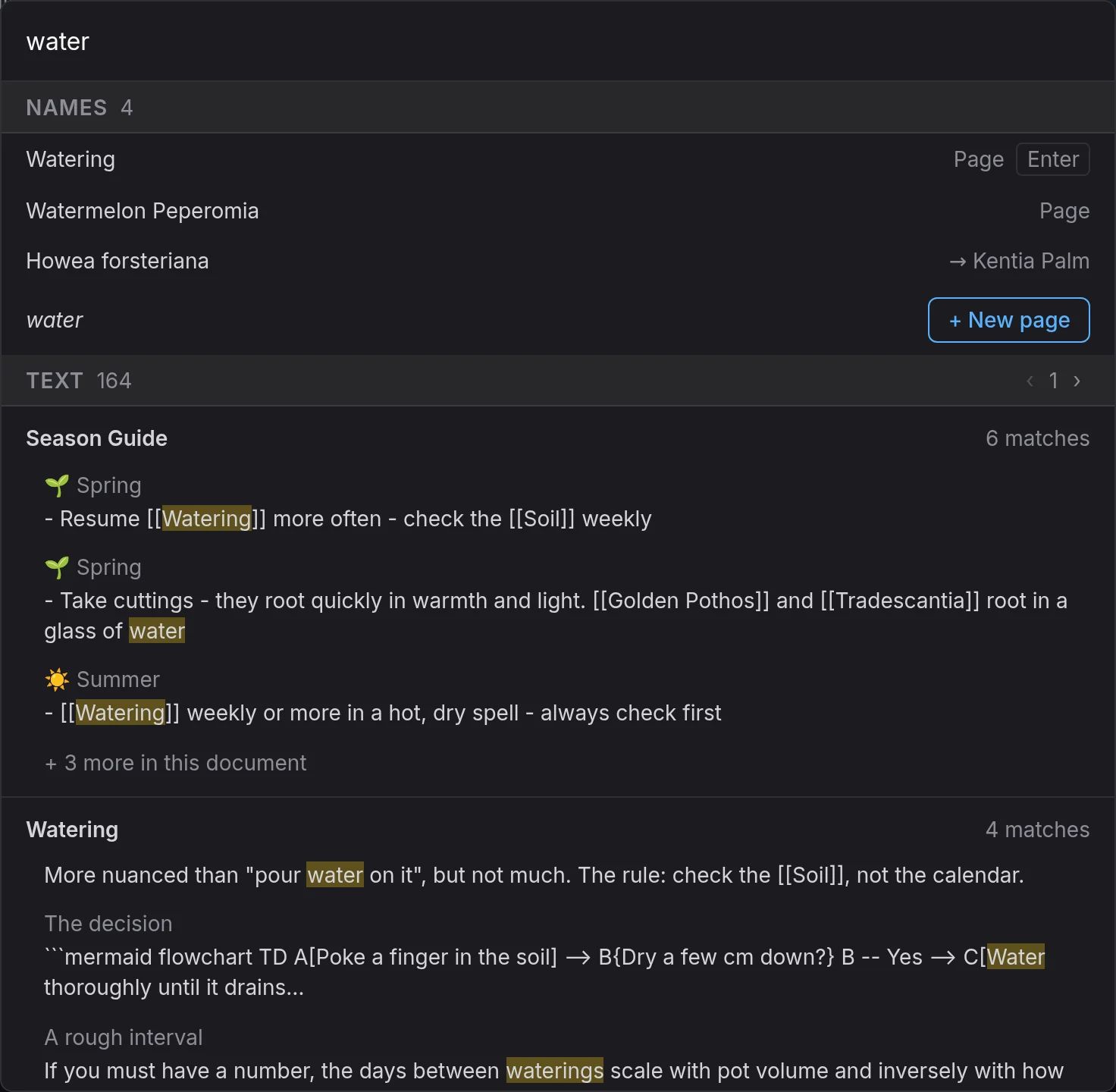
Names matches the names of pages and journal entries, their aliases, and names you have linked to but not written a page for yet. It answers at once, and it is forgiving about how you type a name:
- Case does not matter.
physicsfinds Physics. - Any part of the name works, not only the start.
mechfinds Quantum Mechanics. - An alias is shown with the page it belongs to,
→ Quantum Mechanics, and opens that page. - A scoped name's brackets read as spaces.
physics quantumfinds[[Physics]] Quantum Mechanics, so you never type the brackets. - A name you have linked to but not written a page for shows how many links point to it
(
3 references).
Exact matches come first, then names that start with what you typed, then names that contain it,
then names that hold its letters in order (qm finds Quantum Mechanics). Names lists the 12
best matches. A protected document's row shows a padlock. When no name in the graph is exactly
what you typed, the last row offers + New page with it. Choosing that row opens a draft, so
nothing is written until you type into it (Pages And Wikilinks).
Text finds every mention of your words inside your notes, grouped by the document they are in, so you can see which pages talk about something most. Each document shows how many matches it has, and each match shows the bullets above it and the line it is on with your words picked out. Documents with the most matches come first.
Text matching follows these rules:
- It matches whole words, and treats the last word you type as unfinished:
orphfinds orphaned while you are still typing, butgraphdoes not find subgraph. - Put a phrase in quotes to match the words together:
"quantum mechanics". An unclosed quote is treated as closed at the end, so a half-typed phrase still works. - Links count as words. Searching
physicsfinds it whether you wrote it as plain text or as[[Physics]]. - Apart from property filters (below), there is no search syntax. Punctuation is ignored and
separates words, so
C++,don'tandorphan - assetall search for the words in them. - Text results start at two typed characters. Name results start from the first.
Search covers the graph you have open, and only that one. Opening a result closes Search, and your query is still there when you open it again.
Filter by properties
Type key:value to keep only the documents whose frontmatter has that property, beside your
words or on its own (Titles Aliases And Frontmatter):
public:true meetingfinds meeting in public documents only, in both groups.status:drafton its own lists every document whosestatusisdraft, by name, with the value it matched beside each one. The text group is not shown, since there are no words to find, and the list is not paged: every matching document is listed, and you scroll to see them all.
A term is a filter only when at least one document in the graph has that key, so
http://example.com, 10:30 and note: in a sentence stay words. Each filter appears as a
chip under the search box. Select × on a chip to take it out of the box.
| You type | Keeps documents where |
|---|---|
status:draft |
status is draft. Keys and values ignore case, and a list matches when any of its items does: tags:work finds tags: [work, home]. |
status:"in progress" |
the value is in progress: quote a value with spaces. |
-status:done |
status is not done, including documents with no status. |
status:* |
status is set to anything. |
date:2026-09* |
date starts with 2026-09. |
publication.id:docs |
a value inside a mapping, named by its path. |
title:recipes, aliases:* |
the document's name, or its aliases, as the graph holds them. |
Every filter has to match. A key with an empty value, such as slug:, counts as not set, and a
protected document never matches a filter.
While you type a word, Search suggests the keys your graph uses that start with it. After the colon, it suggests the values that key has. The list does not change what Enter does until you move into it: Down highlights a suggestion, Enter or Tab takes it, and Escape closes the list without closing Search.
Keys
While you type, no result is highlighted, and Enter opens the top result, which shows an Enter hint. Down highlights the top result wherever the text cursor is, and Up and Down then move one highlight through both groups as one list. The highlight stops at the last result, and Up from the top result returns to the search box with the cursor at the end of your text. Editing the query or clicking in the box also returns there.
While a result is highlighted, Left and Right turn the page of its group, and the highlight moves to the first row of the new page. In the search box they move the text cursor. Enter opens the highlighted result. Escape, or a click outside Search, closes it without clearing what you typed, and puts the cursor back where it was, in the note you were editing or on the button you opened Search from.
Opening a text result takes you to the matched line, scrolling there if it is further down the page, even when the document is already open in another tab.
While the graph is still indexing
When a large graph has just opened, the index that text search reads is still being built. Name results appear as it goes. Text results are withheld until the index is complete, with a note saying how far it has got, so a search can never wrongly say "not found".
While a change is being indexed
After a rename, a new alias or a large edit, the index takes a moment to catch up. Until it does, Search, backlinks and the colour of a link can still show the old names. On a desktop a small turning circle appears in the toolbar, left of the Documentation button, while the index is busy with a change like this, and it goes when the index has caught up. It does not appear for the quick updates that follow ordinary typing.
What search never reaches
A protected document stays out of the text results completely. Neither its words nor its encrypted form is put in the search index, so there is nothing to match even while it is unlocked in front of you. Its name is still found. When a graph holds protected content, Search says "Encrypted content is not searched." beneath the text results, so an empty result never misleads you. See Protected Documents.
Search matches words, not meaning: it does not find "due 31 January" for tax deadline. An AI agent connected to a graph through the Headless Client can search by meaning as well (The Headless Client).
Rebuilding the index
Search, backlinks and the Tasks view all read one index that EtherPK builds from your documents and keeps in the browser. It is never written into your graph and can always be rebuilt. If a sidebar disagrees with a document, Settings > Maintenance > Rebuild search index re-reads every document from scratch (Graph Settings).