Tasks
A task is a plain Markdown bullet with a checkbox. Tasks live in the documents they belong to, such as a journal entry or a project page, and EtherPK keeps no separate store of them. An open task has [ ], a done task has [x] or [X], and a line with any other mark, such as [-] or [/], is not a task.
[ ] #P1 #D-2026-07-01 Order the seeds for [Garden]
[ ] #W Ask about the new oven #kitchen
x #C Paint the shed
The tags straight after the checkbox set a task's priority, state and dates. Anywhere else on the line, a # word is plain text or a free tag (a label of your own). A task gets its status from the checkbox and the state tag together: Open, Doing, Waiting and Test tasks are unticked and unfinished, while Done, Cancelled and Archived tasks are ticked and finished.
Tasks can nest in the outline. When you tick, untick or archive a task, the tasks nested under it follow. On a Kanban board, a nested task is usually reached through its parent's card (Kanban Boards).
The Tasks view and Kanban boards collect tasks from every document in the graph except templates and protected documents, and a change you make in either goes back into the task line. See The Tasks View and Kanban Boards for more information.
An agent instruction is text you copy to hand one task to an AI agent on your computer.
In the file, a task stays plain text, and the editor shows its tags just as you typed them. A published site turns task tags into badges and leaves free tags as text.
Create a task
To make a line a task, type - [ ] at its start, or type [ ] after - . Use - [x] for a task that is already done. A line inside a code block or the frontmatter is never a task.
The task toggle key, Ctrl+Shift+Enter (Cmd+Shift+Enter on a Mac), cycles the line under the caret from a plain bullet to an open task, then to a done task, then back to a plain bullet.
Tick a task
Click or tap the checkbox to tick a task, and click or tap it again to untick it. Ticking does not record a completion date, so add a #C- date tag if you want one.
When ticking makes a task Done, every unticked task nested under it is ticked with it. Ticking a task that has #C cancels it instead and leaves the tasks under it as they are. Unticking a task unticks the ticked tasks under it, except cancelled (#C) and archived (#A) ones, so work you dropped or archived does not come back. Nothing passes upward: ticking the last open task under a parent leaves the parent open.
Archiving a task also archives every task under it and ticks the open ones, so all the nested tasks leave Kanban boards with their parent.
Nested tasks follow only when you tick, untick or archive a task with the checkbox, the task toggle key, the right-click menu, the Tasks view or a Kanban board, or when an AI agent does it. Typing an x or choosing a tag in the tag menu changes only that one line.
Status, priority and dates
Write task tags straight after the checkbox, separated by spaces.
| Tag | Meaning |
|---|---|
#P1, #P2, #P3 |
Priority 1 (the highest), 2 or 3 |
#W |
Waiting on someone or something |
#D |
Doing |
#T |
Test, waiting on a check before it is done |
#C |
Cancelled |
#A |
Archived |
#D-2026-07-01 |
Due date |
#S-2026-07-01 |
Scheduled date |
#C-2026-07-01 |
Completion date |
A bare letter is a state and the same letter with a date is a date, so #D means Doing while #D-2026-07-01 is a due date.
If you type a task tag later in the line, as in - [ ] Water the beans #P1, EtherPK moves it to after the checkbox when the cursor leaves the task: - [ ] #P1 Water the beans. A priority or a date counts as if you had chosen it in the tag menu, so a later #P2 replaces #P1 and a new date replaces the old one, but a priority the task already has stays set. A state tag sets the task's status and ticks or unticks the checkbox to match: #C cancels the task, #A archives it, and #W, #D or #T makes it Waiting, Doing or Test. If you type more than one state tag, the last one counts. Tasks nested under it change as they do when you pick the status from the menu. A tag in backticks, in a link, in a web address or in maths stays where it is, and so do free tags. To write a tag such as #P1 as part of a task's words, put it in backticks. Ctrl+Z (Cmd+Z on a Mac) puts the tag back where you typed it.
Cancelled and archived tasks are written ticked, so they count as finished and drop out of every list of unfinished tasks. Whether a task is finished depends on the checkbox, so a state tag that disagrees with it changes nothing. A ticked task is Archived if it has #A, Cancelled if it has #C but not #A, and Done otherwise. An unticked task ignores #C and #A and takes its status from #T, #W or #D, or is Open if it has none of them. Test overrides Waiting, and Waiting overrides Doing.
Change the status or priority from the menu
Right-click a task's checkbox or its words, or press Shift+F10 with the caret on its line. The menu has a row for each status, Mark as Open, Mark as Doing, Mark as Waiting, Mark as Test, Mark as Done, Mark as Cancelled and Archive, and one for each priority, Priority P1, Priority P2, Priority P3 and No priority. It leaves out the status and priority the task already has.
A status row writes the task as a Kanban board does: it replaces any other state tag, and ticks or unticks the checkbox to match. Marking a task Done or archiving it brings the tasks nested under it along, as ticking does. Ctrl+Z (Cmd+Z on a Mac) undoes the whole change.
The same rows are on the menu of a task's row in The Tasks View. A card on your Kanban Boards has them too, as Move to Doing, Move to Done and so on.
The menu's first row, Open in task editor, opens the task in the task editor from Kanban Boards, to edit its title, status, priority, dates, tags, description and comments in one place. It is there while the Kanban Board extension is on.
Tag menu
To open the tag menu, type # at the start of a word on a task line. It has a row for each tag: Priority 1, Priority 2, Priority 3, Waiting, Doing, Test, Cancelled, Archived, Due date…, Scheduled date… and Completion date…. Keep typing to filter the rows, then click one or press Enter. A state or priority row puts its tag after the checkbox, wherever you typed the #.
A date row opens a calendar on today's date instead and adds no tag until you pick a day. Click a day, or move to it with the arrow keys and press Enter. The dated tag then goes after the checkbox and replaces any date of that kind the task already has.
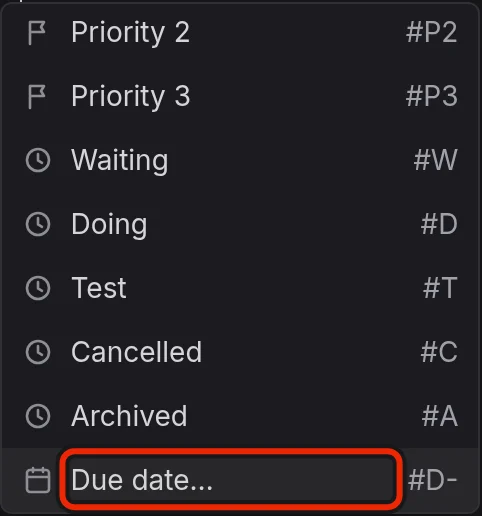
Choosing a state or priority the task already has removes that tag, so the same row sets it and clears it. Choosing Cancelled or Archived does not tick the task, so tick it yourself.
Free tags
A free tag is a # and a word of your own, such as #bug, anywhere on a task line. A word shaped like a task tag never counts as a free tag, so a mistyped #p1 stays plain text.
Copy an agent instruction
An agent instruction is text you paste into an AI agent's chat to hand it one task. The text gives the agent no access, so it still needs a way to reach your graph. See Using AI Agents With Your Notes for more information.
To copy one, do either of these:
- With the caret on a task line, type
/copyand choose Copy agent instruction. - Right-click the task's checkbox or its words, then choose Copy agent instruction.
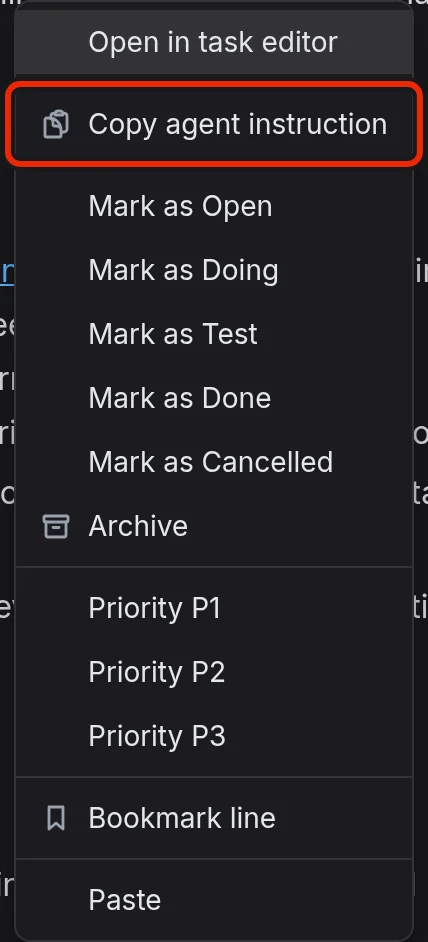
You can also copy one from the menu on a task's row in The Tasks View, or from its card on your Kanban Boards.
What the text tells the agent depends on where the graph is.
On a synced graph
An agent can reach a synced graph only through the Headless Client, so the text tells it to use that client's tools. If it does not have them, the text tells it to stop and send you to the graph's Agents tab in Settings, and not to search the device for your notes. See The Headless Client for more information.
EtherPK task from the graph "Garden" (<graph id>)
Task: Water the beans
Reference: etherpk:/g/<graph id>/d/<document>#task=<line>-<fingerprint>
This is not a web address. Use the EtherPK MCP server connected to "Garden": read_task with this whole text to read the task and its detail, set_task if you are asked to change its status, add_task_note to record what you did.
If you have no EtherPK MCP server for this graph, stop. Do not search this device for it or work from a folder copy, which EtherPK overwrites. Tell the user to connect you from the Agents tab in EtherPK's Settings, which they can open at <EtherPK address>/g/<graph id>?settings=agents
On a local graph
The text names the task's file, so an agent can work from the file without the Headless Client, though it uses that client's tools if it has them. If it cannot find the task by its words, it searches the graph folder, then asks you if it finds none or several.
EtherPK task from the graph folder "garden"
Task: Water the beans
File: /path/to/garden/pages/Beds.md
Reference: etherpk:/g/<graph id>/d/<document>#task=<line>-<fingerprint>
This is not a web address. If an EtherPK MCP server for this graph is connected, use it: read_task with this whole text to read the task and its detail, set_task if you are asked to change its status, add_task_note to record what you did. Otherwise open the file and find the task by its words. If it is not there, search the graph folder. If none or several match, ask the user. Follow AGENTS.md at the top of the graph folder, and change the status only if you are asked.
The browser does not give EtherPK the folder's location, so the first time you copy an instruction on a device, EtherPK asks you for the path. Enter it and select Remember and copy, or select Skip and copy. If you skip, the text gives the file's location in the folder, such as pages/Beds.md, and EtherPK does not ask again on that device. You can set the path later in Folder path on this device (Graph Settings).
On a graph kept in the browser
An agent cannot reach a graph kept inside the browser, such as the demo graph. The copied text tells the agent so and sends you to the Agents tab, which says what to do instead, and a notice tells you when you copy it.
What the reference does
The etherpk: reference in the text is not a web address, so the agent reads it through the Headless Client instead of trying to open it. The reference lets the agent read the task and everything nested under it, update the status of each nested task as it works, and change the task's status, priority, due date or scheduled date. The agent can also comment on the task. A comment is a bullet under a - Comments bullet nested under the task.
The reference looks for the task by its line first and then by its words, so it keeps working after you add lines above the task or change its tags. If you reword the task, the reference breaks and you need to copy a fresh instruction.
Tasks in protected documents
The app never indexes protected documents, so their tasks stay out of the Tasks view and off Kanban boards, even while the document is unlocked. On a task in a protected document, neither /copy nor the right-click menu offers Copy agent instruction. The status and priority rows are there while the document is unlocked. See Protected Documents for more information.
Imported tasks
Importing notes from Logseq or Obsidian turns their task markers, priorities and dates into checkboxes and task tags. See Importing A Knowledge Base for more information.