Tables
A table in EtherPK is a GitHub-flavoured Markdown pipe table, written as plain text in the document: a header row, a row of dashes and any body rows. The app keeps no data beyond that text, so other Markdown editors and a published site show the same table. See Publishing Your Notes As A Website for more information.
While the cursor is elsewhere, the table shows as a grid, with a border round each cell and a shaded header row. Put the cursor or a selection on any of its lines and the pipes and dashes come back, and you can edit the table as text. A click anywhere in the grid, except on a link, puts the cursor at the start of the table.
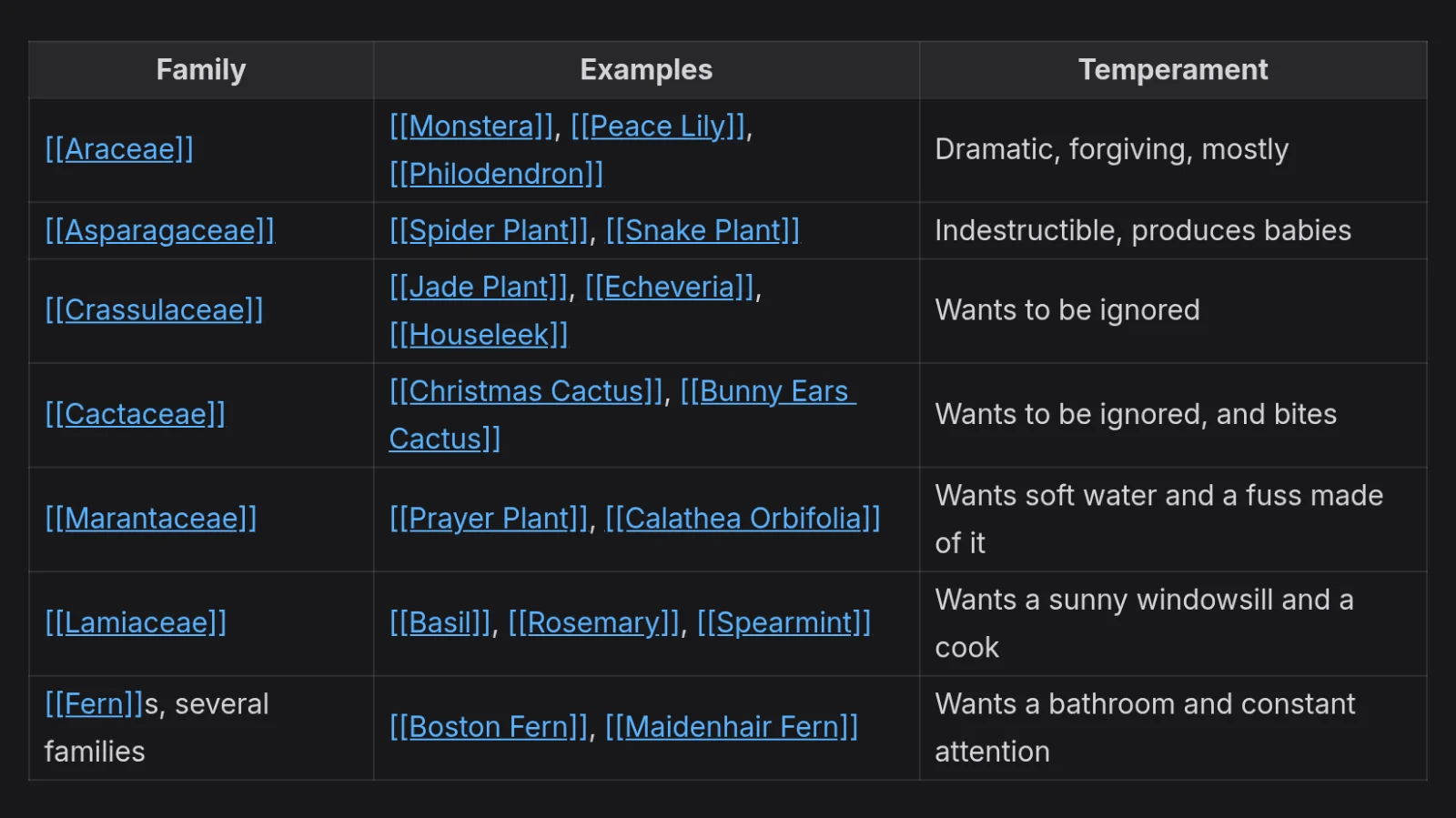
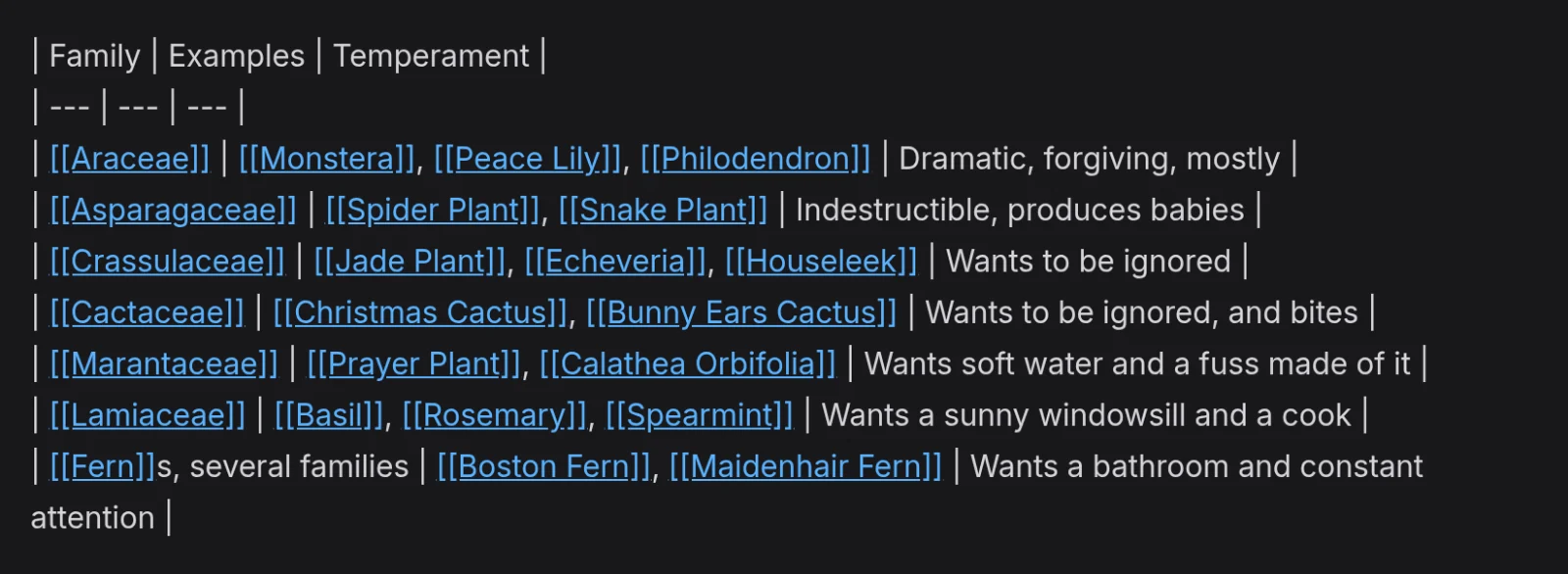
You insert and change tables from the command menu, which opens when you type /. It lists the
table actions only while the cursor is in a table. On a phone, the command bar also has buttons for
tables. In a locked protected document the table commands are hidden or greyed out, because you
cannot write to it. See Protected Documents for more information.
New tables
To insert a table:
- Put the cursor on the line where the table should go.
- Type
/tableand select Table. - In the size picker, choose a size with the arrow keys.
- Press Enter.
Right and Left change the number of columns, and Down and Up the number of body rows. You can also click a size. Escape closes the picker and leaves the document unchanged.
The new table has a header row above the body rows you chose. The placeholder Column 1 in its first header cell is already selected, so you can type the first column's name straight away.
A table inserted on an empty bullet becomes part of that bullet and indents, folds and moves with it. See Outliner Blocks for more information.
Table actions
The command menu has these table actions:
| Action | What it does |
|---|---|
| Table: Add row | Add an empty row below the current one. |
| Table: Add column | Add an empty column to the right. |
| Table: Remove row | Remove the current row. |
| Table: Remove column | Remove the current column. |
| Table: Remove rows above | Remove every body row above the current one. |
| Table: Remove rows below | Remove every body row below the current one. |
| Table: Remove columns left | Remove every column to the left. |
| Table: Remove columns right | Remove every column to the right. |
| Table: Format | Line up the columns. |
You cannot remove the header row or the last column of a table: Table: Remove row does nothing on the header row, and Table: Remove column does nothing in a one-column table.
Table actions also line up the columns, padding each column to its widest cell and rewriting the row of dashes to match, with any alignment colons kept. Typing in a cell does not pad the other rows, so run Table: Format when you finish. The header row sets the number of columns: if a row has more cells than the header, the next table action deletes the extra cells and their text.
Tables on a phone
Tap Insert table on the command bar to open the same size picker, then tap a size. While the
cursor is in a table, the bar also shows Add row, Add column, Remove row and
Remove column, which run the matching table actions. For the other five actions, tap
Commands to type / and open the command menu. See EtherPK On A Phone for more
information.
Cell contents
In the grid, wikilinks show as links with their brackets, and formatted text is styled with its marks hidden. Click a wikilink or a web link to open it, or Ctrl+click it (Cmd+click on a Mac) to edit the table from there instead.
Maths, images and links to attached files show as text in the grid, but a published site draws them. See Pages And Wikilinks, Formatting Text, Code Maths And Diagrams and Images And Files for more information.
Markdown for a table
Separate cells with a pipe (|), and put a row of dashes directly under the header row, one run of
dashes per column. You can leave out the pipes at the start and end of a row. To align a column,
add colons to its run of dashes: :--- for left, ---: for right and :---: for centre. For
example:
| Job | Day | Bed |
| --- | --- | :-: |
| Water the beans | Monday | [Kitchen Garden] |
| Weed the path | Saturday | 2 |
After a table action, the same table looks like this:
| Job | Day | Bed |
| --------------- | -------- | :----------------: |
| Water the beans | Monday | [Kitchen Garden] |
| Weed the path | Saturday | 2 |
A table runs on through every following line that has a pipe, until a blank line or a bullet. Leave a blank line between two tables, or they read as one table, with the second table's header row and row of dashes as body rows.
See Document Syntax for more information.