Outliner Blocks
An EtherPK document can mix two kinds of writing: an outline of bullets that start with - , and prose made of headings and paragraphs. You do not switch between modes, because what a key does depends on the kind of line the cursor is on. On a prose line, for example, Enter splits the line as it would in a plain text editor.
A block is a bullet line and everything under it: its child bullets, any further lines lined up with its text, and any code block, table or image on those lines. The outline keys act on whole blocks, inside one group of bullets at a time. When you indent, outdent or move a block, its children, further lines and code go with it, so a child bullet never ends up apart from its parent.
EtherPK reads this structure from the text alone: indentation sets the nesting, and heading levels set the sections. It stores no block ids or outline data with the file, so the file stays plain markdown that other editors can read. An outline you write or edit in one of them opens in EtherPK as the same outline.
Garden
Beds
North bed
[ ] water the beans
South bed
Tools
A second line of the same block.
On a Mac, press Cmd instead of Ctrl.
Blocks
A line that begins with a hyphen and a space is a bullet, however far it is indented, and a child bullet is indented two spaces more than its parent. Lines that begin with *, + or a number are not bullets, and the outline keys treat them as prose.
Lines inside a block
Press Shift+Enter to start a further line in the same block. A code block, table or image on a further line belongs to the block and moves, indents and folds with it.
Groups and headings
A group of bullets ends at a heading, a paragraph or a blank line at the left margin. The outline keys work inside one group at a time, so the lists on either side of a heading stay separate: Alt+Up stops at the heading, and Backspace does not merge a bullet across it.
Blocks below a heading nest under it, up to the next heading of the same or a higher level. Headings and parent bullets give a block its context. Backlinks show each link with the headings and bullets above it, and a task is also filed under every page linked from a heading or bullet above it. See Backlinks and Tasks for more information.
Entering and leaving an outline
To start an outline, type a hyphen and a space at the start of a line, or press Tab on a prose line to turn it into a bullet at the left margin. The Add a block button at the bottom left of the document starts a bullet as well. See Formatting Text for more information.
Enter on an empty bullet gives you another empty bullet. To leave the outline, use one of these keys instead:
- Shift+Tab on a top-level block turns its bullet line into prose. The marker and any checkbox disappear, its further lines move to the left margin, and its children move up one level so that no bullet is left under a prose line.
- Ctrl+Enter inserts a prose line at the left margin after the whole top-level block the cursor is in, so the blocks after the cursor keep their parent.
On a phone, the Bullet button in the command bar turns a line into a bullet, or a top-level bullet back into prose. See EtherPK On A Phone for more information.
Nesting, moving and folding
Tab indents a block one level, under the block above it at the same depth, and Shift+Tab outdents it one level. A child sits exactly one level under its parent, so Tab does nothing on a block with no block above it at the same depth, such as a first child.
To merge a block into the one above, press Backspace at the start of its text or Delete at the end of the line above it. The same one-level rule stops any merge that would leave a child more than one level under its new parent.
Alt+Up and Alt+Down move a block past its neighbour at the same depth and everything nested under that neighbour, so the block never lands inside it. Dragging blocks with the mouse is one of the Planned Features.
Ctrl+. folds a block, hiding its children and further lines, and pressing it again unfolds the block. EtherPK does not save folds, so a folded block is open again after a reload.
See Keyboard Shortcuts for every outline key.
Block selection
When the top line of a selection is in a block, the selection snaps to whole blocks as soon as it reaches another block, a prose line or a heading. When the top line is prose or a heading, the selection stays character by character, even across a list. Selecting a block also selects every block nested under it, so pressing Backspace or cutting the selection removes the children as well.
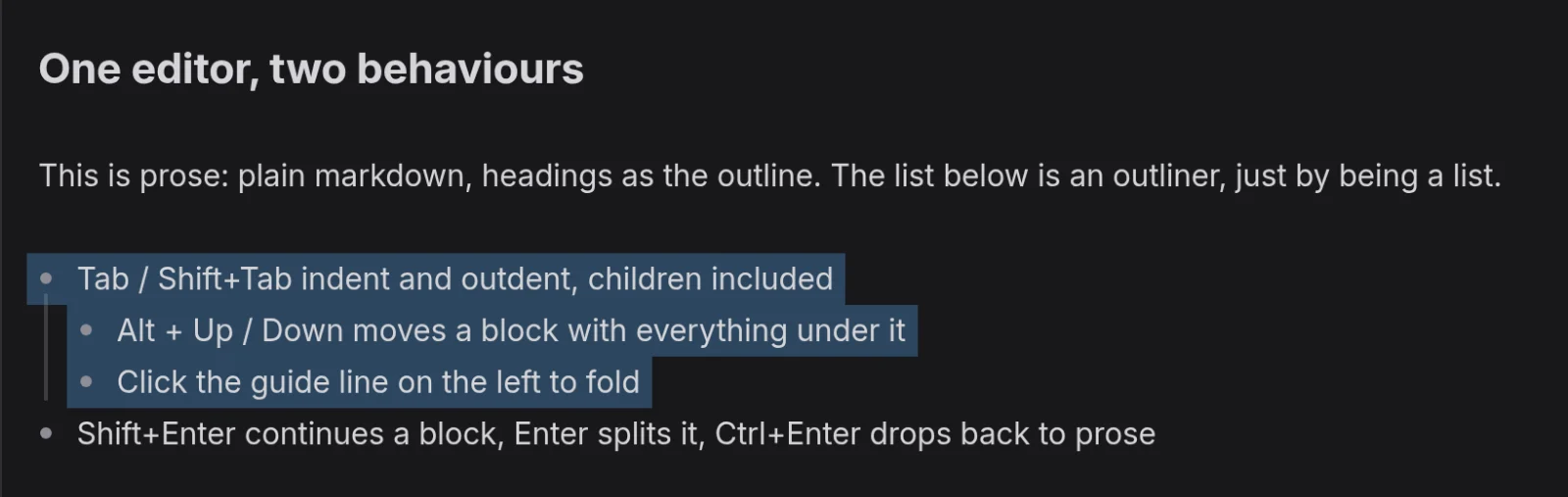
To remove a parent on its own, clear its text and press Backspace on the empty bullet. The bullet goes, and its children stay where they are, now under the block directly above. If the bullet was the first line of the document, or sat directly below a heading, a paragraph or a blank line, the children move up one level instead.
You can also add blocks to the selection with Shift+Down and Shift+Up. With blocks selected, Tab and Shift+Tab move each one with its children, and typing replaces them all with one block that holds what you typed.
Pasting
Pasting several lines into a block makes one block per line. A list copied from a web page lands as an outline, and hard-wrapped text becomes one block per wrapped line. Bullets in the pasted text keep their nesting, one level under the line before them.
Ctrl+V turns a formatted selection from a web page, a word processor or a spreadsheet into markdown, pictures included. See Images And Files for more information.
Ctrl+Shift+V (Cmd+Option+Shift+V in Safari) pastes plain text and keeps every line in the current block, so use it for an address or a stack trace. For example, if you paste water the beans, a blank line and weed the path onto an empty bullet, Ctrl+V gives two blocks and Ctrl+Shift+V gives one:
Garden
water the beans
weed the path
Kitchen
Garden
water the beans
weed the path
Kitchen
Tidying
When the cursor leaves a block, EtherPK strips trailing spaces and empty further lines from its end. A markdown line break made of two trailing spaces goes with them, so use Shift+Enter to break a line instead. EtherPK never tidies code blocks or frontmatter.