Extensions
An extension is a package of features that runs inside EtherPK. It can add tabs of its own, buttons in the Graph Sidebar, rows in the / menu and in right-click menus, blocks drawn inside documents, and panels under a journal entry.
Agent Chat, Graph View, Kanban and Maps come with EtherPK. Extensions from other publishers are in the Extension Directory, which as of October 2026 lists Excalidraw, Events for Google Calendar and Videos. Both kinds share one list in the Settings and Extensions dialog, where each row has a switch. The switch is set per device, so switching an extension off affects every graph on this device and none of your other devices.
Your extensions and their settings belong to you, not to a graph, so a graph you share or export carries no extensions with it. Opening a graph someone shared with you does not install or run any of their extensions. Once your EtherPK account has a synced graph, your extensions and their settings follow you to your other devices. Until then they stay on this device.
Extensions are not sandboxed, so an installed extension can reach anything EtherPK can. Each release in the Extension Directory is reviewed before it is listed, and EtherPK runs only that reviewed release.
Open the Extensions list
- In the toolbar, select the cog (Graph name and settings). In a narrow window, such as on a phone, select Settings in the Graph Sidebar.
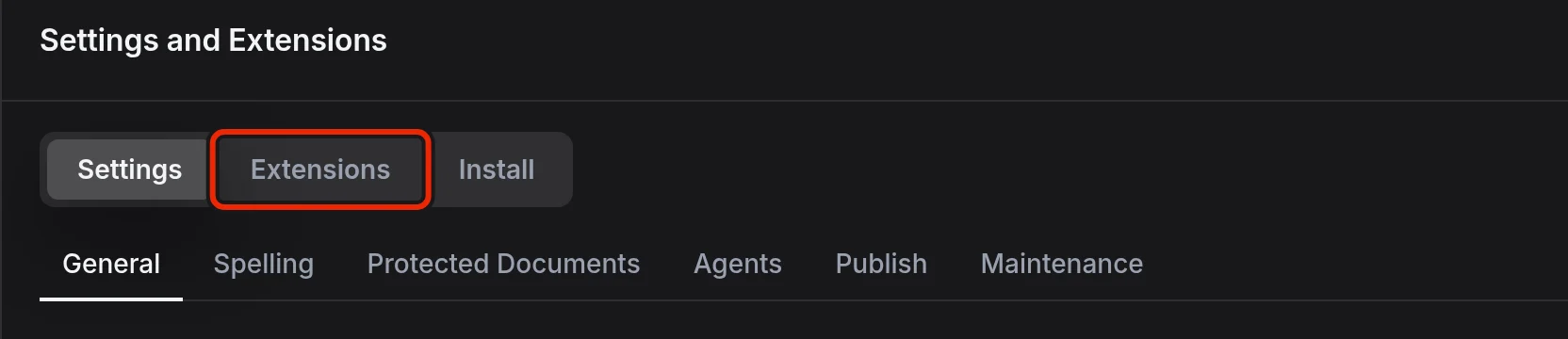
- At the top of Settings and Extensions, select Extensions.
In the list, each extension has a row with its name, version and publisher, a description, a status line and the switch. The extensions that come with EtherPK each have a page of their own: Agent Chat, The Graph View, Kanban Boards and Maps. Below the list, the Extension Directory section has a row for every listed extension you have not installed. Each of these rows names the licence and, when the source code is at an https address, links to it under Source.
Switch an extension off or on
Use the switch on the extension's row. The change takes effect at once, without a reload.
Switching an extension off removes its menu rows and Graph Sidebar buttons. Its open tabs stay where they are, so when you switch it on again they come back as they were. Until then, each of those tabs shows a note that the extension is off and a Switch it on button.
If an extension fails to start, the graph still opens, so you lose only that extension's own features. The reason appears after "Could not start:" on its row and in its open tabs, with a Try again button.
Install from the Extension Directory
- Open the Extensions list.
- Under Extension Directory, find the extension.
- Select Install. The row then lists what the extension can reach.
- To confirm, select the button that names the extension, such as Install Excalidraw.
The extension starts at once in the open graph and moves into the list. From then on it runs in every graph on this device.
Access and review
An installed extension can:
- read and change the documents in the graphs you open, including protected documents while they are unlocked
- read every extension's settings, including keys
- send what it reads to other websites
Install only extensions you trust. The EtherPK server fetches each release, checks it against the directory list and serves it from EtherPK's own address, so an extension changes only through a new reviewed release.
EtherPK passes extensions only content that is already public, so whatever an extension does, private and protected documents never appear on a published site.
Blocks from an extension
An extension draws its blocks, such as a map or a drawing, right in the document. On a device where the extension is switched off, not installed or has failed to start, a block that holds the extension's data, such as a drawing, shows a note in its place. The note names the extension, for example "Content from the excalidraw extension, which isn't running here." See Code Maths And Diagrams for more information.
Updates and other devices
Extensions from the Extension Directory update themselves. A newer release downloads while you work and takes effect the next time you start EtherPK, so an update never interrupts what you have open.
EtherPK looks at the directory list again only every so often. To pick up a newly listed release, select Refresh beside the Extension Directory heading.
Your extensions and their settings reach another device once you sign in there and unlock your Encryption Keys. While the keys are locked, changes wait and sync once you unlock them. See Synced Graphs for more information.
Extension settings and sign-ins
If an extension has settings, select Settings under its row. The Maps settings, for example, hold your Mapbox access token. See Maps for more information.

EtherPK shows these settings itself, so you can still change them while the extension is off or has failed to start.
An agent with an agent token cannot read your extension settings or the sign-ins extensions keep for services such as a calendar. See The Headless Client for more information.
Remove an installed extension
Select Remove on the extension's row. It stops at once and appears again under Extension Directory. If your account has a synced graph, the extension is removed from your other devices as well.
Removing an extension clears the values it kept with your account, such as a sign-in, and most of what it saved on this device.
The extensions that come with EtherPK are part of it, so their rows have no Remove button. To stop one, switch it off instead.