Publishing Your Notes As A Website
In this tutorial, you publish a few pages of a graph as a website and check the site in your browser. EtherPK writes the site to a folder on your device as plain HTML pages, a theme stylesheet and script, and a search index. It does not run a web server, so you put the folder online yourself, with any host that serves static files.
A publication is one site, built from a set of public documents, and a graph can hold several, such as its documentation and a blog. Each publication has a publication page, an ordinary page whose frontmatter holds the publication's settings and whose bullet outline becomes the site menu. You create it with New publication in Settings > Publish. The page itself never appears on the site. A Documentation publication uses the bundled EtherPK Docs theme, which you can change later.
A document stays off every site until you mark it public with public: true in its frontmatter. With the default settings, a publication takes only the public documents that list its id under publications, so a public document that lists no id is not on any site. The Publish… dialog sets both keys for you. A protected document is never published, whatever its frontmatter says.
Before you begin
You need:
- Chrome or Edge on a computer, or Chrome on Android, to publish into a folder. Other browsers publish to a GitHub repository or a zip instead.
- A graph with pages to share.
- An empty folder for the site.
Each publish deletes any site files in the folder that it did not write, so give the site a folder of its own, outside every graph and Local Mirror folder. You cannot pick a graph or Local Mirror folder on this device, or any folder that is inside or contains one. An empty folder is safest because it holds nothing to delete.
Create a publication
Create the publication first, so the Publish… dialog has one to tick.
-
In the toolbar, select Graph name and settings (the cog icon).
-
Select the Publish tab. Alt+P opens this tab directly, except on a Mac.
-
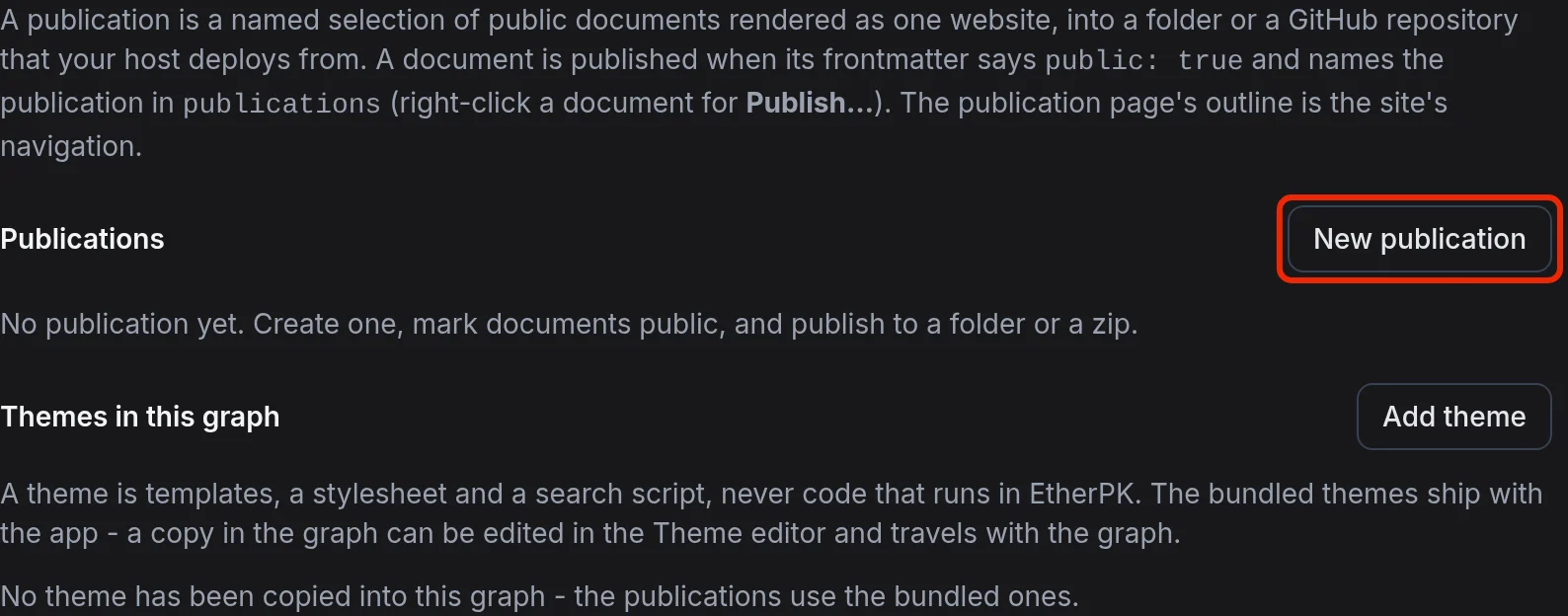
Select New publication.
-
Fill in the form:
- Name:
Garden Notes. This is the title of both the publication page and the site. - Id:
garden-notes, which the form suggests from the name. An id is made of lower-case letters, digits and hyphens. Pages list the id underpublications, so settle on it before you mark any pages. - Kind: keep Documentation.
- Documents: keep Those that name this publication.
- Home page (optional):
Garden, the page whose content becomes the front page.
- Name:
-
Select Create and open.
Settings closes and the publication page opens. It already holds a short paragraph about the page and a bullet for the home page.
Build the menu
On the publication page, each bullet that holds a single wikilink becomes a menu entry, and a bullet nested under it becomes a sub-entry. Add the other pages below the bullet for Garden:
[Garden]
[Vegetables]
[Beans]
[Tomatoes]
If a page in the outline is not in the publication, the menu leaves out its entry and the report names it, so mark every page in the outline. A page that is in the publication but missing from the outline is still on the site, and readers can reach it through search and links.
Mark pages public
Open each page in the outline, including the home page Garden, and then:
-
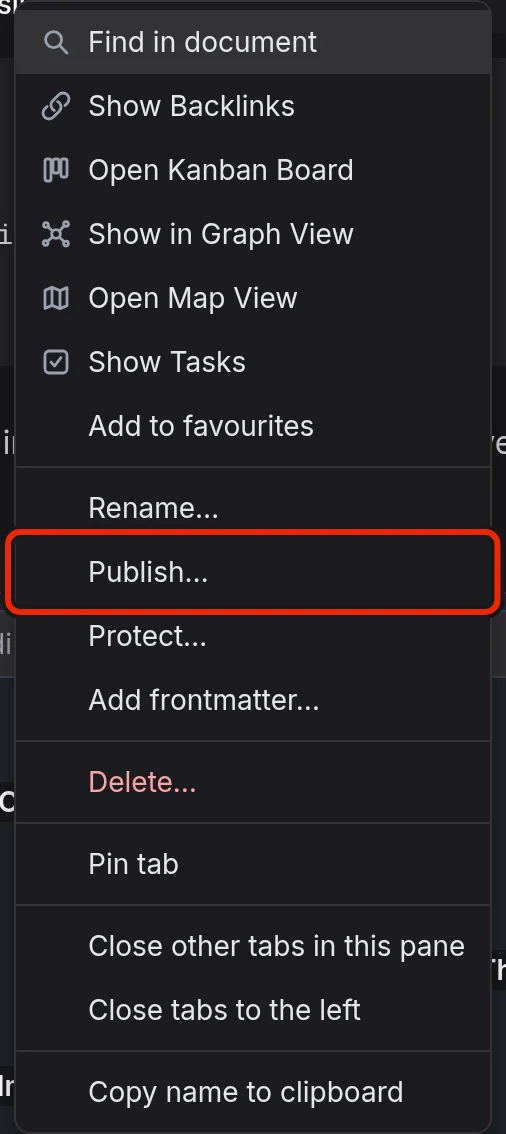
Right-click its tab and select Publish….
-
Under Publications, tick Garden Notes, which also ticks Public.
-
Select Save.
Saving adds the two keys to the frontmatter and leaves the body alone:
---
title: Garden
public: true
publications:
garden-notes
---
Publish to a folder
-
Open Settings > Publish.
-
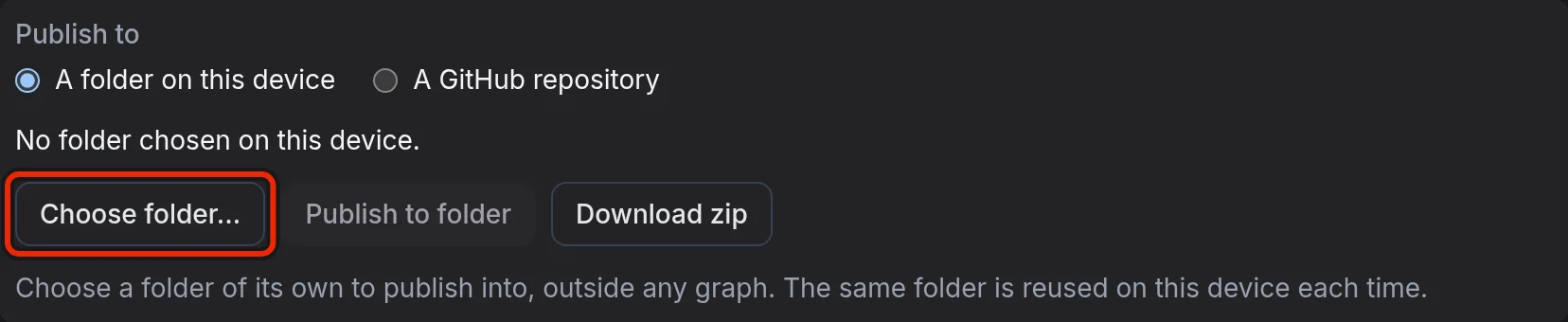
In the card for Garden Notes, under Publish to, select Choose folder….
-
Pick the empty folder.
-
When the browser asks, allow EtherPK to edit files in the folder.
-
Select Publish to folder.
When the publish finishes, a notification gives the number of documents published and, if there are any, the number of warnings in the report. Select Show report to open the report in Settings.
Under Left out:, the report lists every page that is not on the site, each with its reason: "(not public)", "(protected, never published)", "(a publication page)" or "(public, but not in this publication)". It also lists any warnings, and any links to pages that are not on the site.
Check the site
The site works straight from the folder, search included, so you can check the pages, menu, links and search before it goes online.
- In your browser, open
index.htmlfrom the folder. The front page shows the content ofGarden. - In the search box at the top, search for
beans. - If a published page links to a page you did not publish, follow that link. The "Not published" page opens, with a link back to the front page.
Search, the sitemap and the feed contain only published pages, so to a visitor a private page looks the same as one that does not exist. Links to a private page still show their text.
Publish again after edits
Changes, including protecting a page or unticking its Public checkbox, reach the site only when you publish again.
Because the app remembers the folder on this device, Alt+Shift+P publishes again without a dialog (except on a Mac). In a graph with more than one publication, the shortcut publishes the one you last published on this device.
Where next
- To put the folder online or publish to a GitHub repository, see Hosting A Published Site.
- For every publication setting and frontmatter key, see Publish Settings.
- To change how the site looks, see Theming A Published Site.