Theming A Published Site
A theme sets the look of the site you publish from a publication. It is made only of files: Mustache templates, a stylesheet, scripts and a manifest called theme.json. The templates come in two kinds: a layout for each kind of page, and partials, which are pieces that layouts share. The app fills the templates with the publication's public content and runs nothing in the theme, so a theme from any url can shape your site without reaching anything else in the graph. The theme's scripts run only on the published site and in the Theme editor's sandboxed preview. See Publishing Your Notes As A Website for more information on publications.
Every template is rendered with the same view, a set of values in four parts: site, page, nav and fragments. The contract key in theme.json names the view version that the theme was written for. The same file declares the theme's include slots: the parts of the site, such as the footer or extra CSS, that a page in the graph can fill.
Each publication names one theme in its theme: key: the id of a bundled theme, the id of a theme in the graph, or the url of a theme.json. Without the key, a docs publication uses etherpk-docs and a blog uses etherpk-blog. In Settings > Publish, you choose the theme and the page that fills each include slot. See Publish Settings for more information.
The six bundled themes are part of EtherPK and never change in place, so to change how one looks, you copy it into the graph first. Customise theme… and Add theme copy a bundled theme or a theme at a url into the graph, and you edit the copy in the Theme editor. A publish uses only a theme's saved files, but Preview in the Theme editor also shows unsaved edits, so you can check a change before you save it.
A theme in the graph is stored with the graph settings, so every device and member of a shared graph sees, edits and publishes with the same theme. It is not a page, and it does not appear in search or backlinks. In a local graph folder, an export or the Local Mirror of a synced graph, each theme is one file, etherpk/theme-<id>.jsonc. See Keeping A Local Copy Of A Synced Graph for more information on Local Mirrors.
Bundled themes
| Theme | Id | Publications | Look |
|---|---|---|---|
| EtherPK Docs | etherpk-docs |
Docs | A navigation sidebar, a table of contents, linked references under each page, and search. |
| EtherPK Blog | etherpk-blog |
Blog | Dated documents as posts, newest first, with top navigation, a feed and search. |
| EtherPK PaperMod | etherpk-papermod |
Blog and docs | Based on Hugo PaperMod: one column, post cards and a top menu with drop-downs. |
| EtherPK Stack | etherpk-stack |
Blog and docs | Based on Hugo Stack: a left sidebar with the menu, article cards, and widgets on the right. |
| EtherPK Terminal | etherpk-terminal |
Blog and docs | Based on Hugo Terminal: monospace, with framed boxes and a blinking cursor. |
| EtherPK al-folio | etherpk-al-folio |
Docs and blog | Based on Jekyll al-folio: an academic personal site, with the front page as an about page. |
EtherPK PaperMod, EtherPK Stack and EtherPK al-folio have a toggle between light and dark, and the others follow the system setting. All six use system fonts and inline SVG, so their sites load nothing from other sites.
Themes in a graph
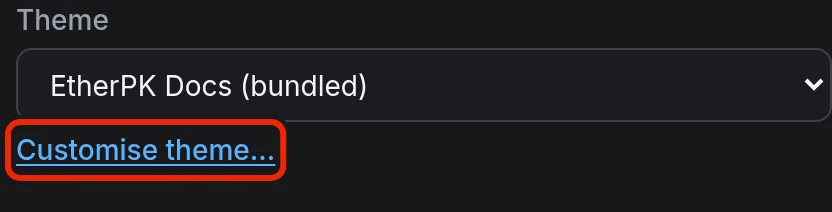
In Settings > Publish, select Customise theme… under a publication's Theme field. The app copies the saved theme into the graph, opens the copy in the Theme editor and points the publication at it. The next publish uses the copy, and the bundled theme stays as it was. A publication that already uses a theme in the graph shows Open in Theme editor instead.
On the same tab, Themes in this graph lists each theme with the publications that use it. To open a theme in the Theme editor, select Open editor in its row. Deleting a theme removes it for every member and device, so Delete… in its row asks you to confirm with Delete for everyone.
To copy a theme without switching a publication to it, select Add theme. In Copy from, choose a bundled theme, or choose A url to a theme.json and enter its address in Url. Give the copy a Name, check the Id that the app suggests, and select Add to graph.
In a local graph folder, the app reads etherpk/theme-<id>.jsonc only when you open the graph, and every save in the Theme editor rewrites the whole file. If you edit the file by hand while the graph is open, the next save overwrites your edit.
An agent can also copy, edit, preview and publish themes through the Headless Client. See The Headless Client for more information.
Theme editor
| Control | Description |
|---|---|
| Add file… | Add an empty file under layouts/, partials/ or assets/. |
| Save | Save the selected file. Ctrl+S (Cmd+S on a Mac) in the file does the same. If theme.json has an error, the editor does not save it and shows the reason. |
| Revert | Drop your unsaved edits to the selected file. |
| Reset to original | Load the selected file from the bundled theme the copy came from, as an unsaved edit. |
| Delete file | Delete the selected file at once. Unavailable for theme.json and layouts/page.html, because a theme cannot render without them. |
| Delete… | Delete the theme after you confirm with Delete theme for everyone. |
Each save replaces the whole file, and the last save wins. So when another member or device saves a file while you have unsaved edits in it, the editor marks the file as changed elsewhere. Save then writes your text over theirs, and Revert drops your edits and loads theirs.
Theme preview
Select Preview to see the site beside the files. The preview opens on the first publication that uses the theme, or on Sample content, a built-in docs site, if no publication uses it. In Content, you can choose any publication that uses the theme, or Sample content. To render your latest edits, select Update preview or save a file.
Theme files
A theme has theme.json and three folders: layouts/, partials/ and assets/.
| Layout | Renders |
|---|---|
layouts/page.html |
Any published document other than the home page and journal entries. Required. |
layouts/home.html |
The front page, or a generated index.html when there is no home page. |
layouts/journal.html |
A journal entry. |
layouts/archive.html |
The journal archive and, for a blog, the posts archive. |
layouts/404.html |
The page that a link to an unpublished page opens. |
A missing layout falls back to layouts/page.html, so a theme can be as small as one layout and theme.json.
An include page replaces the partial with the same name. To let a page add to markup that the theme already has, keep that markup in a separate partial and render the empty slot partial after it. The bundled themes do this for their scripts:
    {{> footer}}
    {{> theme-scripts}}
    {{> scripts}}
</body>
</html>
A publish copies the files under assets/ into the site's theme/ folder. Every theme file is text, so a theme carries no binary fonts or pictures.
The templates use these Mustache tags:
| Tag | Renders |
|---|---|
{{name}} |
The value, with HTML escaped. |
{{{name}}} |
The value as HTML, unescaped. |
{{#name}}…{{/name}} |
The block for each item of a list, or once when the value is true. |
{{^name}}…{{/name}} |
The block when the value is empty or false. |
{{> name}} |
The partial partials/name.html. |
The etherpk-docs page layout uses several of them:
{{> shell-top}}
            <article class="page">
                <header class="page-header">
                    <h1>{{{page.titleHtml}}}</h1>
                    {{#page.hasDate}}<time class="page-date" datetime="{{page.date}}">{{page.date}}</time>{{/page.hasDate}}
                </header>
{{> toc}}
                <div class="page-body">
{{{page.content}}}
                </div>
            </article>
{{> shell-bottom}}
theme.json keys
| Key | Value |
|---|---|
name |
The theme identifier. Required. |
contract |
The view version the theme was written for. Required. The current version is 1. |
kinds |
docs, blog or both. Both when absent. |
includes |
The include slots, each with a name, a description and, for a stylesheet slot, "kind": "css". |
files |
Every theme file, as a path relative to theme.json. Needed for a theme at a url. |
Every slot other than a css slot needs a partials/<name>.html, so a theme that declares one without its partial fails to publish. For a css slot, a publish writes the first css fence on the page that fills the slot to theme/custom.css.
A small manifest:
{
    "name": "garden-theme",
    "title": "Garden Theme",
    "version": "1.0.0",
    "contract": 1,
    "description": "One column with a green header.",
    "kinds": ["docs"],
    "includes": [
        { "name": "footer", "description": "The site footer." },
        { "name": "styles", "description": "CSS appended after the stylesheet.", "kind": "css" }
    ],
    "files": ["layouts/page.html", "partials/footer.html", "assets/theme.css"]
}
Template view
Include pages are rendered with the same view as layouts, so they can use values such as {{site.year}}. The view includes these values, among others:
| Value | Content |
|---|---|
site.title, site.url, site.year |
The publication's name and Site address, and the year of the publish. |
site.hasMath, site.hasCustomCss, site.hasFeed |
Whether the site has maths, a filled css slot and a feed. |
site.pages |
The published pages, without journal entries and the home page. |
site.journals, site.posts |
The journal entries, and every dated document, newest first. |
page.title, page.titleHtml |
The name as text, and as HTML, where the name of a scoped concept is a chain of links. |
page.url, page.date |
The file name and the date. |
page.content |
The rendered body as HTML. |
page.toc, page.backlinks, page.excerpt |
The headings, the published pages that link here, and the opening words as plain text. |
nav is the navigation tree, built from the publication's outline as a list of { label, labelHtml, href, external, concept, current, open, hasChildren, children }. A group has no href. current marks the page being rendered, and open marks its ancestors. fragments holds the same lists as ready-made HTML, such as fragments.nav and fragments.toc.
Classes in rendered content
| Content | Classes |
|---|---|
| Wikilinks | a.wikilink, or a.wikilink-missing for a page that is not on the site |
| Tasks | li.task, li.task.done, and span.task-tag for each tag |
| Code | pre > code.language-<name>, with span.tok-* tokens |
Required links and markup
Layouts link to theme files under theme/, such as theme/theme.css. Put the link to theme/katex/katex.min.css inside {{#site.hasMath}}, because a publish copies the KaTeX files into the site only when a page has maths. Put the link to theme/custom.css inside {{#site.hasCustomCss}}, after the theme stylesheet, so that the css slot overrides the theme CSS:
    <link rel="stylesheet" href="theme/theme.css">
    {{#site.hasMath}}<link rel="stylesheet" href="theme/katex/katex.min.css">{{/site.hasMath}}
    {{#site.hasCustomCss}}<link rel="stylesheet" href="theme/custom.css">{{/site.hasCustomCss}}
To use the bundled search.js, include this form:
        <form class="site-search" role="search" data-search-index="{{site.search.url}}" data-search-script="{{site.search.scriptUrl}}">
            <label class="visually-hidden" for="site-search-input">Search</label>
            <input id="site-search-input" type="search" name="q" placeholder="Search" autocomplete="off" aria-describedby="site-search-hint">
            <span id="site-search-hint" class="visually-hidden">Type to search the published pages - results appear below the box.</span>
            <div class="site-search-results" role="listbox" hidden></div>
        </form>
Themes at a url
A theme can be served from any static host that sends Access-Control-Allow-Origin headers, because the browser fetches it from another site. The url must start with https://, except for localhost and 127.0.0.1. The app fetches only the files that theme.json lists, and only from the layouts/, partials/ and assets/ folders beside it on the same host, so list every file and keep each one in those folders.
When the theme: key holds a url, every publish fetches the theme from it. Changes at the url reach the next publish, and the publish fails if the url cannot be reached. The app does not fetch a copy in the graph, so a publication that uses the copy keeps its look if the url goes away. For a publication that uses the url, Customise theme… makes the copy and points the publication at it. Add theme only adds the copy, and the publication stays on the url until you choose the copy in its Theme field and select Save changes.