Managing Your Graphs
A graph is one set of notes: your journal entries, pages, images and files, along with the graph's own settings. A browser tab shows one graph at a time.
A local graph is a folder of Markdown files on this computer. A synced graph is stored encrypted on the Sync Server, and every browser that opens it keeps a readable copy. You cannot switch a graph between local and synced after you create it, so to move notes to the other kind, import them into a new graph. The demo graph is a sample that EtherPK keeps in this browser.
Each browser keeps its own list of graphs. The synced graphs on your account appear in every browser you sign in to, but you have to add one to a browser before you can open it there.
Open the Graphs page
The Graphs page has buttons for creating a graph, with a row below them for each of your graphs and its actions. See Local Graphs and Synced Graphs for more information on creating a graph.
To open the Graphs page on the desktop layout:
- In the header, select Graphs.
- Below the list of graphs, select All Graphs.
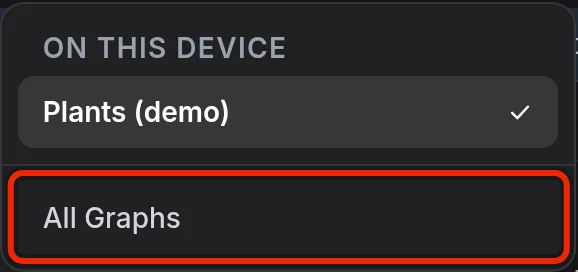
On a phone, select the menu button on the right of the header, then Graphs.
A synced graph that this browser has not added yet is marked Not on this device. Select Add to this device in its row before you open it.
Switch between graphs
To open a graph, select Open in its row on the Graphs page. On the desktop layout, when you are already in a graph, you can also select Graphs in the header and pick one under On this device.
When you start EtherPK, it reopens the graph you last used in this browser if that graph is still in the list.
Rename a graph
-
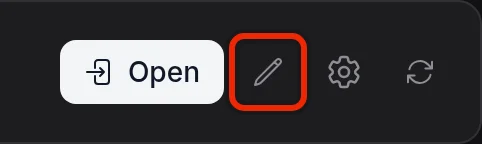
On the Graphs page, find the graph and select the pencil button (Rename graph) beside Open.
-
In Graph name, enter the new name.
-
Select Rename.
Renaming a local graph changes only the name EtherPK shows. Its folder on disk keeps its name. A synced graph has one name for all its members, so renaming it changes the name for everyone.
Colour a graph
- Inside the graph, select the cog button in the toolbar. On a phone, select Settings at the bottom of The Graph Sidebar.
- In the Settings and Extensions dialog, select Settings > General.
- Under Toolbar colour, pick a colour.
- Select Save.
The colour fills the toolbar on the desktop layout. A phone has no toolbar, so there it fills the tab strip at the top of the screen.
The colour is saved in the graph, so every member of a synced graph sees the same one. It also means a graph's row in the Graphs menu shows the colour only once you have opened the graph in this browser after the colour was set.
Remove a graph from this device
- For a local graph, select the cross button in its row on the Graphs page. For a synced graph, select Remove from this device below its row.
- In the Forget graph dialog, select Forget, or Discard changes and forget if the graph has unsent changes.
Removing a local graph leaves its folder and files on disk. To bring it back, pick the same folder with Open folder (Local Graph).
Removing a synced graph deletes its copy in this browser, but the graph stays on the Sync Server and you can bring it back with Add to this device. Other members keep the graph, though the owner can delete it for everyone with Delete. See Sharing A Graph for more information.
When you remove a synced graph, you lose any changes this browser has not yet sent to the Sync Server. To keep them, open the graph while you are online and wait until it shows Synced, or save them with Download unsent changes in the Forget graph dialog.
Removing any graph also deletes its chats in Agent Chat. They are stored only on this device, so you cannot get them back.
Try the demo graph
If this browser has no demo, the Graphs page shows Try the demo. When you select it, EtherPK builds the demo from sample files and opens it. From then on the button no longer appears, and you open the demo with Open in its row, below the local graphs.
The demo lives only in this browser and has no backup, so put any notes you want to keep in a local or synced graph. If the browser clears EtherPK's site data or frees up space, you lose the demo, and EtherPK builds a fresh one on your next visit.
On the desktop layout, a bar above the demo has a Reset demo button. Phones have no demo bar, so there you reset the demo from its row on the Graphs page. Because the demo cannot be removed, that row has a reset button in place of the cross, plus a Reset the demo link.
- Select Reset demo in the bar, or Reset the demo in the demo row on the Graphs page.
- When EtherPK asks "Reset the demo?", select Reset demo.
A reset returns every page in the demo to how it shipped and discards anything you wrote or uploaded there. Because a reset rebuilds the demo, EtherPK will not reset it while the demo is open in another tab. Close the demo in your other tabs, then select Try again.