The Graph Sidebar
The Graph Sidebar is the first tab in the left sidebar, or in the left drawer on a phone. Its tab shows a graph icon and the graph's name, next to the Quick notes tab (see Quick Notes). Press Alt+G anywhere in the graph to bring it to the front. The same key also expands a collapsed left sidebar and reopens the tab if you have closed it.
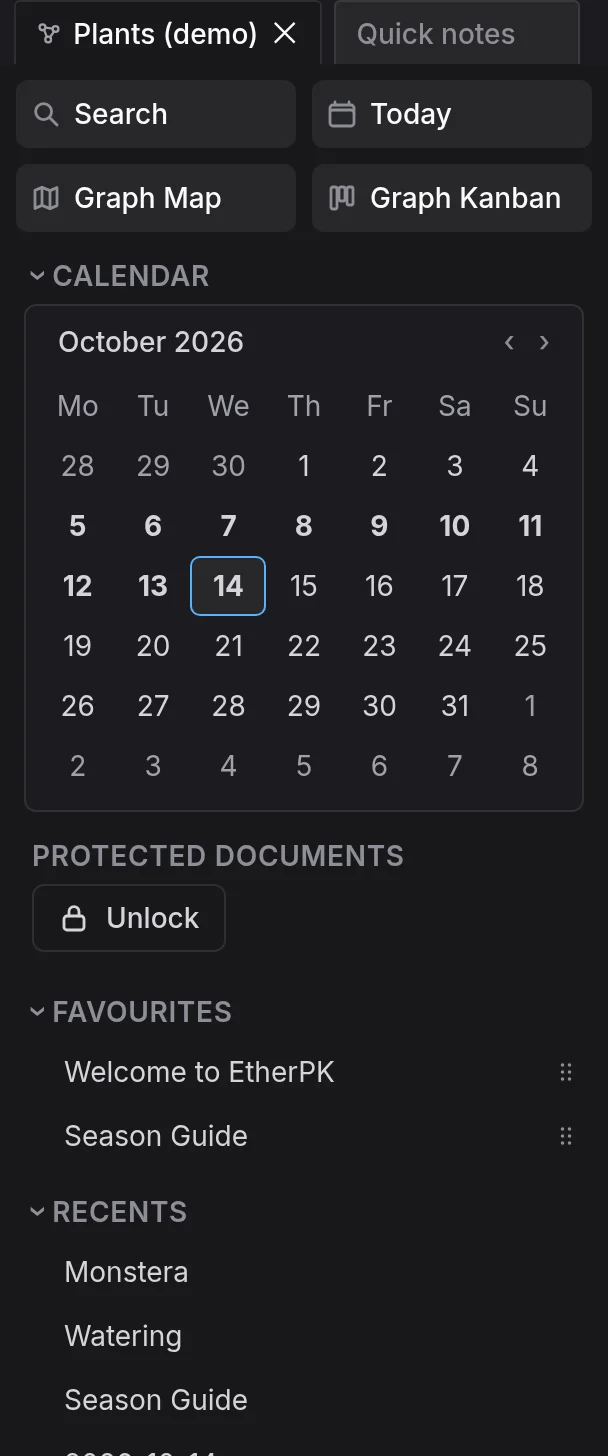
The sidebar starts with a group of buttons and the calendar, followed by Protected documents (only when the graph has a protection key), Favourites, Bookmarks and Recents. At the bottom are All documents, Settings (on a phone only), Reset workspace and, on a synced graph, the sync status.
To find a document, use Search for its name or text, Today and the calendar for a date, or Favourites and Bookmarks for what you have pinned yourself. Recents lists the documents you opened recently, and All documents lists every one.
A row or a calendar day can name a document that does not exist, such as a day with no journal entry. Selecting one opens a draft, which becomes a document only once you type in it, so you can open rows and browse the calendar without creating anything. See Pages And Wikilinks for more information.
Favourites and bookmarks belong to the person who made them. The graph keeps them, and on a synced graph they sync to each of your devices. Recents stays on this device only and is not part of the graph.
On a synced graph, the sync status shows whether your edits on this device have reached the Sync Server.
Buttons
To search the graph, select Search, or press Ctrl+K (Cmd+K on a Mac) or Alt+F anywhere in the graph. See Search for more information.
To open today's journal entry, select Today or press Alt+J anywhere in the graph. See Journal Entries for more information.
Graph Map opens a map of every place and route in the graph, and Graph Kanban opens a Kanban board of every task in it. The Maps and Kanban extensions add these buttons, so if you switch either extension off on this device, its button disappears (see Extensions). See Kanban Boards for more information.
Calendar
The calendar shows one month as a grid, with the days that have a journal entry in bold. Select a day to open its entry, or a draft if it has none.
Protected documents
The Protected documents section has one button. A single protection key covers every protected document in the graph, so the button locks or unlocks all of them on this device. While they are unlocked it reads Lock now. While they are locked it reads Unlock, which asks for your passphrase. See Protected Documents for more information.
Favourites
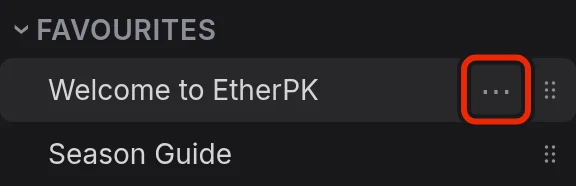
To add a favourite, right-click a document tab, a link in the editor, or a row in Recents or All documents, and choose Add to favourites. To remove one, right-click it in Favourites or in any of those places, and choose Remove from favourites. On a touch screen, long-press instead of right-clicking. Rows in Favourites and Recents also have a ⋯ button that opens the same menu. It appears while the pointer is over the row or the button has focus, and is always shown on a phone.
A Kanban board, the Graph Kanban, a map view, the Graph Map and the whole-graph Graph View can be favourites too. Right-click the view's tab and choose Add to favourites. Its row shows the tab's title and icon, and selecting it opens the view, or brings its tab to the front if it is open. A board or map of a page follows the page when you rename it. If the extension that draws the view is switched off, the row says so, and the tab it opens offers Switch it on. If the extension is not installed on the device, the row stays in the list but opens nothing.
Drag a row by the grip at its right end to reorder the list. A new favourite joins the bottom of the list and leaves the order you set by hand alone.
When you delete a page in EtherPK, it leaves Favourites, for every member of a shared graph. A favourite board or map of the page stays. A favourite that names a page that does not exist, such as one whose file another program removed, stays in the list and opens a draft.
On a local graph, your favourites live in etherpk/settings.json (see Graph Folder Layout). In a shared graph (see Sharing A Graph), EtherPK does not show your favourites to the other members. Every member has the graph key, though, so the list is not secret from them. To keep a document's text private from them, protect it (see Protected Documents). A Local Mirror or an export of a synced graph carries only your own favourites. See Keeping A Local Copy Of A Synced Graph for more information.
Bookmarks
Bookmarks lists the lines you have bookmarked, grouped under the name of the document each one comes from. Select a row to open the document at that line. See Bookmarks for more information.
PDF Bookmarks
PDF Bookmarks lists the pages you have bookmarked in PDFs, grouped under the name of each PDF. Select a row to open the PDF at that page, or select Remove to take the PDF Bookmark off. See PDFs: Reading, Annotating and More for more information.
Recents
Recents lists the documents you have opened on this device, newest first, one row each. It never syncs, so documents opened by another member, or by you on another device, do not change it. How many rows it shows is a graph setting, 10 by default. See Graph Settings for more information.
All documents
The number beside All documents is how many documents the graph has. Select the button to open a list of every document in a tab in the main area, where it can stay open beside your work. Type in Filter by name… to narrow the list.
Settings and Reset workspace
On a phone, select the Settings row to open the Settings and Extensions window. The sidebar has no such row on a desktop, where the cog button in the toolbar opens the same window. See Graph Settings for more information.
Reset workspace asks you to confirm, then closes every tab and returns the sidebars and their tabs to the layout of a new graph, with today's journal entry open. It leaves your documents as they are. See Tabs And Panes for more information.
Sync status
Only a synced graph has a sync status. Its row shows the status, plus a count such as "2 unsent" while some documents have changes the Sync Server has not received. Select the row to open a panel that explains the status in full and lists what you can do. See Synced Graphs for more information.
| Status | What it means |
|---|---|
| Synced | Every change on this device has reached the Sync Server. |
| Sending | Changes are on their way to the Sync Server. |
| Connecting | The graph has opened and the Sync Server has not answered yet. |
| Reconnecting | The connection to the Sync Server dropped and the app is reconnecting. |
| Offline | The device reports no network. Your edits sync when the connection returns. See Working Offline for more information. |
| Not syncing | The Sync Server is not accepting changes to the graph, or the graph no longer syncs on this device. |
| Waiting for key | The graph has a new key that this device does not have yet. Your edits sync when it arrives. |
Whatever the status, an edit the Sync Server has not received exists only on this device. Check that the status reads Synced before you clear the browser's site data or stop using a device. See Where Your Data Is Stored for more information.
If the Sync Server refuses changes, your device holds on to them and retries until the server accepts them. To send them straight away, select Try again now. See Troubleshooting for more information.
While edits are waiting on this device and the status is neither Sending nor Synced, the panel shows Download unsent changes. The button saves every document with unsent changes, as it is on this device, to a single Markdown file, so you can keep a copy outside EtherPK.