Your First Graph
In this tutorial you make a local graph, write your first notes, and find them as Markdown files in the graph's folder.
A graph is the set of notes that EtherPK opens, one graph to a browser tab. In a local graph, each note is a Markdown file in a folder on your computer, and EtherPK keeps no other copy. Each change reaches the file shortly after you stop typing, so you do not need to save.
A graph holds two kinds of document. Journal entries are named by date, one for each day, and pages have names you choose. A wikilink is a page name in double square brackets, such as [[Kitchen Shelves]]. It points at a name, not a file, so you can link to a page before it exists. Opening a day or a name that has no document yet, today included, gives you an empty draft, and EtherPK writes nothing until your first keystroke. Beneath its text, every document lists its backlinks: the lines in other documents that link to it.
A task is a bullet with a checkbox, and tags after the checkbox give it a priority, a state or a date. The Tasks view gathers the tasks from every document, and a change you make there is saved in the document the task belongs to.
Before you begin
You need Chrome or Edge on a computer, and an empty folder. A folder that already holds files also works.
The Open folder (Local Graph) button appears only in browsers that can open a folder: Chrome or Edge on a computer, and Chrome on Android. See Choosing Where To Store Your Notes for more information on other browsers and kinds of graph.
Create the graph
-
On the EtherPK home page, select Open The App. The Graphs page opens.
-
At the top of the Graphs page, select Open folder (Local Graph).

-
In the folder picker, choose your empty folder.
-
When the browser asks, allow it to edit the folder. EtherPK writes your notes there.
The graph takes the folder's name and opens at today's journal entry, which shows "Type to create today's entry". The Graph Sidebar is on the left, and the Backlinks and Tasks tabs are on the right.
Write in the journal
- Type
- water the beans. The dash and the space start a bullet. - Press Enter to start a new bullet at the same indent.
- Type a second line, then press Tab to nest it under the first.
- Press Shift+Tab to bring it back out one level.
Link to a new page
-
On a new bullet, type
Buy screws for the [[. A menu of names opens. -
Type
Kitchen Shelvesand select New concept, the last row. EtherPK adds the closing]], and the link has a dashed underline until the page exists. -
Click the link. Kitchen Shelves opens as a draft in its own tab.
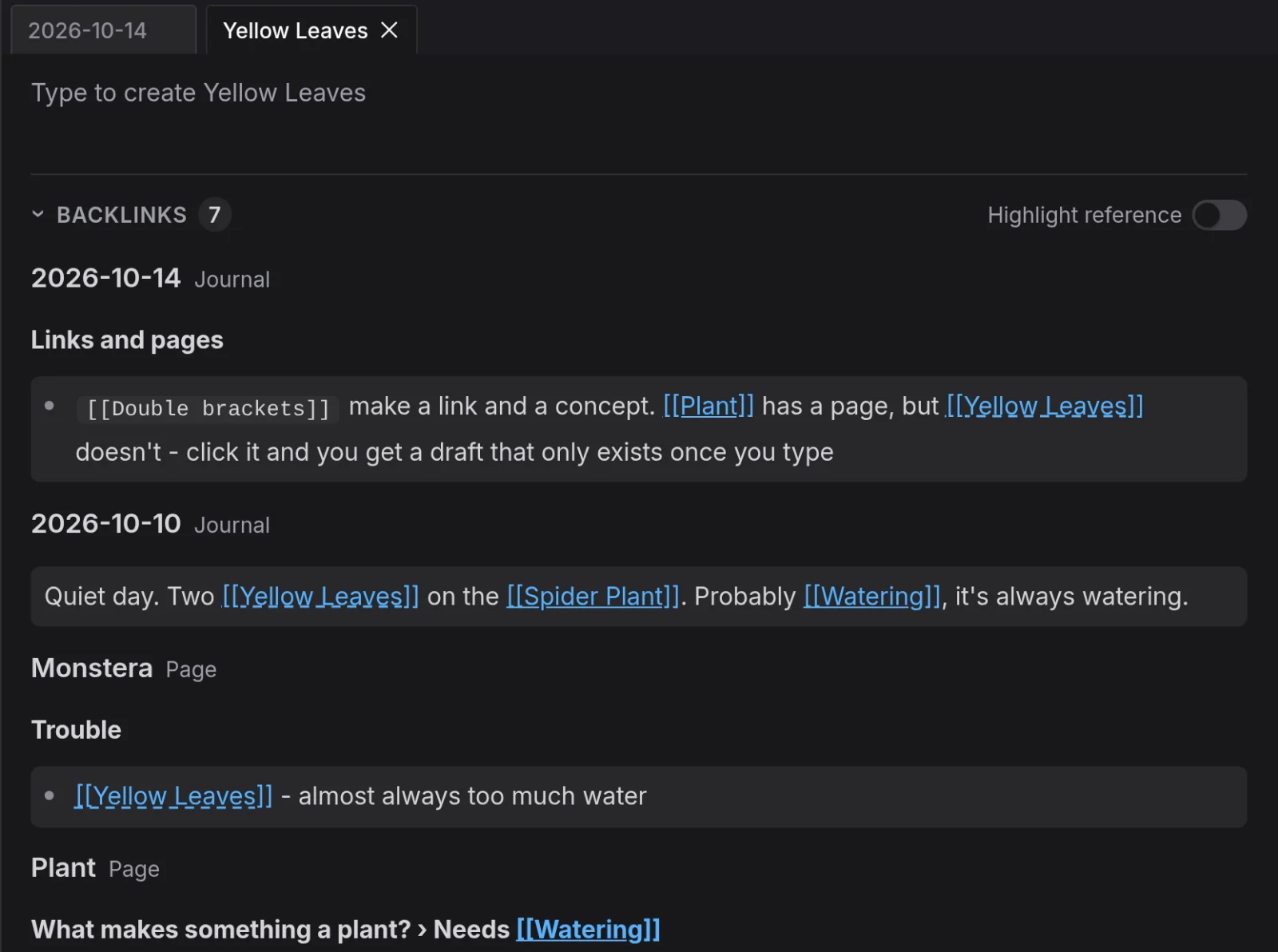
The draft shows "Type to create Kitchen Shelves". Your journal line links to that name, so it is listed beneath the draft under Backlinks.
-
Type anything in the draft. Your first keystroke creates the page.
-
Press your browser's Back button. Now that the page exists, the link in the journal entry has a solid underline.
Turn a line into a task
-
Put the caret on the
Buy screwsline. -
Press Ctrl+Shift+Enter (Cmd+Shift+Enter on a Mac). A checkbox appears before the text. You can also type
[ ]after the dash. -
At the end of the line, type a space and
#to open the tag menu. -
Select Priority 1. EtherPK writes
#P1after the checkbox.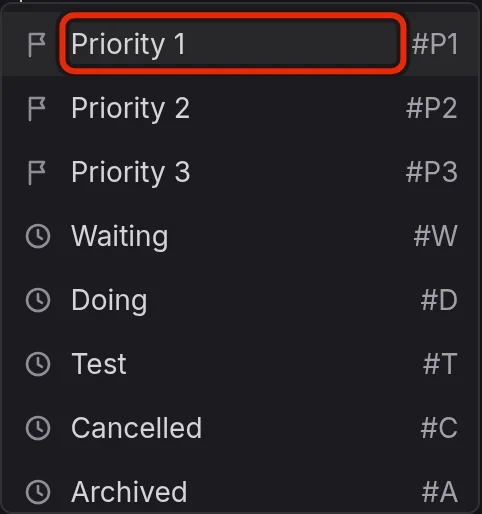
-
Type a space and
#again, then select Due date…. A calendar opens on today's date. -
Click a day, or move to it with the arrow keys and press Enter. EtherPK adds
#D-and the date, and the line now reads:[ ] #P1 #D-YYYY-MM-DD Buy screws for the [Kitchen Shelves] -
In the right sidebar, select the Tasks tab. Your task is listed there.
-
Tick the task in the Tasks view. The journal entry shows it ticked.
You can also tick or untick a task by clicking its checkbox in the document.
Search the graph
-
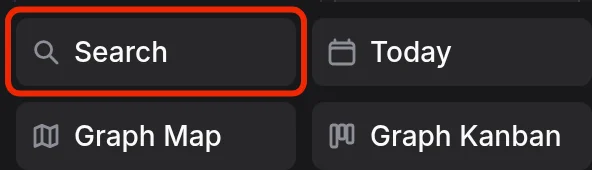
At the top of the Graph Sidebar, select Search, or press Ctrl+K (Cmd+K on a Mac).
-
Type
screws. Results come in two groups: Names for document names and Text for lines inside documents. -
Under Text, click your journal line. The journal entry opens with the caret on that line.
-
Click the Kitchen Shelves link. Your task line is listed beneath the page's text, under Backlinks.
-
Right-click the Kitchen Shelves tab and select Add to favourites.
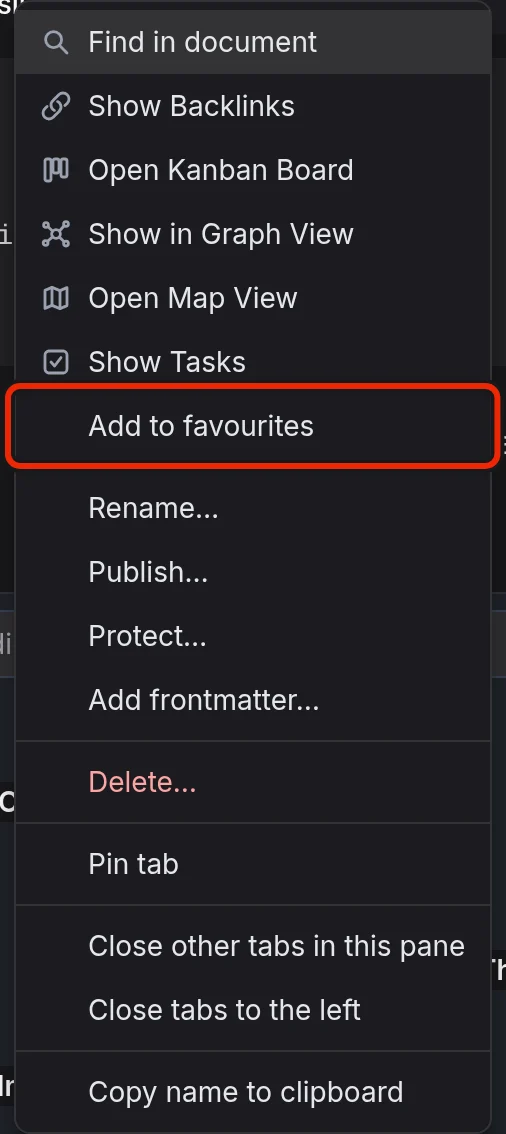
The page now appears under Favourites in the Graph Sidebar, and a click there opens it.
Add an image
Drag an image file onto the journal entry, or paste one with Ctrl+V (Cmd+V on a Mac). EtherPK stores the file in the assets folder and adds an image line for it. While the caret is on another line, the picture shows in place of the image line.
Open the folder
Open the folder in your file manager. It holds:
journals, one file for each day you wrote in (YYYY-MM-DD.md)pages, one file for each page (Kitchen Shelves.md)assets, the images and files you addedetherpk, graph settingsAGENTS.mdandCLAUDE.md, which describe the folder and the note format to coding agents
The folder holds the only copy of your notes, so copying it backs up the graph. Each note is plain Markdown that any text editor can read. Open today's file in journals to see your lines as you typed them.
Where next
- Read Managing Your Graphs to rename, forget or switch graphs.
- Read Keyboard Shortcuts for every key.