EBooks Reading And Highlighting
An EBook is an EPUB file in a graph, stored like any other file, and it opens in a tab inside EtherPK instead of a browser tab. In an EBook with reflowing text, your window size and text settings decide what fits on a page, so a page on a phone does not match a page on a desktop. Your place shows as a percentage, with the printed page number beside it if the EBook has page numbers.
The EBook file never changes. Your highlights, notes and bookmarks are kept beside it and appear at once, without you saving anything. EtherPK matches them to the file's contents, not its name, so a different edition of the same EBook starts with none. They belong to you, and each member of a graph keeps their own. On a synced graph, they follow you to your other devices, and EtherPK does not show them to the other members. On a local graph, they are in the etherpk folder inside the graph folder.
A synced graph also carries your reading place between devices, while a local graph keeps it on the device and out of the folder. Text settings, reading pace, dictionaries, voice and speed stay on each device in every graph and never sync.
Each EBook sits apart from the app, in a separate document inside the tab. Its scripts do not run, and nothing in it can reach the network or the rest of the app.
Search does not find the words in an EBook or in your highlights. The words leave the EBook reader when you copy them into a document or to the clipboard, or send them to an agent. Highlighting also saves them. A local graph keeps them in the etherpk folder, and a synced graph keeps them encrypted on the Sync Server, where they do not appear as a document. Any running extension can read the words you select while the EBook is in front.
Before you begin
You need a graph and an EPUB file. Add the file as you would any other, with the Upload asset dialog or by dropping or pasting it, and a link to it appears in the document. See Images And Files for more information.
Only EPUB files open. MOBI, AZW3, FB2 and CBZ files do not open, and an EBook protected by DRM does not open either. Most EBooks from stores such as Kindle or Kobo carry DRM, so you read those in the app they came from.
You can try an EBook in the demo graph, where the Welcome to EtherPK page links to The Plant Sitter's Guide.
Open an EBook
Select the link to the EBook in a document to open it in a tab at your last place.
If the EBook is protected by DRM, the tab shows "This EBook is protected by DRM, so EtherPK can't open it. Read it in the app it came from." Select Download it to save the file.
Turn pages
The reading controls are in the EBook toolbar. In a window under 1024 px, such as on a phone, they move to the Command Bar at the bottom of the screen.
To turn a page, select Previous page or Next page in the toolbar, on either side of the percentage box. While the controls are in the toolbar, the same two buttons are also at the foot of the page, on either side of the progress line. You can also tap or click at either side of the page, away from any link, picture or highlight. On a touch screen or in a narrow window, the page buttons float at the sides of the view's foot.
With the tab in front and no text field active, press Right Arrow or Page Down to go forward and Left Arrow or Page Up to go back. In an EBook read right to left, the arrow keys swap, but Page Up and Page Down do not.
The last button in the toolbar, More, opens a menu of reading controls and file actions. To read the EBook as one long scroll, turn off Page by page in that menu.
Check how far you have read
A progress line at the foot of the view shows the printed page if there is one, the percentage and the time left in the chapter. The time left is an estimate, and after several page turns it follows your reading pace on this device. While the controls are in the toolbar, the line stays on screen. When they are on the Command Bar, the line appears when you open the EBook, when the page changes and when you tap the middle of a page. On a touch phone it hides with the top bar and page buttons, and stays hidden through page changes until you tap the middle to bring them back.
The percentage box, between Previous page and Next page in the toolbar, also shows your place. When the Command Bar is on screen, the Go to row in the More menu has the box instead. To go elsewhere, enter a percentage and press Enter or leave the box.
Change the text
Select Text settings in the toolbar, to the right of Next page, to open the settings over the page.
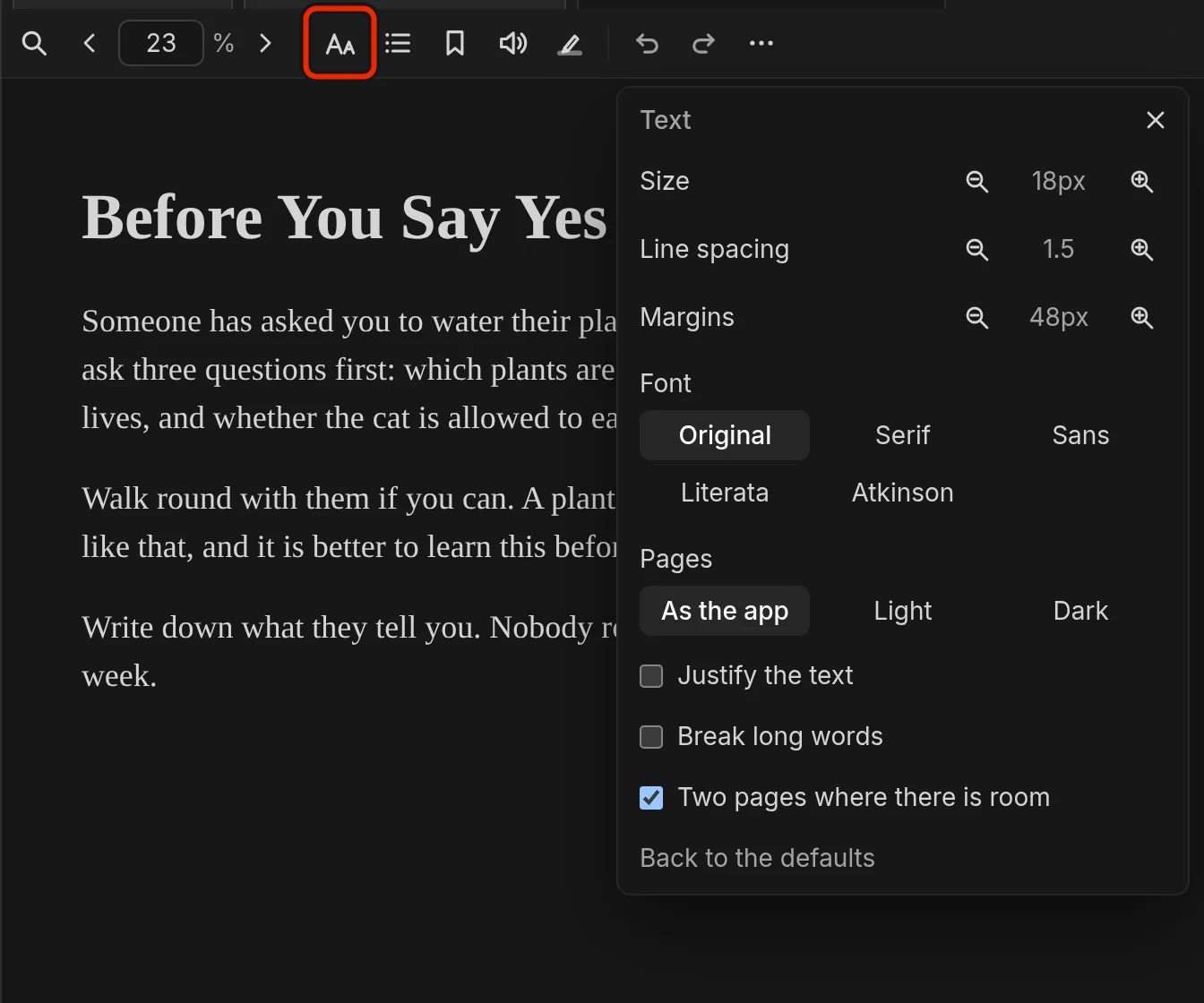
Each device keeps one set of settings for every EBook, because a size that suits a phone is wrong on a desktop.
Use Size to make the text larger or smaller. The other settings are Line spacing, Margins, Font, Pages, Justify the text, Break long words and Two pages where there is room. To restore them all, select Back to the defaults.
Line spacing, Justify the text and Break long words apply over the EBook's own layout. A line that the EBook centres or sets to the right stays where it is. While Font is set to Original, the EBook keeps its own font.
Go to a chapter
Select Contents, highlights and bookmarks in the toolbar to open a panel with Contents, Highlights, Bookmarks and Linked from tabs. The panel sits beside the page, but in a narrow window, such as on a phone, it covers the whole view and hides the page until you close it.
The Contents tab lists the chapters and marks the current one. Select a row to go to that chapter. After the jump, a button such as Back to 22% at the foot of the page names the place you left. Select it to return. It goes when you go back or turn the page.
Find words
To open the find bar, select Find in this EBook, the first button in the toolbar, or press Ctrl+F (Cmd+F on a Mac) with the tab in front. The bar searches the whole of this EBook and no other, and results arrive chapter by chapter. Search finds no words in any EBook.
Read footnotes, pictures and links
A footnote reference is a link the EBook marks as a note, or a superscript link elsewhere in the EBook. Select one to open the note over the page, and your page stays where it is. Select a picture to open it large over the page, unless it is inside a link.
When you select a web link, a question above the pages first shows the whole address, such as "This link leaves EtherPK for https://example.com/beans. Open it?" Select Open to open the address in a browser tab.
Continue on another device
On a synced graph, a newer reading place can arrive while you read. The page stays where it is, and you see the offer "You read to 40% on another device." Select Go there to move to that place, or Stay here to dismiss the offer.
On a local graph, highlights, notes and bookmarks are in the folder, so they reach another device only if you sync the folder yourself.
See Synced Graphs and Local Graphs for more information.
Highlight words and add notes
To highlight words:
- Select the words on the page. A bar appears over the page with Highlight, Note and Copy.
- Select Highlight. The words are marked in the current colour.
You can also skip the bar by turning on Highlight text in the toolbar. A selection then becomes a highlight once it has stayed unchanged for a moment, even if you pause during a drag. To turn it off, select Highlight text again or press Escape. While it is on, a Colour button at the right edge of the page shows the colour in use, and selecting it brings out the other colours.
Select a highlight on the page to get a bar with Note or Add note, To journal and Delete, and the Colour button, which changes the highlight's colour. Delete does not ask first, because you can undo a deleted highlight.
To add a note to selected words or a highlight, select Note or Add note. The note editor opens above the pages with the words quoted, and has Save and Cancel.
The Highlights tab in the panel lists your highlights in EBook order, each with its colour, chapter, percentage, words and note. Select a row to go to the passage.
Undo and Redo in the toolbar cover any highlight, colour change, note or delete made while the tab is open.
Add a bookmark
Select Add a bookmark here in the toolbar to mark the place in view. The button then fills and reads Remove the bookmark here. The Bookmarks tab in the panel lists this EBook's bookmarks.
When you have a bookmark, the EBook Bookmarks section in the Graph Sidebar also lists bookmarks from every EBook, grouped by EBook. Select a row to open the EBook at that place.
Copy highlights into your notes
A highlight copied into a document is ordinary text, so Search finds it and the other members can read it. Select the link in the copy to open the EBook at that passage.
To copy one highlight, select Copy to journal on its row in the Highlights tab, or To journal on the highlight. Either one adds a bullet to the end of today's journal entry, with the words and a link labelled with the EBook title and chapter:
Water them in the morning Garden Notes, Tomatoes../assets/garden-notes.a1b2c3d4.epub#…
Do this first
To copy every highlight, select Export to a page on the Highlights tab. The highlights go to a page named after the EBook, such as Garden Notes Highlights:
From Garden Notes../assets/garden-notes.a1b2c3d4.epub.
Beans
words 2 20%../assets/garden-notes.a1b2c3d4.epub#…
words 3 30%../assets/garden-notes.a1b2c3d4.epub#…
Tomatoes
words 8 80%../assets/garden-notes.a1b2c3d4.epub#…
do this first
An exported page is a copy. Exporting again adds only the highlights it does not have yet, so a later change to a highlight does not reach the page.
Read an EBook aloud
Select Read aloud in the toolbar to start reading from the sentence at the top of the screen. A bar above the pages has Pause or Resume, Stop, Voice and Speed.
The Voice list offers only voices on the device, so an EBook's words stay on it. If the device has none, a message says so and nothing is read.
Add a voice
Read aloud uses the voices that come with your device's operating system, and leaves out voices a browser fetches from the internet. To add one:
- Windows: the voices that come with Windows work. To add more, open Settings, then Time & language, then Speech.
- macOS, iPhone and iPad: add voices in the Spoken Content settings, under Accessibility.
- Android: install the speech data for your language in the phone's text-to-speech settings.
- Linux: install speech-dispatcher with a voice, such as espeak-ng.
A browser might not list a new voice until you restart it.
Look up a word
EtherPK includes no dictionary, so you add your own as a StarDict pack: an .ifo, an .idx and a .dict.dz file chosen together, or a .zip of them. In a browser that cannot store a dictionary, the More menu has no Dictionaries row.
- In the More menu, select Dictionaries. The dictionaries area opens above the pages.
- Select Add a dictionary and choose the pack.
To look up a word, select it and then select Define in the selection bar. Define appears only when you have added a dictionary and selected at most three words.
A dictionary stays on one device, where every graph can use it, and is not in an export, so each device needs its own copy. Looking up a word does not send it anywhere.
Ask an agent about a passage
From the EBook, only the words in the chat go to the model, so select the passage first. You need a model connection, and the chat offers Add a model connection if you have none.
- Select the words on the page.
- At the bottom right of the EBook tab, over the page, select Agent Chat.
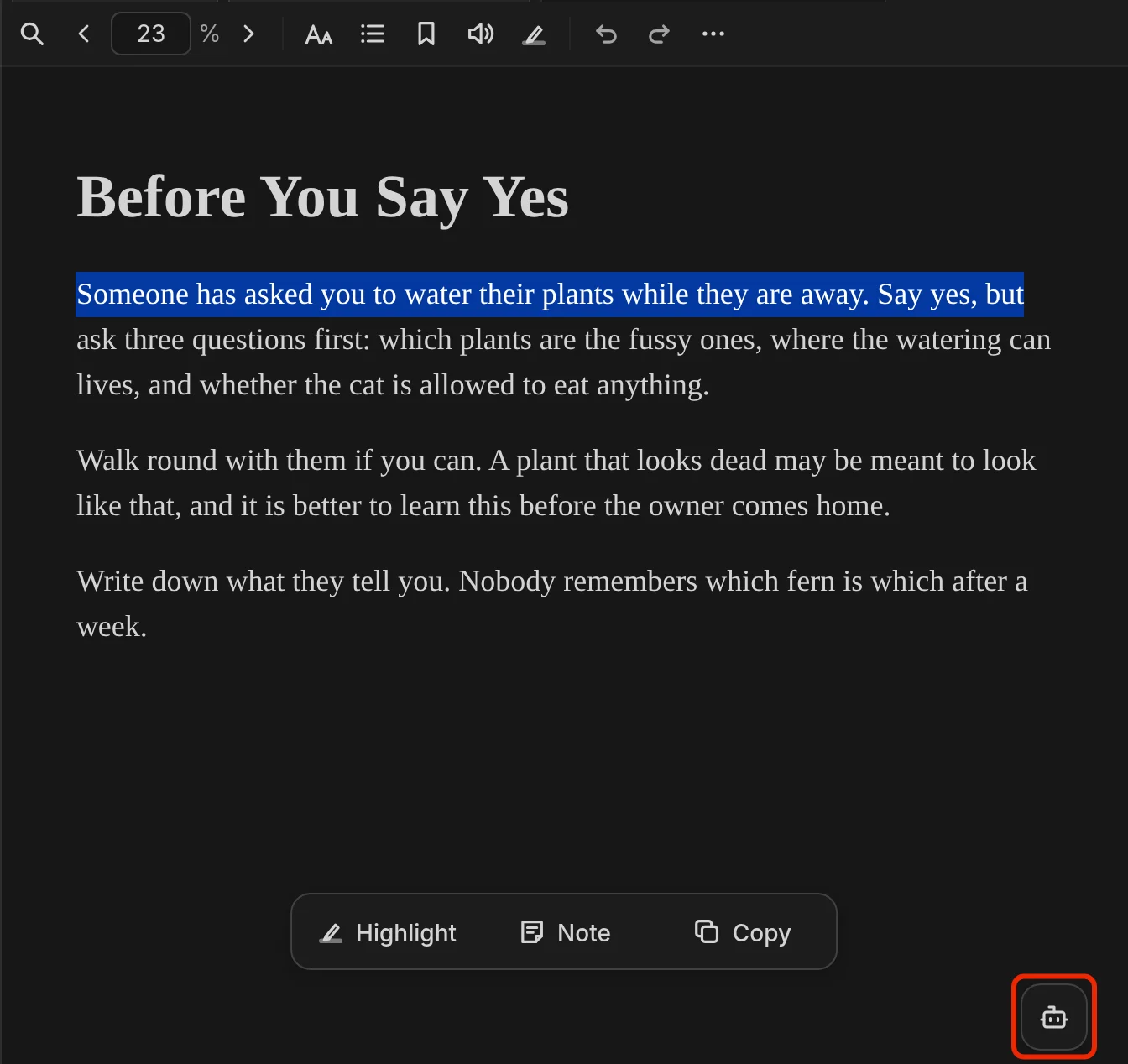
When the Command Bar is on screen, Agent Chat is on it.
The selected words appear in the field as the first message, not yet sent. When you send them, earlier turns and the chat instructions also go to the model over your own connection. The model does not get the rest of the EBook or the file name.
See Agent Chat for more information.
Keep an EBook on this device
On a synced graph, an EBook you have not kept can be missing from the device, so tick Keep on this device in the More menu before you read with no connection.
To save the EBook file, select Download the original in the More menu. The file has none of your highlights, notes or bookmarks. See Working Offline for more information.
Add an EBook to Favourites
To keep an EBook in the Graph Sidebar, select Add to favourites in the More menu, or right-click the EBook's tab and select it there. On a touch screen, long-press the tab instead. A row with an EBook icon appears under Favourites, and Remove from favourites in either menu takes it off. On a synced graph, your Favourites follow you between devices, and EtherPK does not show them to other members.
Rename or delete an EBook
To rename an EBook:
- In the More menu, select Rename…. A name field opens above the pages.
- Enter the name and select Rename.
Your highlights, notes and bookmarks stay after a rename, and links to the EBook keep working.
To delete an EBook:
- In the More menu, select Delete…. A question above the pages names the EBook and any highlights.
- Select Delete.
On a folder graph you cannot undo deleting an EBook. On a synced graph any member can restore it, with your highlights, from All Documents for the time the question names. See Version History for more information.
You cannot delete an EBook while a document links to it, because the link would break. A message names the documents, and the Linked from tab also lists them.
Deleting an EBook removes the file, your highlights, notes and bookmarks, the Favourites and Recents rows and the tab. On a synced graph, it also removes the highlights, notes and reading place of every current member, but other members' bookmarks stay in their lists.
Zoom a fixed-layout EBook
The pages in a fixed-layout EBook are pictures, so Size, Line spacing, Margins, Font, Justify the text and Break long words are not in Text settings. Use Zoom and its less and more buttons instead of Size.
Read on a phone
On a phone, More is fixed at the right end of the Command Bar, with Agent Chat after it. On a touch phone, the top bar and page buttons hide a few seconds after they show, while the Command Bar stays. Tap the middle of the page to bring them back with the progress line, and tap again to hide them. To keep them showing, turn off Hide top bar and page buttons in the More menu.
See EtherPK On A Phone for more information.