Folder Graphs
A folder graph is a folder on this device that you open in EtherPK as a graph, with every note stored as a Markdown file in that folder. Journal entries go in journals (one file per day), pages in pages, images and other files in assets, and graph settings in etherpk. Other programs, such as a text editor, Git, Syncthing or a coding agent, can work on the same files at the same time. See Graph Folder Layout for more information.
A folder graph needs no account, sign-in or server. The folder holds the only copy of your notes, so you back it up yourself and copy it to other devices with your own tools, such as Git, Syncthing or a file copy. Apart from Protected Documents, your notes are not encrypted on disk, so anyone who can open the folder can read them.
Your browser reads and writes the files. It remembers which folder belongs to each graph and asks your permission to edit the folder. The search index and the list of graphs are kept in browser storage, not in the folder. If you clear site data, you lose no notes, and EtherPK rebuilds the index from the files. See Where Your Data Is Stored for more information.
You cannot turn a folder graph into a synced graph. To copy your notes into one, open the folder graph and select Import to Sync+ in the header, or create a new synced graph with Import on the Graphs page. See Importing A Knowledge Base for more information.
Before you begin
You need Chrome or Edge on a computer, or Chrome on Android. See Choosing Where To Store Your Notes for more information.
If your browser has no graphs apart from the demo graph, the Graphs page shows Choose a folder in the Create a Folder Graph panel. Otherwise, use Open folder in the page header.
Open a folder as a graph
To open a folder as a graph:
- On the Graphs page, select Choose a folder or Open folder.
- In the folder picker, choose a folder.
- When asked, allow EtherPK to view and edit the files.
- If a dialog asks what to open the folder as, select Create a graph in this folder, or A new graph for an empty folder, then select Open.
EtherPK looks inside the folder first. A folder that already holds a graph opens without the question. For any other folder, the dialog also offers to open it as it is, without making it a graph. See Plain Folders for more information.
EtherPK names the graph after the folder, adds any missing journals, pages, assets and etherpk subfolders, and opens it. If the folder has no Markdown notes yet, you also get a Welcome to EtherPK page.
Allow access to the folder
The next time you open the graph, the browser can ask for permission again. It can ask only straight after you click something on the page, so what you see depends on how you open the graph:
- On the Graphs page, select Open on the graph card. The browser asks when you click, and the graph opens once you allow access.
- If you open the graph from its address, reload the page, or the browser restores the tab at startup, a Grant access button appears in place of the graph. Select it and allow access to open the graph. If you refuse, the graph does not open, and you can select Grant access again.
Automatic saving
EtherPK saves each edit shortly after you stop typing and has no save command.
If EtherPK cannot save an edit, a notice tells you what failed, why, and what to do next. Until then, your edits are only in the open tab, and you lose them if you close or reload it, so select Retry saving in the notice first. See Troubleshooting for more information.
Edits from other programs
While the graph is open, EtherPK checks the folder every few seconds and whenever you switch back to its window. When a file has changed on disk, EtherPK reloads the document with the version from disk. If the document has edits you have not saved, the External change dialog opens instead and names the document. EtherPK never merges two versions of a file, so you choose which one to keep:
- Keep mine writes your edits over the file on disk.
- Take disk replaces your edits with the file from disk.
Instruction files for coding agents
Each time you open the graph, EtherPK writes two instruction files, AGENTS.md and CLAUDE.md, directly inside the folder. In each file, it manages the section between a BEGIN ETHERPK comment line and an END ETHERPK line:
House rules
Never touch Archive.
<!-- BEGIN ETHERPK - DO NOT EDIT THIS SECTION. It is managed by EtherPK and rewritten on every open; put your own notes above or below it. -->
...
<!-- END ETHERPK -->
EtherPK rewrites that section to match its current version on every open, so anything you type inside it is lost. Instructions above or below it stay as you wrote them. See Using AI Agents With Your Notes for more information.
Link to a page
The address of a page in a folder graph has the folder's name in it, then the page's name:
https://app.etherpk.com/graph/folder/reports/d/Garden%20Notes
You can copy the address from the browser, and a coding agent that writes a page into the folder can work the address out and give it to you.
The link opens on any device that has the folder, in a browser that can open folders. If that browser has not opened the folder before, EtherPK shows Open the folder with the folder's name. Select Choose folder…, choose the folder, and the page opens. EtherPK refuses a folder with a different name and asks you to choose again.
The address uses the folder's own name, not the graph's name in EtherPK. If you rename the folder, links to its pages stop working.
Two folders with the same name
A link names only the folder, so it cannot say which of two folders named notes it is for. If this browser has opened two folders with the same name, EtherPK asks which one you mean each time you open a link to either of them, under a heading such as "Two folders are named “notes”".
EtherPK asks only when a link is all it has to go on: a link you paste or follow from outside EtherPK, a row of the Graphs menu opened in a new tab, or a page you reload. When you choose a graph in EtherPK, it opens that graph. That covers a row of the Graphs menu, Open on the Graphs page, and going back and forward in the browser between the two graphs. The Graphs menu ticks the graph that is open.
On the Graphs page, each of the two graphs says that another folder has the same name.
Each choice shows the graph's name, its colour if it has one, and the date and time you added the folder to this browser. If you have set Folder path on this device for a graph, its choice shows that path too. Select the one the link is for, and the page opens.
To tell the two apart at a glance, rename one of the graphs or give it a colour in its settings. Renaming a graph in EtherPK changes the name EtherPK shows, not the folder's name, so its links keep working. See Managing Your Graphs and Graph Settings for more information.
EtherPK stops asking when this browser holds only one of the two folders. To remove the other, see Managing Your Graphs.
Copy the path of a file
To copy a file path:
- Right-click the document tab.
- Select Copy full file path to clipboard, directly below Copy wikilink to clipboard.
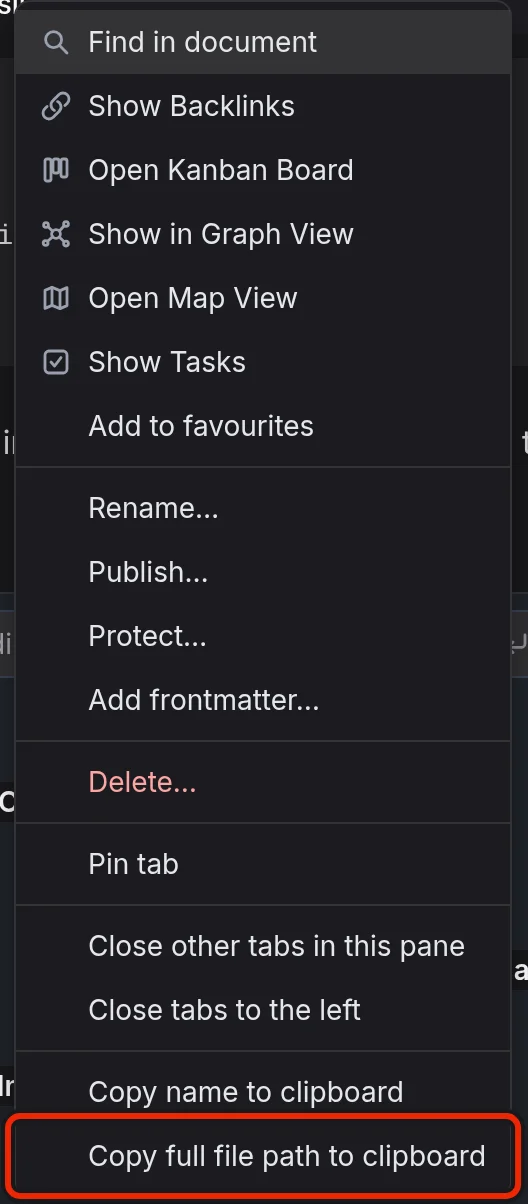
A browser tells a website only the folder name, so the first time you copy a path on a device, EtherPK asks you for the full path to the folder. Type it and select Remember and copy. EtherPK remembers the path for this graph on this device and does not ask again.
Reconnect a graph to its folder
The browser remembers the folder itself, not its path, so a graph whose folder has been moved, renamed or deleted no longer opens. When you try to open it, a message says its folder could not be found. Forgetting a graph removes it from the list and its search index from this browser, and leaves your files on disk. See Managing Your Graphs for more information. To reconnect the graph, forget it and open the folder again:
- On the Graphs page, select the cross button on the graph card.
- In the Forget graph dialog, select Forget.
- Select Open folder, or Choose a folder if no graph apart from the demo graph is left.
- Choose the folder at its new location.
Each browser keeps its own list of graphs, so you need to open the folder again in another browser or profile, or after you clear site data.