Kanban Boards
A Kanban board shows the tasks that belong to one concept as cards. A concept is any name in your graph: a page, a journal day, or a linked name that has no page yet. A task belongs to a concept when it is written on the concept's page, or when its line, or a block or heading above it, links to the concept. Every concept has a board, and the Graph Kanban adds one more that holds every task in the graph.
A board has six lanes, one for each task state: Open, Doing, Waiting, Test, Done and Cancelled. Each lane is split into priority sections: P1, P2, P3 and No priority. The checkbox and tags at the start of a task line decide which lane and section its card goes in, so a board needs no setup. Because the board keeps no copy of the tasks, a card moves whenever its task line changes, whether you edit the line in the document or the Tasks View or an agent edits it.
When you move a card, the board writes the new state or priority into the task line. The move then shows in the document, in the Tasks View and on your other devices, and agents also see it. To add a task, or to read and edit one without leaving the board, use the task editor. To edit the text around a task, open its document in the Task Detail, the editor below the lanes.
Before you begin
- The Kanban extension switched on. It comes with EtherPK and stays on unless you switch it off for this device in Settings and Extensions > Extensions. See Extensions for more information.
- Tasks written as checkbox bullets,
- [ ]or- [x]. See Tasks for more information.
Tasks on a board
A link on a block applies to every task nested under it, at any depth. For example, on a page named Kitchen:
Call with [Garden]
[ ] #P3 Book the train
Book the train is written on the Kitchen page and sits under a link to Garden, so its card is on both boards.
A task nested under another task is its subtask. When the parent task is on the same board, the subtask has no card of its own. The parent's card counts its subtasks, and you read and tick them in the task editor's Description. For example:
[Projects]
[Garden]
[ ] #P1 Build the shed
x Cut the timber
[ ] Fix the roof
The Projects board and the Garden board each show one card, Build the shed, with the count 1/2.
A subtask has its own card when its parent is not on the board: the parent is archived, or it does not belong to the board's concept. For example, on the Garden board - [ ] [[Garden]] Water the beans has a card when it sits under - [ ] Plan the week, a task that does not link to Garden. The Tasks View lists subtasks as rows of their own.
To keep a project's tasks as separate cards, write the project as a plain bullet, - [[Garden]]. Written as a task, - [ ] [[Garden]], it is a task on the Garden board and everything nested under it is its subtasks, so that board shows one card.
A task that links to one of a page's aliases goes on that page's board. Tasks on a page named within a concept, such as [[Garden]] Beds, also go on the Garden board. For aliases, see Titles Aliases And Frontmatter, and for pages named within a concept, see Scoped Concepts.
A task in a protected document is on no board, even while the document is unlocked. Boards find their tasks through the search index, which never holds a protected document's text. See Protected Documents for more information.
Lanes and priority sections
The task line decides which lane a card is in:
| Lane | Task line |
|---|---|
| Open | - [ ] with no state tag |
| Doing | - [ ] #D |
| Waiting | - [ ] #W |
| Test | - [ ] #T |
| Done | - [x] with no state tag |
| Cancelled | - [x] #C |
A priority tag (#P1, #P2 or #P3) puts the card in that section, and a task without one goes in No priority. State, priority and date tags count only in the run of tags straight after the checkbox. Anywhere later in the line, or in lower case such as #p1, they are plain text. A free tag such as #bug can go anywhere in the line, even inside that run, so - [ ] #bug #P1 Fix the tap is still a P1 card.
An archived task (- [x] #A) has no lane and is on no board. It stays in its document, and The Tasks View shows it when you choose Archived in the status filter.
Open a board
Right-click a document tab or a link, and choose Open Kanban Board.
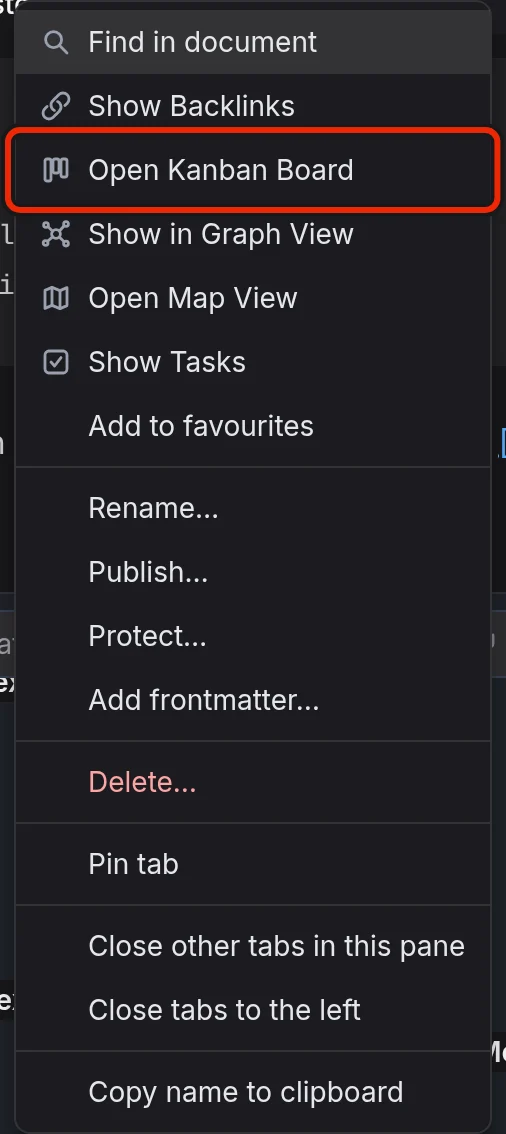
You can also type /kanban in the editor and choose Open Kanban to open the board for the concept at the caret.
The Graph Kanban
The Graph Kanban works like any other board, with the same lanes, moves, task editor and Task Detail. To open it, select the Graph Kanban button at the top of The Graph Sidebar, or type /graph in the editor and choose Graph Kanban.
Cards
Each card shows the task text and the name of the document the task is written in. It can also show:
- Its priority, such as
P1, after the document name and in the same colour as in the task editor and The Tasks View. The label stays in view after the section heading has scrolled away. A card in No priority has no label. - The due date, and free tags such as
#bug. - A count of its subtasks, such as
1/3. A done or cancelled subtask counts as finished, and an archived one is left out. in:followed by the concept the task sits under, on a board for another concept. For a subtask with its own card,in:names the task it sits under instead.
The board works out the order of the cards from the tasks, so you cannot reorder them by hand.
Filter a lane
To show only some of the cards in a lane, select the search button in the lane's header and type in the box that opens at the top of the lane. Type words to match the task's title, a tag such as #bug, or both. With gate #bug, the lane shows the tasks with gate in the title that also have the tag #bug.
The filter ignores case and any spaces around what you type. A tag has to match whole, so #bug does not find #bugfix. Words match only the task's title, not its tags, and the filter does not read the tasks and notes nested under it.
The lane's count then shows the matches out of all its tasks, such as 2 of 12. Each lane has its own filter, and the other lanes keep showing all their tasks.
To clear the filter, select the close button beside the box or press Esc. Collapsing the lane or reloading the page also clears it.
Move all to lane… moves only the tasks a filter leaves showing, and the dialog counts those. A card you move into a lane whose filter hides it does not show there, and a line at the foot of the lanes says where it went, with an Undo button. An agent instruction for a lane always covers the whole lane.
Move a card
Drag a card to a section of any lane. While you drag, an outline shows the section where the card will land.
From the keyboard, Alt+Left and Alt+Right move a focused card one lane and keep its priority, and Alt+Up and Alt+Down move it one section within its lane. On a Mac, press Option instead of Alt. For every key on a board, see Keyboard Shortcuts.
To open the card menu, right-click a card, or press Shift+F10 or the Menu key on a focused card. The menu has a row for each lane and section the card is not in, such as Move to Doing and Priority P1, and an Archive row.
A card you move with the mouse leaves the board where it is: the board does not scroll to the card's new place. If that place is scrolled out of sight, a line at the foot of the lanes says where the card went, such as Moved "water the beans" to Test., and has an Undo button. A card you move from the keyboard, with Alt and an arrow key or from a menu you opened with Shift+F10, keeps the keyboard focus, and the board scrolls to show it.
Moving a card to another lane sets the checkbox and state tag as the table above shows. Moving it to another section writes #P1, #P2 or #P3, or removes the priority tag for No priority. The task keeps its words and the values of its dates and free tags, and the board rewrites the tags straight after the checkbox in a fixed order: priority, state, then dates. For example, moving - [ ] #D-2026-10-01 #P1 Send the quote to Doing turns it into - [ ] #P1 #D #D-2026-10-01 Send the quote.
Ctrl+Z undoes the last move and Ctrl+Shift+Z redoes it, with Cmd in place of Ctrl on a Mac. These keys undo and redo moves only while the board has keyboard focus, because the Task Detail editor has its own undo history.
A move can also change the tasks nested under the card's task, following the same rule as ticking a task in the editor. Moving a card into Done ticks them, and choosing Archive archives them. Moving it from Done or Cancelled to Open, Doing, Waiting or Test unticks them, except any that are cancelled or archived. A line at the foot of the lanes then says how many tasks changed and has an Undo button for the whole move.
Folded lanes and lane moves
Done and Cancelled start folded, as narrow strips with the lane name and task count. Select a strip to expand the lane. To fold a lane, select the collapse button beside its task count.
To move every task in a lane:
- Right-click a lane header or a folded strip, and choose Move all to lane….
- In the dialog, choose a lane or Archived.
- Select the button that names the move, such as Move 4 tasks to Test.
The move includes every card in the lane, even if the lane is folded or some of its cards are not shown yet. Afterwards, a line at the foot of the lanes says what moved and has an Undo button for the whole lane move.
A subtask with no card moves only when its parent's move brings it along, as Move a card describes.
Add a task
- Select + in the header of the lane you want the task in.
- Type a title. You can also choose another lane, a priority, a due date, a scheduled date and tags, and write a description.
- Select Create task, or press Ctrl+Enter (Cmd+Enter on a Mac).
EtherPK writes the task into today's journal entry. If the entry has a bullet that is only a link to the board's page, such as - [[Garden]], the task goes at the end of that bullet's children. If not, EtherPK adds the bullet at the end of the entry, with the task under it. For example, a task added to the Waiting lane of the Garden board with priority P2 and the tag wood reads:
[Garden]
[ ] #P2 #W Build the shed #wood
measure the floor
On the Graph Kanban, the task goes at the end of the entry on its own.
Nothing is written until you create the task. If you close the editor after typing something, EtherPK asks before it discards the task.
Edit a task in the task editor
To open a card in the task editor, select it, press Enter on it, or choose Open in task editor in the card menu. You can also open any task in the task editor without a board: right-click the task in the editor, or its row in The Tasks View, and choose Open in task editor. The editor's title then names the task's document instead of the board.
The editor shows the task as separate parts, all read from the task's text:
- Lane, Title, Priority, Due, Scheduled and Tags: the task line. The title is the task's words without its tags. Due and Scheduled open the same calendar as the editor's Date Picker: click the field, or press Enter on it, then pick a day with the mouse or with the arrow keys and Enter. Page Up and Page Down change the month, and Esc closes the calendar without changing the date. The dates are written as
#D-2026-11-09and#S-2026-11-05tags, and Clear beside each takes the date out. To make a task Waiting, choose Waiting in Lane. - Description: everything nested under the task above its comments, in the same editor as a page, so links, pictures and nested tasks work as they do anywhere else. The description's first bullets start at the left edge of the box, and the lines nested under them are indented from there. In the document they keep their place under the task.
- Assets: the pictures and files in the task line, the description, the comments and the additional context. A picture shows as a small preview beside its name, and any other file as an icon. Select a picture to see it larger over the task editor. Previous and Next, or the left and right arrow keys, move through the task's other pictures, and Esc closes it. Add asset adds one as a new bullet at the end of the description.
- Comments: the bullets under a
- Commentsbullet nested under the task, one comment each. Type in Add a comment… and press Enter to add one. EtherPK adds the- Commentsbullet if the task has none. - Additional context: the lines nested under the task below its comments, in the same editor as the description. It shows only when the task has such lines, which you add by typing below the comments in the document, or which an agent writes there.
To make the description, the comments or the additional context taller, drag the handle under its box down, or select the handle and press the down arrow key (up to make it shorter, Home and End for the smallest and largest). EtherPK remembers the height on this device and opens the task editor at it next time.
Typing / in the description, a comment or the additional context opens the command menu with only the commands that add or format text there, such as Upload asset, the dates, Bold and Table. Commands that open a view or change the document as a whole, such as Search or Open Kanban, are left out.
Each change is saved into the task's text as you make it, and the line at the foot of the editor says Saved. If someone else, or an agent, changes the task line while the editor is open, the editor does not overwrite their change. It says the task changed elsewhere, keeps what you typed, and offers Reload.
Copy agent instruction copies the text that hands the task to an agent. Archive takes the task off the board, and Delete task removes the task and everything nested under it. After either one, a line at the foot of the lanes has an Undo button. If you opened the task from the editor or the Tasks View, the notice at the bottom of the window has the Undo button instead.
Open in tab, under those buttons, closes the task editor and opens the task's document in its own tab at the task line.
The Task Detail
To edit a task's document as text below the lanes, right-click the card and choose Open in pane below. The Task Detail shows the task line at the top, with the notes nested under the task below it. To start typing, click in the Task Detail, or choose Open in pane below again on the same card.
Select Open in tab to open the document in its own tab at the task line.
On a phone
In the phone layout, which any window narrower than 1024 pixels gets, a board shows one lane at a time. See EtherPK On A Phone for more information on the layout.
The selector at the top of the board names the lane on screen and counts the tasks in each one, such as Open (12), or Open (3 of 12) while a filter hides some of them. A board first opens on Open, and EtherPK remembers the lane you last chose on this device, for each board. The lane shows only the priority sections that have tasks in them. Done and Cancelled are not folded here: choose them in the selector like any other lane.
To open a board, long-press the document name in the top bar or a link in a document, and choose Open Kanban Board. /kanban, the Graph Kanban button and favourites work as they do on a desktop.
Beside the selector are the lane's search and + buttons, and a button with three dots that opens the lane's menu, with Copy agent instruction and Move all to lane….
Select a card to open it in the task editor. To open the card menu, select the button with three dots on the card, or long-press the card. Cards do not drag here. Move a card with the menu, or with Lane and Priority in the task editor. The board stays on the lane you are looking at, and a line at the foot of the board says where the card went, such as Moved "water the beans" to Doing., with an Undo button.
The Task Detail waits for a wider window. Choose Open in tab in the card menu to edit the task's document. The list in the top bar then has both the document and the board. Copy an agent instruction with Copy agent instruction in the card menu, since cards have no copy button here.
With a hardware keyboard, the left and right arrow keys go to the next lane that has tasks. Alt+Left and Alt+Right move a card to the next lane, and the keyboard focus goes to the card beside it.
Agent instructions
An agent instruction is text that hands a task or a lane to an AI agent. To copy one for a task, select the copy button at the bottom right of its card, or choose Copy agent instruction in the card menu.
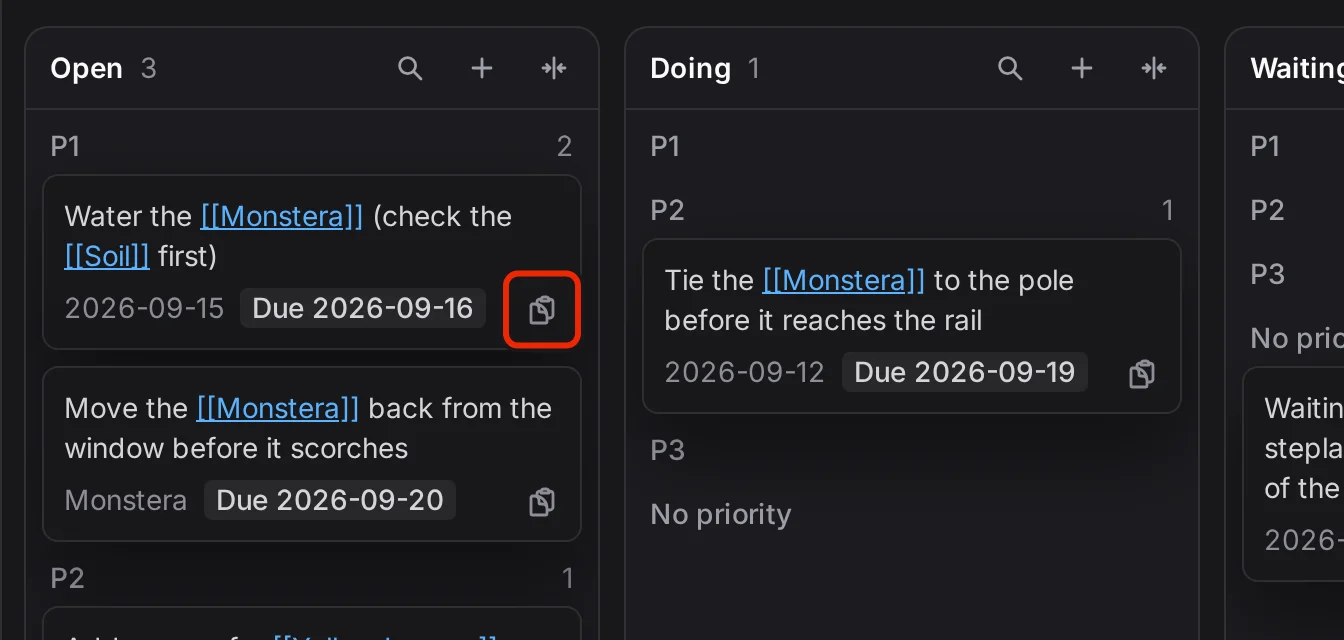
An agent connected to your graph through The Headless Client can use the instruction to read the task and its subtasks and change the status of each. It can also add a comment to the task, which shows in the task editor's Comments. On a local graph, an agent can also work from the file the text names. See Tasks for what the text says on each kind of graph, and Using AI Agents With Your Notes for how to connect an agent.
To hand an agent a whole lane, for example to work through every task in Doing or to triage Open, right-click the lane header or a folded strip and choose Copy agent instruction. An empty lane has the same row.
The copied text names the graph, the board and the lane, and tells the agent how to list the lane's tasks. An agent using the Headless Client lists the lane when it reads the instruction, so the list includes tasks you move in after copying and leaves out tasks you move out. On a local graph, an agent without the Headless Client gets a description of the tasks to look for in the files: their checkbox, their tags and the board's concept. What it finds can differ from what the board shows.