Search
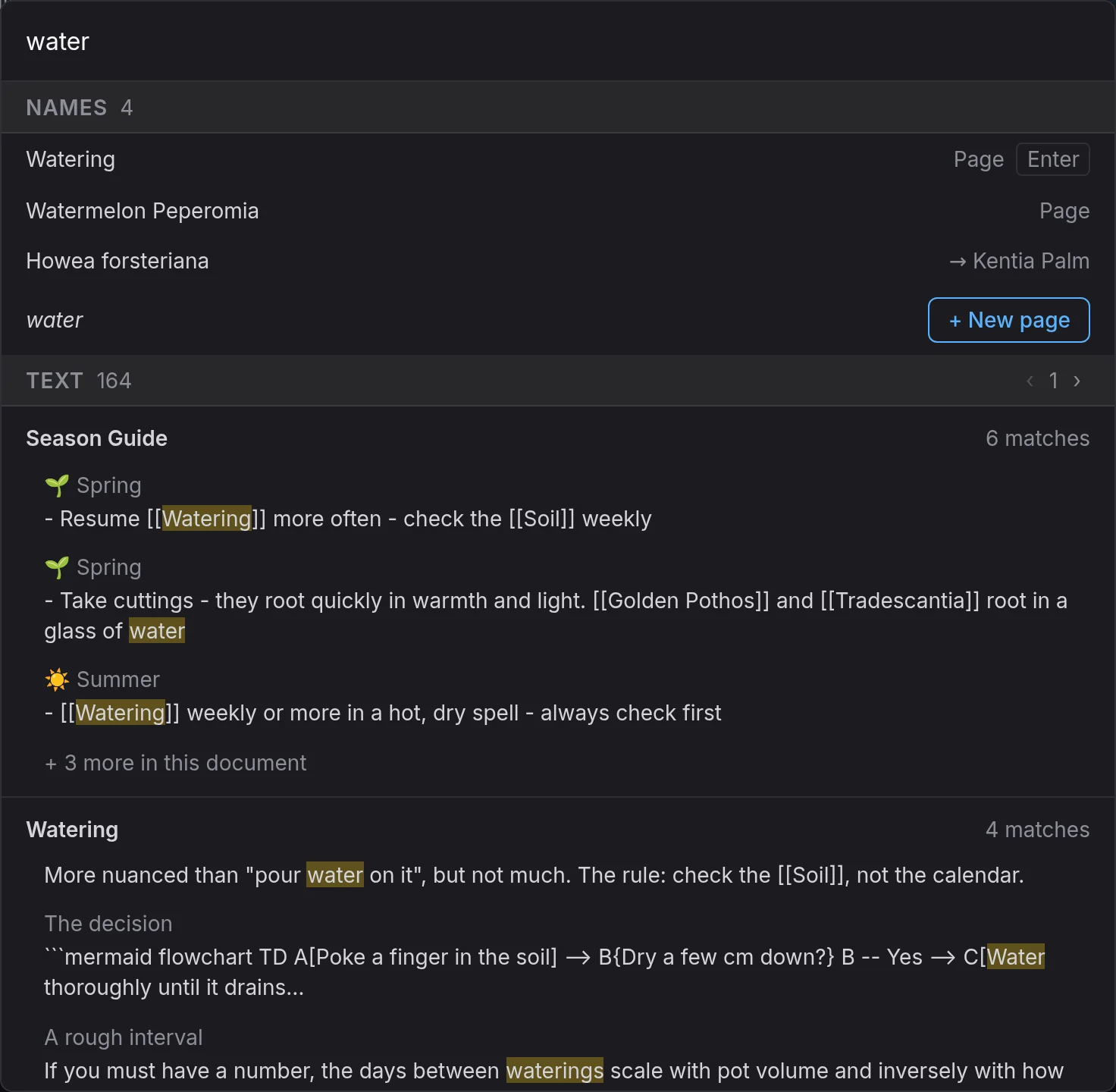
Search is a dialog that finds a document in the graph you have open, by its name or by the words in its text. It does not look in other graphs. Results appear under the search box in two groups, Names above Text. To find text in the document you are editing, use Find And Replace.
The Names group lists pages and journal entries by name, with their aliases and any linked names that have no page yet, and you do not have to type a name exactly. The Text group lists the documents that contain your words. Names start to appear after the first character you type, and text results after the second. Both groups come from the search index, which is built from your documents and kept in the browser on this device.
A property filter is a key:value term that narrows both groups to the documents with that frontmatter property. Search shows each filter it recognises as a chip under the search box.
To close Search, select Close search at the top right, select outside it, or press Escape. Choosing a result also closes Search and opens the document, at the line that matched if it is a text result. Search keeps your query for the next time you open it.
Open Search
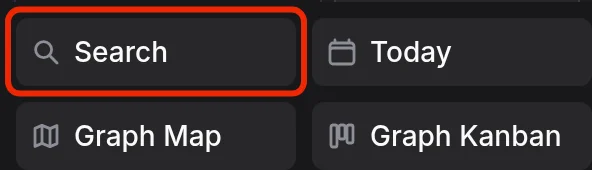
Press Ctrl+K (Cmd+K on a Mac) or Alt+F to open Search. You can also select Search, the first button at the top of The Graph Sidebar, above the calendar.
In the editor, type / and choose Search from the menu. On a phone, tap the magnifying glass in the top bar. See EtherPK On A Phone for more information.
If you have searched before and the graph has stayed open since, Search opens with your last query selected in the box. Type to replace it, or press Right to keep it.
Name results
You can type any part of a name, in upper or lower case. For a long name, a few letters from each word in order also work, such as qm for Quantum Mechanics. Exact matches come first, then names that start with what you typed, then names that contain it, and last the names matched by letters in order.
An alias is followed by an arrow and the name of its page, and choosing the alias opens that page. A protected document has a padlock beside its name.
When no page, journal entry, alias or linked name has the name you typed, the last row offers it as a new page, marked + New page. Search leaves this row out when your query includes a filter. A linked name that has no page yet shows how many references it has, such as 3 references, so you can tell the two kinds of row apart.
Choosing either row opens a draft. The app writes nothing until you type in the draft, so a mistyped name leaves no page behind. See Pages And Wikilinks for more information.
Text results
Text results come from the body of each document, below its frontmatter. To find a value that is only in the frontmatter, use a property filter.
Each word you type matches a whole word in the text, and all the words must be in the same block: one bullet with its continuation lines, one paragraph, or one heading. The last word can also match the start of a longer word, so the results narrow as you type. Words never match inside other words, though, so graph does not find subgraph. To find words together, in order and as whole words, put them in double quotes.
Each matching document appears once, with the number of blocks that match, and the documents with the most matching blocks come first.
Choose a match to open its document with the cursor on that block, even if the document is closed or behind another tab.
Property filters
You can type a filter on its own or together with words. A term counts as a filter only when at least one unprotected document in the graph has that key. So a URL, a time or a word followed by a colon is searched as words and gets no chip. See Titles Aliases And Frontmatter for more information.
| Filter | Keeps documents where |
|---|---|
key:value |
The key has that whole value, ignoring case |
key:"two words" |
The key has the whole quoted value, spaces included, ignoring case |
-key:value |
The key does not have that value, or is missing |
key:* |
The key is set |
-key:* |
The key is not set |
key:text* |
The value starts with the text before * |
With more than one filter, a document must match all of them.
A query made only of filters has no words to look for in the text, so Search hides the Text group and lists every matching document by name under Names. Each one shows its values for the keys you filtered on, except title and the keys of filters that start with -.
As you type a word, Search shows the rest of the first key that starts with it in grey after the cursor. Press Tab or Right to complete it, or tap the grey text on a phone. After the colon, Search lists the values that key has. To take one, press Down to move into the list, then press Enter or Tab. Escape closes the list without closing Search.
Keys in the Search dialog
While you type, no result is highlighted, and Enter opens the top one.
| Key | What it does |
|---|---|
| Down, Up | Move the highlight through Names and Text as one list. From the top result, Up goes back to the search box. |
| Left, Right | Page through the group that has the highlight. |
| Enter | Open the highlighted result. |
| Escape | Close Search and keep the query. |
Search index
Each graph has one search index, which Search, Backlinks and The Tasks View all read from. After you rename a page, all three can show the old name until the index catches up. On a desktop, a turning circle appears in the toolbar while it catches up.
The index is never written into the graph. If the browser cannot store it, the app keeps it in memory and rebuilds it on each visit.
To rebuild the index yourself, go to Settings > Maintenance and select Rebuild search index. On a desktop, the cog in the toolbar opens Settings. Rebuilding does not change any of your documents, because the index is kept apart from them. See Graph Settings for more information.
Content outside Search
A protected document's text and properties never go into the index, even while it is unlocked, so Search can find its name but never its words. See Protected Documents for more information.
Search matches words, so it does not find a note that says the same thing in different words. An agent connected through The Headless Client can also search by meaning, once semantic search is set up on its computer.