Spell Check
Spell check runs on your device, so your notes are checked without leaving it. After you edit a document, misspelt words in it get a wavy red underline, and each one has a menu of suggested spellings. Your text stays as it is until you choose a suggestion.
A word counts as correct if one of your spelling languages accepts it, or if it is in the graph dictionary, a list of extra words for that graph. The app downloads each language's dictionary from dictionaries.etherpk.com the first time a graph needs it and keeps it on your device, so spell check then works offline. For what a download sends, see Where Your Data Is Stored.
Spell check has three settings, all on the Spelling tab in the Settings dialog (see Graph Settings). Turning spell check on or off affects every graph on the device. You choose the spelling languages separately for each graph on each device, so two devices, or two members of a shared graph, can check the same graph in different languages. The graph dictionary is part of the graph, so a word one member adds counts as correct for every member.
Correct a word
To open the spelling menu, right-click an underlined word, or put the cursor in it and press Shift+F10 or the Menu key. On a phone, put the cursor in the word and select the Fix spelling icon on the command bar (see EtherPK On A Phone).
The menu lists up to five suggestions, followed by Add "…" to the graph dictionary. Select a suggestion to replace the word.
When checking starts
Checking starts the first time you edit a document in its tab, so a document you open only to read has no underlines. After that first edit, the app checks the whole document. Closing the tab or reloading the page removes the underlines until you edit the document again.
Choose the spelling languages
By default, the spelling languages are your browser's languages, except any that have no dictionary. If your notes mix two languages, choose both so that the app checks them correctly.
To change the languages:
-
In the Settings dialog, select Settings > Spelling, or type
/spellingin the editor and choose Spelling languages.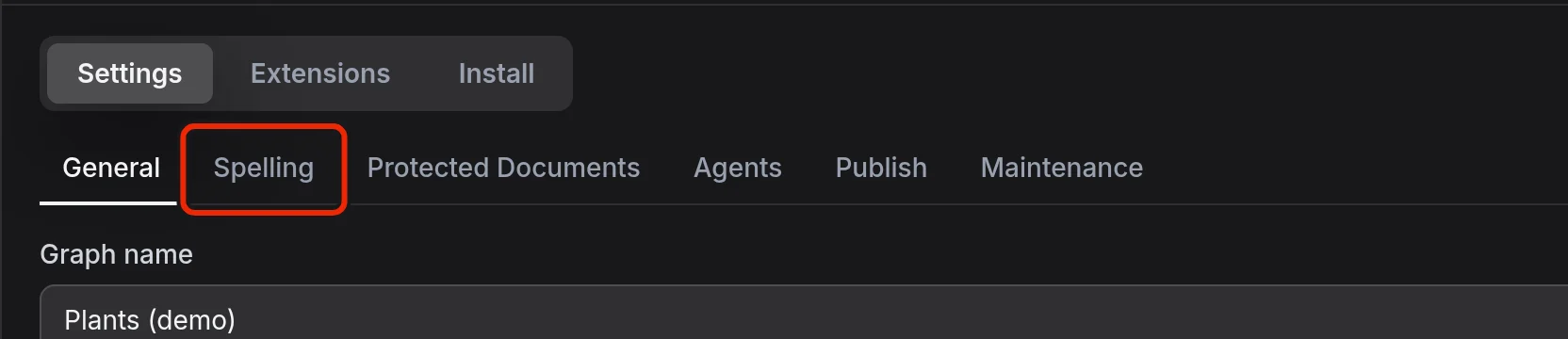
-
To add a language, choose it in the list beside Add language, then select Add language.
-
To remove a language, select Remove in its row.
To return to your browser's languages, select Go back to my browser's languages.
Nothing in the graph is underlined until every spelling language has downloaded, because a word from a language that is still downloading would otherwise count as misspelt. If a download fails, select Retry on the error notice.
Each language uses about 20 to 50 MB of memory while the graph is open, so more than three might slow down a phone.
Add a word to the graph dictionary
In the spelling menu, select Add "…" to the graph dictionary. The underline disappears, and from then on the word counts as correct in every spelling language.
A word you add in lower case also counts as correct with a capital first letter, but a word you add with a capital does not count as correct in lower case. If you write a word both ways, add it in lower case.
The Spelling tab lists every word in the graph dictionary under Graph dictionary, where you can search the list and take a word out with Remove. In a local graph, the words are stored one per line in the file etherpk/dictionary.txt (see Graph Folder Layout).
Text that is not checked
Spell check covers prose: paragraphs, bullets, headings, quotes, table cells, link text, image descriptions and task text. It skips:
- code, web addresses and link targets
- image size hints and paths, and links to attached files
- wikilinks, because you fix a misspelt page name by renaming the page (see Pages And Wikilinks)
- tags, maths and frontmatter
- single letters, and words that are all capitals, have a capital inside them or contain a digit
- the Quick Notes box
- Protected Documents, even while unlocked, so none of their words can reach the shared graph dictionary
Turn spell check off
Press Alt+S to turn spell check off, and again to turn it back on. You can also type /spell in the editor and choose Spell check: turn off or Spell check: turn on. The Check spelling as I type checkbox on the Spelling tab controls the same setting. For the full list of keys and command menu rows, see Keyboard Shortcuts.
While spell check is off, the app does not download dictionaries or keep any in memory.