The Explorer
The Explorer is the view of the Primary Sidebar with the calendar, your favourites and the documents you opened recently. The Primary Sidebar starts on the left, and you choose its view from the Activity Bar, the column of icons at the edge of the window.
In the phone layout (EtherPK On A Phone), the Activity Bar is inside the Primary Sidebar's drawer. Select the Explorer icon, or press Alt+G anywhere in the graph, to show the Explorer. The key also opens a collapsed sidebar, and brings the view back if you hid it. For the other keys, see Keyboard Shortcuts. See Tabs And Panes for more information on the two sidebars.
The Explorer scrolls as one. From top to bottom, it has the action buttons, the calendar, Favourites, the bookmark lists and Recents. All documents and Settings (phone layout only) sit at the foot.
To find a document, use Search if you know its name or some of its text, or Today or the calendar if you know the date. Favourites and Bookmarks hold documents you picked yourself, Recents holds the ones opened recently on this device, and All documents has every document in the graph. Settings does not open a document.
A row or a calendar day can name a document that does not exist, such as a day with no journal entry. Selecting it opens a draft that becomes a document only when you type in it, so browsing the sidebar creates nothing. See Pages And Wikilinks for more information.
Favourites and Bookmarks belong to whoever made them. They are stored in the graph and, on a synced graph, sync to each of your devices. Recents is kept only on this device and is never synced or exported, so documents that another member opens, or that you open on another device, do not change it.
Action buttons
The first two buttons are Search, which searches the whole graph (see Search), and Today, which opens today's journal entry at the top. In the phone layout they show as icons only, in one row. To write a note without choosing a page for the note, use the Quick notes icon in the Activity Bar instead. See Quick Notes for more information.
The same buttons are icons at the foot of the Activity Bar's list, so you can use them while another view shows. The Kanban and Maps extensions add two more. Graph Kanban opens a Kanban board of every task in the graph, and Graph Map opens a map of every place and route in it. The buttons of extensions you install come after them. For maps and boards, see Maps and Kanban Boards. Because the buttons come from the extensions, switching an extension off on this device removes its button. To switch extensions on and off, see Extensions.
Calendar
The calendar shows one month as a grid of weeks that run from Monday to Sunday, with the days that have a journal entry in bold. Select a day to open its journal entry, or a draft if it has none. For how a day opens, see Journal Entries.
Favourites
To add a document, right-click its tab, a link to it in the editor, or its row in Recents or All documents, and choose Add to favourites. On a touch screen, long-press instead. You add Kanban boards, maps, PDFs and EBooks the same way, from their tabs. To remove a favourite, choose Remove from favourites from any of these menus or from its row in Favourites.
Rows in Favourites and Recents also have a ⋯ button that opens the same menu. In the desktop layout you see it only while the pointer is over the row or the button has focus.
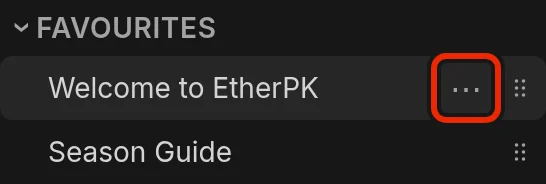
New favourites go to the bottom of the list, so an order you set by hand is kept. To move a row, drag it by the grip at its right end. To put a removed favourite back in its place, use Undo in the notice. Adding it again would put it at the bottom.
On a shared graph, your favourites and bookmarks are yours, so other members' devices do not show them. The lists are not secret from other members, though, because they hold the graph key. A protected page keeps no member's bookmarks. See Sharing A Graph for more information.
A Local Mirror or export you make holds only your own favourites and bookmarks. See Keeping A Local Copy Of A Synced Graph for more information.
Bookmarks
Bookmarks lists the lines you bookmarked, grouped by document. Select one to open its document at that line. PDF pages you bookmark appear the same way under PDF Bookmarks, and places in EBooks under EBook Bookmarks. To bookmark a PDF page, see PDFs: Reading, Annotating and More, and for an EBook, see EBooks Reading And Highlighting. To add and remove bookmarks, see Bookmarks.
Recents
Recents lists the documents opened on this device, newest first and one row each, leaving out protected documents. You set how many rows it shows in Graph Settings. That setting is shared with the graph, but the list itself stays on this device.
All documents
The All documents row shows how many documents the graph has. Select it to open a list of every document in a tab in the main area, then type part of a name in Filter by name… to narrow the list.
Settings
The Settings row opens the Settings and Extensions window, where you change the Graph Settings. The row appears only in the phone layout. In either layout, Sidebar views at the foot of the Activity Bar has a Settings row that opens the same window.